If you’ve reset your iPhone and are wondering how to restore eSIM after factory reset iPhone, the good news is that it’s usually possible to get your mobile plan back.
However, the exact restoration method depends on your carrier, whether you choose to keep or erase the eSIM during the reset, and how your eSIM was originally activated.
This blog post will explain different ways to restore your eSIM, troubleshoot common issues, and get your iPhone reconnected as quickly as possible.
1. What Happens to eSIM in a Factory Reset?
When you factory reset an iPhone, you can choose to keep your eSIM or delete it.
Keeping the eSIM preserves your mobile plan on the device, while deleting it removes the eSIM profile, meaning you’ll need to restore or reactivate it through your carrier before you can use cellular service again.
Here is what will happen after you reset your eSIM;
- Deletes user data: This includes applications, photos, contacts, messages, and other personal content stored on the device.
- Resets device settings: Your iPhone will be returned to its factory settings, removing the customizations and preferences you have made.
- Returns the iPhone to the setup screen: Your downloaded apps and personal data are not automatically reinstalled. During setup, you can restore them from an iCloud or computer backup, or set up the iPhone as a new device.
2. How to Restore eSIM After Factory Reset iPhone?
Whether you need to reinstall or reactivate your iPhone’s eSIM depends on the option you selected during the factory reset.
If you chose Keep eSIM and Erase Data, the eSIM profile should remain on the device. Complete the iPhone setup, then open Settings > Cellular or Mobile Data and make sure the line is still listed and enabled.
If you chose Delete eSIM and Erase Data, the profile was removed. You will need to download or reactivate it through your carrier before using cellular service again.
Here’s how.
Reinstallation
Your connection may return shortly after the profile is successfully installed and activated, but the exact timing depends on your carrier and account status.
Before beginning, make sure you have a current QR code or other activation information from your carrier. An old or previously used QR code may no longer work.
- Connect your iPhone to a stable Wi-Fi network before beginning the activation process.
- Open Settings > Cellular or Mobile Data.
- Select Add eSIM or Set Up Cellular to start setting up your eSIM.
- Choose Use QR Code when prompted.
- Scan the QR code provided by your carrier, or enter the activation information manually if required.
- Assign a label to your eSIM, such as Personal, Travel, or another name that helps you identify the line.
- Allow a few moments for the eSIM to download and activate. Once the carrier appears, test your cellular service to make sure the line is working.
>>>Read more: How to Delete eSIM on Samsung: Smart Steps Before Removal
Activation
Apple provides several options for activating an eSIM on an iPhone. You can activate via a QR code, eSIM Carrier Activation, a Carrier Link, or an app.
You can also activate manually as follows:
- Open Settings > Cellular or Mobile Data > Add eSIM.
- If prompted, select Use QR Code to continue.
- Tap Enter Details Manually instead of scanning a QR code.
- Enter the SM-DP+ address and activation code provided by your mobile carrier.
- Follow the on-screen instructions to download, install, and activate the eSIM profile.
It is important to note that the specific procedure varies by your carrier and the information provided.
>>>Read more: How To Activate eSIM On iOS And Android? 2026 Tutorial
3. What If eSIM Does Not Appear After Reset?
You have tried the aforementioned steps on how to restore eSIM after factory reset iPhone, and the eSIM didn’t appear? Apply these troubleshooting tips:
- Check Cellular or Mobile Data Settings: Open Settings > Cellular (or Mobile Data) and see if your eSIM profile is listed. If it isn’t, the eSIM may need to be downloaded or activated again.
- Restart the iPhone and Connect to WiFi: Restarting your iPhone can resolve temporary software issues. Also, make sure you’re connected to a stable WiFi network.
- Update iOS: Running the latest version of iOS helps ensure compatibility with your carrier’s eSIM service and may fix software bugs that prevent the eSIM from appearing.
- Check Carrier Lock or Plan Status: If your iPhone is carrier-locked or your mobile plan is inactive, the eSIM may not be available after the reset. Verify your device status and account with your carrier.
- Contact Your Carrier for Reactivation: If none of the above steps work, contact your mobile provider. They can confirm whether your plan and eSIM are still active on their system and provide new activation details or issue a replacement eSIM profile if necessary.
4. Resetting eSIM on iPhone without Losing It?
Understanding how to restore eSIM after factory reset iPhone is important, but choosing the correct reset option can help you avoid having to reactivate the line afterward.
Before beginning any reset, it is advisable to back up your data. You may use iCloud or a computer backup so your contacts, photos, applications, and other supported data can be recovered after the reset.
Then, adhere to these steps to factory reset your iPhone:
- Open Settings > General.
- Select Transfer or Reset iPhone.
- Choose Erase All Content and Settings > Continue.
When asked what to do with your cellular plans, select Keep eSIM and Erase Data if you want the eSIM profile to remain on the device.
If you select Delete eSIM and Erase Data, the profile will be removed, and you will need to contact your carrier to reactivate the cellular plan.
5. Lost eSIM Access? Make Sure Your Line Can Be Reactivated
If you’ve lost access to your eSIM after resetting your iPhone or deleting the eSIM profile, don’t worry!
Your mobile account is usually still active. In most cases, your carrier can help you reactivate your existing line by issuing a new eSIM profile or providing a replacement physical SIM if your device supports it.
For those looking for a more affordable wireless option, the Lifeline program may also be worth considering.
Since 1985, Lifeline has provided a discount phone service to eligible low-income consumers, ensuring that all Americans have access to the opportunities and security that phone service provides.
Eligibility is generally based on income or participation in other assistance programs.
Especially, it works with Eligible Telecommunications Carriers like Cintex Wireless to offer the support. And in many cases, these carriers may also offer applicants affordable wireless service, free talk and text, or even a free iPhone.
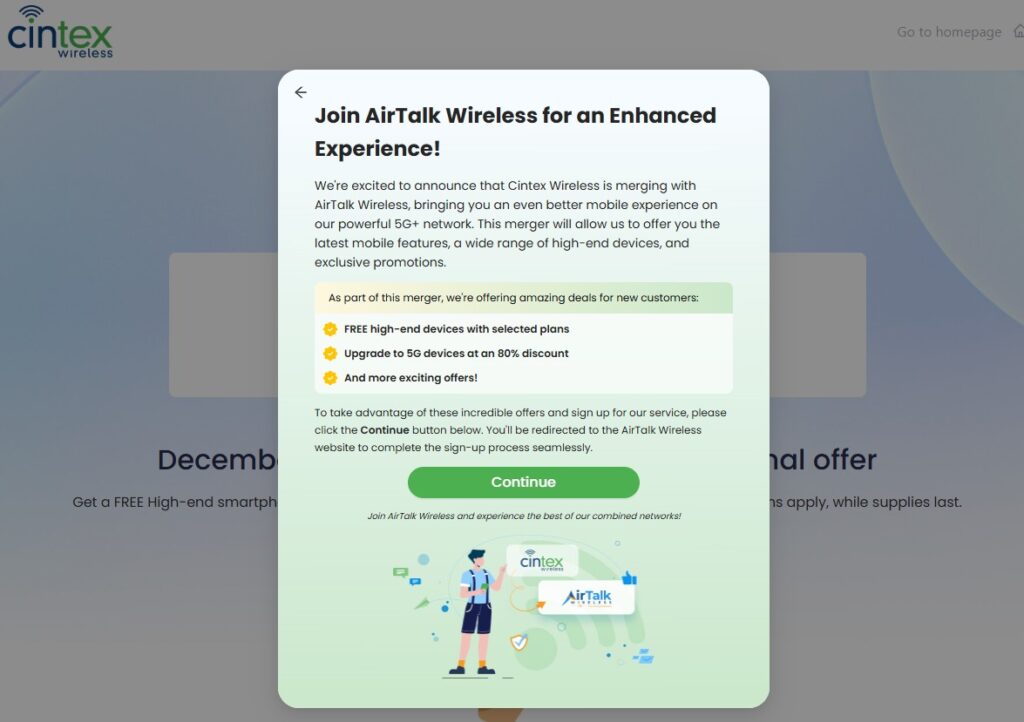
Cintex Wireless is trusted by many applicants for its simple application process. Now, as the carrier merges with AirTalk Wireless, another reputable ETC who have been in the industry for more than 2 decades, eligible low-income households can access additional benefits while enjoying a more streamlined application process.
Depending on your eligibility, state, and available inventory, you may also qualify for an eSIM-compatible iPhone, such as:
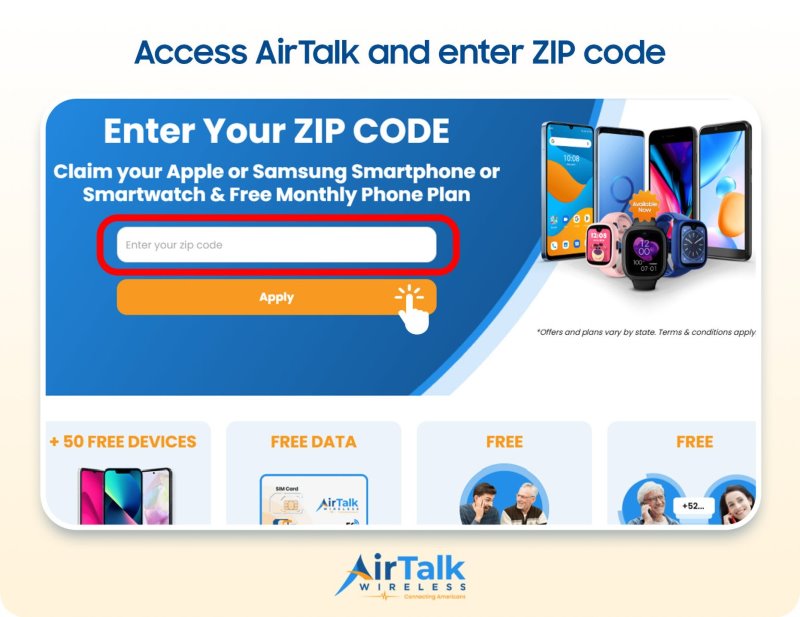
Notice: The government does not cover device costs, only basic service through Lifeline. Any free or discounted devices, upgrades, or top-ups are limited-time Cintex Wireless and AirTalk Wireless offers and may vary by state, eligibility, and availability. Terms and conditions apply.
Conclusion
A factory reset does not always mean losing your mobile plan, but the option you choose during the reset makes a real difference. If the eSIM was kept, reconnecting may be as simple as finishing the setup and checking that the line is enabled. If it was deleted, your carrier may need to provide new activation details before service can return.
Knowing how to restore eSIM after factory reset iPhone gives you a clearer path forward and helps you avoid unnecessary trial and error. Before resetting again or deleting anything else, confirm the status of your plan and eSIM so you can reconnect with fewer complications.