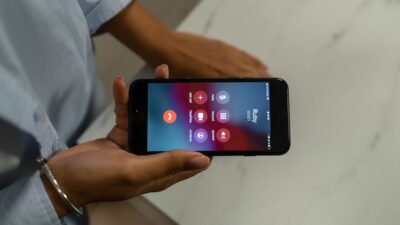
A conversation includes instructions you want to revisit, but your phone has no obvious recording button. Before downloading an app, check what your device supports.
Learning how to record a phone call means matching the method to your phone, obtaining permission, and checking the saved audio. Start here.
1. Which Call Recording Method Works For Your Phone?
The easiest recording method depends on the device and app you’re using. Some phones have built-in controls, while other calling services require separate tools.
| Phone or service | Where to start |
| iPhone (iOS 18.1+) | More > Call Recording; saved in Notes |
| Phone by Google | Record, or Pixel’s Call Assist controls |
| Samsung Galaxy | Samsung Phone’s recording controls |
| Landline | Compatible recording equipment |
| Internet calling service | That service’s recording feature |
What Happens After You Press Record?
On supported iPhones, both participants hear a recording announcement, and the audio is saved in Notes > Call Recordings.
With Phone by Google, recordings are accessible through the relevant call entry in the Phone app. Samsung devices generally provide recorded calls through Samsung Phone’s recording settings or call history.
The exact controls depend on software, carrier, and regional availability. Not seeing a recording button doesn’t necessarily mean your phone is malfunctioning.
For detailed instructions, see our separate guides for recording calls on iPhone and Android.

2. How To Record A Call Without A Built-In Recorder
Alternative methods for how do you record a phone call exist, but reliability depends on the arrangement. Choosing how to record a phone call requires checking what actually captures both voices.
Method 1: Use speakerphone and a separate recorder
- Obtain consent: Confirm recording is permitted and obtain participants’ required agreement.
- Prepare both devices: Use a speakerphone in a quiet, private space. Position a separate recorder where both voices are audible.
- Test the audio: Make a permitted test call and listen back before recording anything important.
- Record and save: Capture the conversation, stop recording, and verify the saved file.
For example, test with a consenting relative before recording detailed repair instructions. This requires extra equipment but avoids depending on direct access to the phone’s call-audio stream.
Method 2: Use a compatible recording service
Some calling services can record conversations without using your phone’s built-in recording feature.
For example, personal Google Voice accounts support recording eligible incoming calls:
- Open Google Voice settings and enable Incoming call options.
- Answer a call made to your Google Voice number.
- Press 4 on the dial pad to begin recording.
- Press 4 again or hang up to stop.
Everyone on the call hears an announcement when recording starts and stops. Saved recordings can be accessed through the Calls tab in Google Voice.
This method doesn’t record ordinary outgoing calls from a personal Google Voice account.
Other recording services may use conference calling or their own calling systems. Check compatibility, charges, and privacy practices before using them as a way for how do I record a phone call.
Method 3: Record landline or internet calls
Use compatible landline equipment, or check the internet service’s recording tools. Microsoft Teams recording depends on account permissions and administrator settings.
- Landline calls: Use recording equipment designed for your telephone setup. Confirm compatibility with your phone system and test the recording before relying on it.
- Internet calls: Check whether the calling service provides its own recording feature. For example, authorized Microsoft Teams users can select More actions > Record and transcribe > Start recording during a supported call. Availability depends on account permissions and administrative settings.
These methods aren’t interchangeable. A recording feature available in Teams, for example, doesn’t mean the same controls will work in WhatsApp or your phone’s standard dialer.
>>> Read more: How To Record A Phone Call On Android: Google Vs. Samsung
3. Why Did Your Call Recording Fail Or Capture Only One Voice?
A recording indicator does not prove both voices were captured or the file saved. When troubleshooting how to record a phone call, start with the symptom.
| Problem | Possible cause | What to check |
| No recording button | Device, app, or regional restriction | Official availability |
| Only your voice | Incoming audio inaccessible | Supported recording method |
| Silent screen recording | Capture restricted | Calling-app limitations |
| Missing Bluetooth audio | Audio routed elsewhere | Recorder and microphone |
| Missing file | Different location or incomplete save | Phone, Notes, or service history |
Before deleting your call history: Phone by Google stores recordings on your device, and deleting the associated call log also deletes the recording. Save important audio elsewhere before clearing your history or resetting your phone. Other apps may have different storage and backup rules.
Android generally restricts ordinary third-party apps from freely capturing telephone audio streams. Microphone permission alone does not provide unrestricted access to both sides. Screen recording is therefore not a universal solution.
Background noise, speakerphone volume, and recorder placement also affect quality. Bluetooth may route sound away from a separate recorder; test the exact arrangement you intend to use.
If your search was how to record phone call, avoid treating every app result as compatible. Check the saved audio on a permitted test call before relying on it, and never assume an advertised fix can override operating-system or regional restrictions.

4. Do You Need Permission To Record A Phone Call?
Recording a conversation isn’t always as simple as pressing a button. In the United States, the legal requirements depend partly on where the people involved are located.
Some states permit recording when one participant consents, while others require everyone on the call to agree. If the conversation involves people in different states, determining which law applies can become more complicated.
Before recording, consider two things:
First, make sure you have the consent required by the applicable laws. Asking everyone for clear permission is generally the safest approach.
Second, don’t assume your phone handles consent for you. Apple and Google announce when supported recordings begin, but hearing an announcement doesn’t automatically establish legally valid consent.
If the conversation includes sensitive medical, financial, or personal information, be careful about where you store the audio and who can access it.
>>> Read more: How To Record A Phone Call On iPhone: No Extra App
5. What About The Cost Of Staying Connected?
Knowing how to record a phone call helps you keep important details from appointments, interviews, or benefit discussions. Keeping reliable phone service within your budget makes it easier to stay available for those conversations.
The Federal Lifeline Program helps eligible households reduce monthly phone service or internet service costs. You may qualify through Medicaid, SNAP, SSI, Federal Public Housing Assistance, or household income at or below 135% of the Federal Poverty Guidelines. Each household is limited to one Lifeline benefit.
Lifeline provides financial support, while an approved Eligible Telecommunications Carrier (ETC) delivers the service and applies the discount to an eligible plan. That means qualifying for Lifeline is one step; enrolling with a participating carrier connects the benefit to your service.
Cintex Wireless is one of those carriers that is merging into AirTalk Wireless. Through this merger, eligible applicants can explore a broader device lineup and complete enrollment through a more streamlined sign-up process.
To get started:
- Check availability: Visit the carrier’s website and enter your ZIP code to see local offers.
- Compare your options: Review coverage, plans, device availability, and any applicable charges.
- Complete your application: Provide the required information and eligibility documents if requested.
- Submit and wait for your result: Once approved, follow the carrier’s instructions to finish setup.
Before selecting a phone, check its call-recording support separately. Recording availability depends on the device, software, and region, not Lifeline eligibility.
IMPORTANT: The government does not subsidize devices. Lifeline programs cover basic service costs only. Free or discounted devices, upgrade plans, or top-ups are exclusive benefits provided by AirTalk Wireless and Cintex Wireless as part of the promotional offers. Terms and conditions apply. Limited-time promotion—offers vary by state, stock availability, and eligibility.
6. FAQs
Can I record both incoming and outgoing calls?
Yes, in many cases. Supported built-in recording features on iPhone and Android may allow both incoming and outgoing calls to be recorded. However, Google Voice personal accounts generally support recording incoming calls only.
Will the other person hear a recording announcement?
Yes, with supported Apple and Google recording features. These tools automatically notify participants when recording begins. Other recording methods may behave differently, so always confirm applicable consent requirements before recording.
Can I record a call while using Bluetooth headphones?
Yes, on some devices. Built-in call recording may work while Bluetooth headphones are connected, but external recorders might not capture the other person’s voice if audio is routed through the headphones. Test your recording setup first to confirm that both sides of the conversation are audible.
Can I recover a conversation that was never recorded?
No. If a conversation was not recorded, its audio generally cannot be recovered afterward. Call history only stores information such as phone numbers, timestamps, and call duration, not the actual conversation.
Conclusion
Understanding how to record a phone call requires checking device compatibility, recording availability, and consent requirements.
Whether using built-in tools or supported alternatives, test the recording method and confirm that both voices are saved clearly. Verifying the audio file helps prevent missing important conversations.