The phrase no SIM no service Android is commonly used to describe situations where a phone cannot detect a SIM card, connect to a mobile network, or both.
Fortunately, you don’t always need a technician to fix it. This guide walks you through the most common reasons behind this problem and provides practical solutions to help get your device back online.
1. What Does No SIM No Service Mean on Android?
The no SIM no service Android problem might refer to two related but distinct situations. However, both alerts may show simultaneously, indicating a deeper connectivity issue.
A “No SIM” notification indicates that your phone cannot detect or identify a SIM card. This might be due to an incorrectly placed, damaged, or inactive SIM.
On the other hand, a “No Service” notice means that your phone has recognized the SIM card but cannot connect to your carrier’s network.
2. What Causes No SIM No Service Android?
Whether you’re in the middle of an important conversation or attempting to surf the internet, losing service on your phone may leave you feeling disconnected.
Here are a few potential causes:
- SIM card issues: An inactive, unsupported, or improperly activated SIM card may prevent network access.
- Software issues: Temporary system bugs can interfere with SIM detection and connectivity.
- Loose or dirty SIM card: A poorly seated or dirty SIM card may not be recognized by the device.
- Damaged SIM card or tray: Physical damage can stop your phone from reading the SIM card.
- Misconfigured settings: Incorrect network settings may block your connection to the carrier.
- Incorrect phone settings: Airplane Mode and other settings can cause service interruptions.
- Environmental factors: Weak coverage or network outages may result in a no service message.

3. No SIM No Service Android: Simple Troubleshooting Tips
Before delving into how to troubleshoot no SIM no service Android, you must first identify the source of the problem in order to use the right troubleshooting.
How to Tell Whether the SIM, Phone, or Carrier Is Responsible
As mentioned earlier, the no SIM no service on Android phones can stem from SIM card issues, device problems, or carrier-related factors.
Since the possible causes vary, the next step is to identify which component is responsible so you can apply the most effective fix.
- Test the SIM card in another phone: Insert your SIM card into a different compatible device. If it still doesn’t work, the SIM card is likely the problem.
- Test another SIM card in your Android device: Try a working SIM card in your phone. If the new SIM also fails to connect, the issue may be with the device itself.
- Check for carrier outages or account issues: Contact your carrier or check its service status page. Network outages, suspended accounts, or activation problems can prevent service.
- Look for signs of hardware damage: Inspect the SIM card, SIM tray, and phone for physical damage. Bent trays, water damage, or faulty internal components can interfere with SIM detection.
>>>Read more: eSIM Vs Nano SIM: Which One Is Better In 2026
Troubleshooting Steps Based on the Cause
No matter what causes the no SIM no service Android error, the following troubleshooting tips can be helpful:
If the SIM Card Is the Problem
Your SIM card might be loose, damaged, or improperly inserted. Also, the SIM card itself may be obsolete or corrupted.
If that’s your situation, here’s a solution:
- Clean and reinsert the SIM: Remove the SIM card, gently clean the metal contacts, and reinsert it securely into the SIM tray.
- Replace a damaged SIM: If the SIM card is cracked, scratched, or no longer functions properly, contact your carrier for a replacement.
- Verify activation status: Check with your carrier to confirm that the SIM card is active and properly linked to your account.
If the Problem Is Network-Related
Incorrect network settings may prevent your phone from connecting to your carrier’s network even when the SIM card is detected correctly. Try the following strategies:
Check coverage
Poor signal strength or network outages can trigger a “No Service” message, even when the SIM card is functioning normally.
For this reason, check your carrier’s coverage map or move to a different location to see whether the signal improves.
Enable and disable Airplane Mode
Airplane Mode can refresh your connection to the carrier network and may help resolve temporary “No Service” issues.
Simply turn Airplane Mode on for roughly 30 seconds, then off. This process may occasionally reset your phone’s network connection.
Verify carrier status
Sometimes the problem lies with your cellphone service provider. Check your carrier’s website or call customer service to see if there are any reported network outages or problems in your region.
If the Problem Is Software-Related
Software problems or malfunctions in your phone’s operating system might potentially interfere with its network connectivity.
In such circumstances, restarting your phone or updating software may help address the problem.
Restart the phone
- Press and hold the Power button (typically located on the side or top).
- When the option displays, select either Restart or Reboot.
- Wait for the phone to switch off and back on.
Update Android
- Open your phone’s Settings app.
- Scroll down and tap System or Software Update.
- Tap System Update or Check for Updates.
- If a new update is available, tap Download and Install or Update.
Reset network settings
- Go to Settings > System > Advanced.
- Select Reset options > Reset Wi-Fi, mobile & Bluetooth.
If the Problem Is Hardware-Related
Physical hardware issues in your phone, such as a broken antenna, faulty modem, or damaged SIM reader, might interfere with SIM detection and network access.
These problems can occur after drops, liquid exposure, or general wear over time.
A faulty SIM reader inside the device may prevent Android from detecting any SIM card, even if the card itself is working properly.
- Inspect the SIM Tray: Check for bends, cracks, or debris that could prevent the SIM card from making proper contact.
- Check the SIM
- Check for water or drop damage: Physical impacts or liquid exposure can damage internal components responsible for SIM detection and network connectivity.
- Contact the manufacturer or repair center: If you suspect a hardware issue causing no SIM no service Android, seek professional assistance to diagnose and repair the device.
4. Acquire a Free Android Phone and SIM Card with Cintex Wireless
If you need a reliable communication service, the Lifeline program may help reduce the cost.
Lifeline is a federal assistance program that provides eligible low-income households with access to affordable phone service and internet services to stay connected through a monthly discount.
Qualifying for the Lifeline program involves meeting the income limits or participating in qualifying programs.
Just note that the program does not handle support directly. Instead, it works with Eligible Telecommunications Carriers, such as Cintex Wireless, to provide the discount.
These carriers may go even further, providing qualified families a free phone with a SIM card.
Note: Eligibility varies by state and program. Offers depend on availability and qualifications. Cintex Wireless operates under the federal Lifeline Program as an Eligible Telecommunications Carrier (ETC). Service is non-transferable and limited to one service per household.
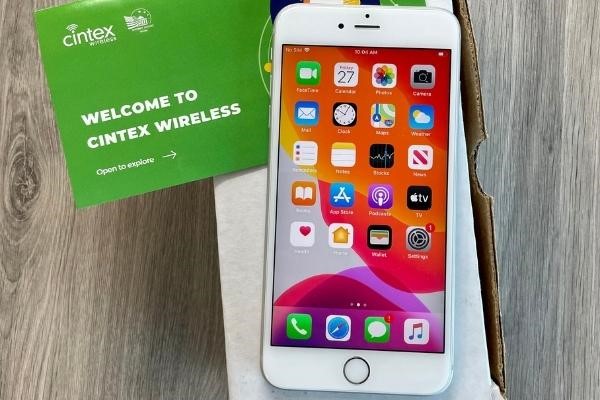
Note: Cintex Wireless is merging with AirTalk Wireless, another reputable carrier, to offer applicants a range of Android options.
Here are some popular models you may choose when applying at airtalkwireless.com (may vary by state and inventory):
- Samsung Galaxy S21 5G
- Samsung Galaxy A12
- Samsung Galaxy A42 5G
- Motorola One 5G ACE
- OnePlus Nord N10 5G
- Hotpepper Verde, etc
Notice: The government does not cover device costs, only basic service through Lifeline. Any free or discounted devices, upgrades, or top-ups are limited-time Cintex Wireless and AirTalk Wireless offers and may vary by state, eligibility, and availability. Terms and conditions apply.
Conclusion
Finally, the no SIM no service Android error can be caused by a variety of issues, ranging from a loose or damaged SIM card to network, software, or account-related problems. In many cases, simple troubleshooting steps can restore your connection. However, if the issue persists after trying all available fixes, your best option is to contact your mobile carrier.