SIM failure iPhone is a situation where the iPhone is unable to recognize your SIM card. It might be for a variety of reasons, including a dirty SIM tray, a damaged card, or a software error.
In this post, we’ll explain what this problem is, why it could happen to you, and how to fix it in minutes. Finally, you’ll get everything you need to address SIM failure issues and get your iPhone back to working smoothly.
1. What Does SIM Failure Mean on iPhone?
SIM failure on an iPhone occurs when it cannot read or identify the SIM card inserted into it.
A SIM card is basically an identity card for your phone on the network. If your SIM fails, your ID card will not operate correctly.
While there is a SIM issue, your device will be unable to connect to your carrier’s network. This means that you will be unable to talk, text, or use mobile data until the service is restored.
There are some obvious signs of a SIM card failure on an iPhone. The most visible symptom is the notification that appears on your screen.
You may see “Invalid SIM,” “No SIM,” or “SIM Failure” appear. This is your iPhone’s way of letting you know it cannot use the SIM card.
Another typical symptom is the “No Service” message in the top left corner of your screen, which indicates that it cannot connect to your mobile network.
Furthermore, you may require assistance with making phone calls or texting. Every time you attempt, an error notice will appear. In such a circumstance, utilizing mobile data will also fail.
2. Why Does My iPhone Say SIM Failure?
If you wonder, “Why does my SIM card keep on failing?” the following reasons may cause SIM failure in the iPhone:
- Faulty or improperly inserted SIM card: A damaged SIM card or one that is not positioned correctly may prevent your iPhone from detecting it.
- Dirty SIM card or SIM tray: Dust, lint, or other debris can interfere with the connection between the SIM card and your device.
- Carrier network problems: Service disruptions or account-related issues with your mobile provider can cause SIM recognition errors.
- Outdated iOS version: Older software may contain bugs or compatibility issues that affect cellular connectivity.
- Incorrect network configuration: Misconfigured carrier or network settings can prevent your iPhone from connecting properly.
- Internal hardware malfunction: In some cases, a defective SIM card reader or other hardware component may be responsible for the issue.
3. How To Fix SIM Failure iPhone Quickly?
If you’re experiencing a SIM failure iPhone and don’t know how to troubleshoot it, we’ve got you covered. Discover these 5 surefire ways to solve SIM failures.
Check and Clean Your SIM Card
As previously stated, a dirty or damaged SIM card can cause iPhone SIM failure.
Thus, gently remove your SIM card from the iPhone and examine it closely.
If it’s unclean, clean it properly. You can use a soft, dry towel to clean the gold contacts. Be gentle so that you don’t scratch the card.
After cleaning the SIM card, insert it into the iPhone, but make sure it fits correctly this time. The clipped corner should match the tray’s shape exactly.
If the error persists after cleaning and reinserting the SIM, the SIM card may be damaged, although carrier or device issues are also possible. You will have to replace it with a new one from your carrier.
Restart Your Phone
Another way to resolve your SIM failure iPhone issue is to restart the device. It is the easiest approach for refreshing the system and removing most system bugs.
On iPhone X, 11, 12, or 13, or later models, press and hold the Side button and either Volume button until the power-off slider appears. If you have another model, simply press the power button. A turn-off slider will display.
Now, drag the power off slider to the right and wait for your iPhone to shut off. Finally, press and hold the power button until you see the Apple logo.
Update iOS
How do I fix SIM failure on my iPhone? Check for an iOS update by going to Settings > General > Software Update. Here, install it if an update is available, as it may resolve flaws causing SIM issues.
The carrier settings are no less significant, as they make your iPhone feel comfortable on your network.
To update, navigate to Settings > General > About. If an update is available, you will receive a pop-up. Next, tap Update, and this can address a variety of problems.
Reset Network Settings
If your iPhone keeps showing “SIM failure,” reset your network settings.
This can resolve numerous connection difficulties and possibly even SIM failure on the iPhone.
Go to Settings > General > Transfer or Reset iPhone > Reset > Reset Network Settings. If prompted, provide your passcode. The iPhone will resume.
After that, you must reconnect to WiFi networks and re-pair Bluetooth devices. However, it may resolve your SIM failure iPhone issue.
Unlock SIM Card
If your iPhone asks for a SIM PIN or PUK code, the issue is likely related to SIM security rather than a SIM failure. A SIM PIN protects the SIM card from unauthorized use, while a PUK code is required if the wrong PIN is entered too many times.
Contact your carrier or check your carrier account to obtain the correct PUK code. Avoid guessing, as too many incorrect attempts can permanently disable the SIM card and require a replacement.
>>> Read more: Nano SIM Vs Micro SIM: Understand The Key Differences
4. How to Tell Whether the Problem Is the SIM Card or the iPhone
Before replacing your SIM card or seeking device repairs, it’s helpful to identify the source of the SIM failure iPhone issue.
Certain signs can indicate whether the problem is with the SIM card or your iPhone’s hardware.
Signs the SIM Card Is Failing
- Visible wear: Scratches, cracks, or damaged contacts can prevent the SIM card from functioning properly.
- SIM works intermittently: The connection comes and goes, leading to occasional service interruptions.
- Carrier confirms SIM issue: Your mobile provider verifies that the SIM card is damaged, inactive, or malfunctioning.
Signs the iPhone Is Failing
- Multiple SIM cards trigger the same error: Different working SIM cards produce the same message on your device.
- Cellular problems began after a drop: Physical impact may have damaged internal components involved in SIM detection.
- SIM tray damage: A bent, cracked, or loose SIM tray can interfere with proper contact.
- Frequent network disconnects: Ongoing connectivity issues may indicate a hardware fault rather than a SIM issue.
Test the SIM Card in Another Phone
Testing the SIM card in another compatible phone is one of the quickest ways to identify the source of the problem.
If the SIM works normally in another device, your iPhone may have a SIM tray, SIM reader, or other hardware issue. If the same error appears in the second phone, the SIM card itself may be damaged, deactivated, or experiencing a carrier-related problem.
This simple test can help determine whether you need a replacement SIM card or further troubleshooting for your iPhone.
What to Do Next
If you’ve tried the troubleshooting steps above and the SIM issue persists, it’s time to contact your mobile carrier.
Your carrier can check for network issues, verify your account status, and determine whether your SIM card needs to be replaced.
If the carrier confirms that the issue is not network- or SIM-card-related, consider reaching out to Apple Support.
Professional assistance can help diagnose hardware problems and prevent accidental damage that may occur when attempting to fix a SIM failure on your own.
If your current service continues to cause issues, switching carriers may be worth considering.
Qualified participants can explore the Lifeline program. It is a government assistance program that provides a monthly discount on phone service or internet service.
It does not provide any free SIM card or device, but it works with Eligible Telecommunication Carriers (ETC) to distribute the support. And in some cases, those carriers like Cintex Wireless may offer a free SIM card, communication service plan, and a free device.
You are eligible for Lifeline if your income does not exceed 135% of the Federal Poverty Lines or you participate in government assistance programs such as SNAP, Medicaid, SSI, or Federal Public Housing Assistance.
Worth mentioning is that eligibility varies by state and program. Offers depend on availability and qualifications. The Lifeline service is non-transferable and limited to one service per household.
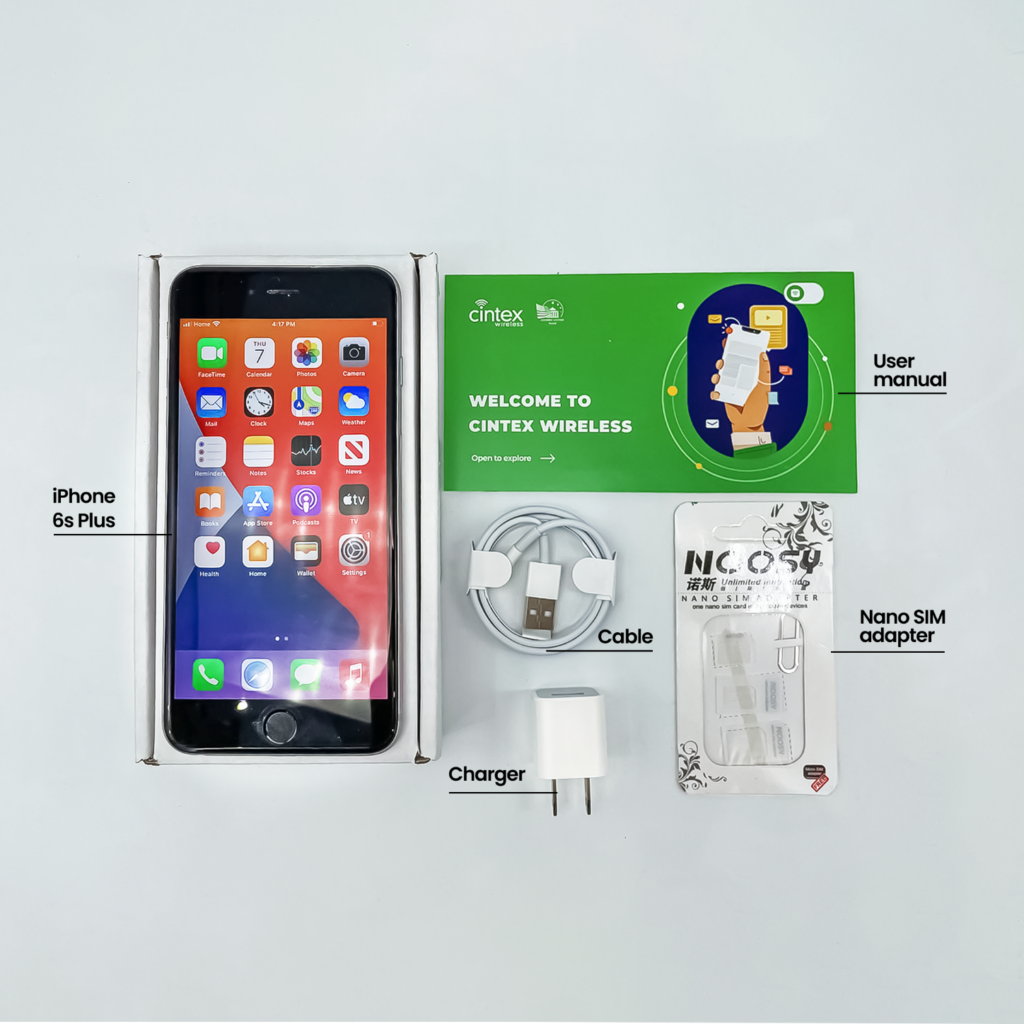
Depending on availability and eligibility, you may also be able to use a free device with a new carrier for greater flexibility, or choose to use your current phone.
As Cintex Wireless is merging with AirTalk Wireless, eligible customers can enjoy access to a wider selection of smartphones, improved service options, and a streamlined application experience. Here are some iPhone models to consider:
Note: The government does not cover device costs, only basic service through Lifeline. Any free or discounted devices, upgrades, or top-ups are limited-time Cintex Wireless and AirTalk Wireless offers and may vary by state, eligibility, and availability. Terms and conditions apply.
Conclusion
In conclusion, a SIM failure iPhone error can result from many reasons. Fortunately, many cases can be resolved through basic troubleshooting steps, such as reinserting the SIM card, updating carrier settings, or resetting network settings. If the issue persists, contacting your carrier or Apple Support can help identify the root cause and restore service.