
How to unlock SIM card? A SIM PIN lock, a PUK block, and a carrier network lock are three different problems, and each one has a different fix. Using the wrong method will waste time and may make solving the problem more difficult. This guide will first identify your lock type, then walk you through the correct steps for each type.
1. Which Type of SIM Lock Do You Have?
Before following any steps, identify the situation below that matches what you are currently seeing on your phone. Each way points to a different type of SIM lock with a different solution. Taking one minute to identify the right lock type saves you from following steps that will not work for your situation.
| What You Are Experiencing | Scenario | Skip To |
| Phone asks for a PIN on restart, and you know the code | SIM PIN active | Way 1 |
| Phone says “Enter PUK Code” after too many wrong PINs | SIM blocked | Way 2 |
| Phone works, but refuses a new SIM from a different carrier | Network lock | Way 3 |
2. Way 1: Unlock a SIM Card With the Correct SIM PIN
If your phone asks for a PIN on restart and you know the code, you can turn the lock off or switch to a new PIN at any time.
How to Unlock SIM Card on Samsung
- Open Settings
- Tap Biometrics and Security (or Security and Privacy on newer One UI versions)
- Tap Other Security Settings
- Tap Set up SIM card lock
- Toggle off Lock SIM card
- Enter your current PIN to confirm
To change the PIN instead of disabling it, tap “Change SIM card PIN,” enter your current PIN, type your new PIN, and then confirm. The default SIM PIN is determined by your carrier, not Samsung. Common defaults are 1234 or 0000, but you should verify with your carrier before entering a code.
How to Unlock SIM Card iPhone
- Open Settings
- Tap Cellular
- Tap SIM PIN
- Toggle off SIM PIN
- Enter your current PIN to confirm
To change the PIN instead of disabling it, tap Change PIN, enter your current PIN, then set and confirm the new one.
Note: If you do not know the default PIN, contact your carrier before entering anything. Three wrong attempts will block the SIM and require a PUK code to recover.
2. Way 2: SIM Blocked After Too Many Wrong PINs (PUK Code Required)
If you enter the wrong PIN three times, your SIM is now blocked, and your phone asks for a PUK code. Stop entering codes until you have the correct one in front of you.
A PUK (Personal Unblocking Key) is an 8-digit code assigned to your SIM card by your carrier. It is not the same as your SIM PIN. You cannot change or reset it yourself. Entering the wrong PUK code 10 times permanently deactivates the SIM card, requiring a replacement SIM from your carrier.
How to find your PUK code:
- Check the original SIM card packaging: the PUK is usually printed on the plastic card holder the SIM came in
- Log in to your carrier’s app or online portal: Carriers display the PUK in your account settings
- Call your carrier’s customer service line: You will need to verify your identity before they share the code
- Visit a carrier store in person: Bring your photo ID and account details
How to enter the PUK code:
- When prompted on screen, type the 8-digit PUK code
- Create a new SIM PIN when asked. Choose a 4 to 8-digit code
- Confirm the new PIN
- Restart your phone to complete the process
Note: Do not guess the PUK code. Even one wrong attempt brings you one step closer to permanent SIM deactivation.
>>> Read more: How to Lock SIM Card on Android: A Quick Step-by-Step Guide
3. Way 3: Phone Carrier-Locked (Network Lock)
If your phone refuses a SIM card from a different carrier, the issue is not the SIM. The phone itself is locked to one carrier’s network.
SIM PIN lock: phone works normally and just asks for a PIN on startup
Network lock: the phone may display messages such as “SIM Not Supported,” “Network Locked,” or similar warnings when a SIM from another carrier is inserted.
So, how to remove a carrier network lock?
Let’s follow these steps below:
- Contact the original carrier that sold you the phone, not the new carrier you want to switch to
- Request a network unlock: provide your IMEI number (dial *#06# on your keypad to find it)
- Major US carriers generally unlock eligible devices once the device is fully paid off and any carrier-specific requirements are met. Eligibility rules vary by carrier.
- Once approved, insert the new SIM card: Depending on the device and carrier, the phone may unlock automatically or prompt you to enter an unlock code.
- Enter the code, and your phone will accept any compatible SIM going forward
Note on Samsung devices: Samsung does not lock its phones to any carrier. If a Samsung phone refuses a new SIM, the network lock came from the original service provider, not Samsung itself.
>>> Read more: How to Unlock iPhone: Easy Step-by-Step Guide for Every Lock Type
4. When Your SIM Card Needs to Be Replaced
Even after following the correct steps, some SIM cards cannot be recovered. A SIM reaches permanent failure when:
- The PUK code was entered incorrectly 10 times
- The card is physically damaged or worn out
- The SIM is no longer active with the original carrier
- The phone cannot detect the SIM at all
At this point, adjusting settings will not help. The SIM needs to be replaced.
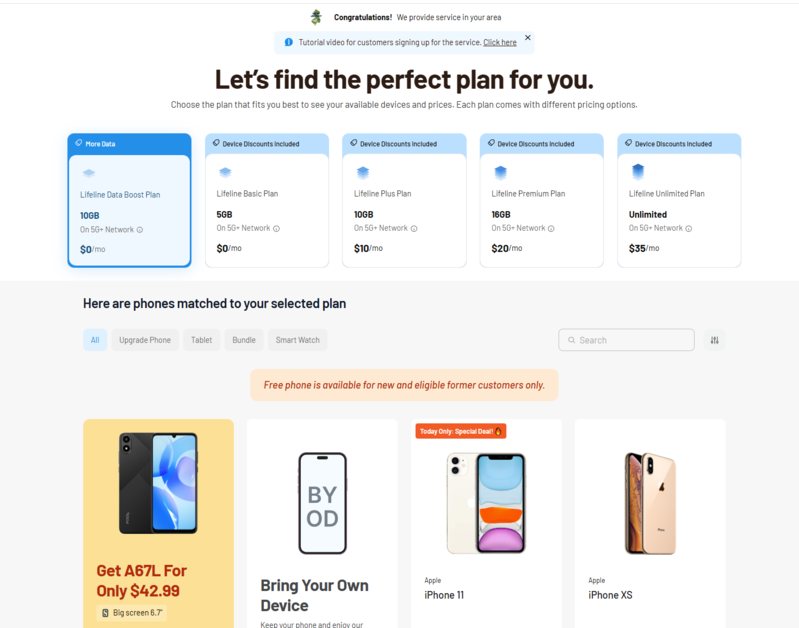
Instead of purchasing a replacement SIM separately, eligible US residents may have a more practical option.
The federal Lifeline program helps low-income households reduce the cost of phone service each month.
Lifeline does not provide SIM cards or devices directly. Instead, it offers a monthly service benefit through approved carriers. Some participating providers, such as Cintex Wireless, may include a SIM card and a free or discounted device as part of their own promotional offers, subject to eligibility and availability.
It’s worth noting that Cintex is merging with AirTalk Wireless, another reputable carrier with more than 2 decades in the industry. This merger brings a much streamlined process and a wide variety of devices and service plans, suitable for the needs of eligible participants.
You may qualify for the Lifeline program if your household income is at or below 135% of the Federal Poverty Guidelines, or if you are enrolled in Medicaid, SNAP, SSI, Section 8, or Veterans Pension.
But do take a note about the Lifeline rules: the eligibility may vary depending on the program and states, and the benefit is limited to one per household, non-transferable
DISCLAIMER: The government does not subsidize devices. Lifeline programs cover basic service costs only. Free or discounted devices, upgrade plans, or top-ups are exclusive benefits provided by Cintex and AirTalk Wireless as part of the promotional offers. Terms and conditions apply. Limited-time promotion—offers vary by state, stock availability, and eligibility.
>>> Read more: How Do I Replace My Free Government Phone? A Step-By-Step Guide
5. Frequently Asked Questions
Q1. Can I unlock a SIM card without the PUK code?
In most cases, a blocked SIM requires the correct PUK code from your carrier. If the PUK cannot be obtained or the SIM is permanently blocked, the carrier may issue a replacement SIM.
Q2. How many times can I enter the wrong PUK code?
You have a maximum of 10 attempts to enter the correct PUK code. After 10 incorrect entries, the SIM card is permanently deactivated and cannot be recovered. Contact your carrier immediately to request a replacement SIM if you are unsure of the code.
Q3. Is a SIM PIN lock the same as a carrier network lock?
No. A SIM PIN lock protects your SIM card from being used in another phone without a PIN. A carrier network lock prevents the phone itself from accepting SIM cards from other carriers. Both are separate features that require different fixes, referring to the routing table at the top of this article to identify which one applies to you.
Final Words
Now you know how to unlock a SIM card for all three common lock types. A SIM PIN just needs the correct code. A PUK block requires the 8-digit code from your carrier; do not guess. A network lock requires a formal unlock request from your carrier before any new SIM will work. If your SIM cannot be recovered, eligible users may qualify for a free replacement device and $0 monthly service through an approved Lifeline provider.