
How to lock SIM card? A SIM PIN stops anyone from using your number if your SIM card is removed and placed into another device. It takes under two minutes to set up, works on both iPhone and Android, and costs nothing. This guide covers why it matters, how to set it up on your device, and what to do if something goes wrong.
1. Why You Should Lock Your SIM Card
Locking your SIM card with a PIN prevents unauthorized use of your phone number. If someone steals your SIM card or swaps it into a new device, they cannot activate it without the PIN. It takes under two minutes to set up and costs nothing.
If you’re asking, is it safe to lock your SIM card with a SIM PIN? For your information, a SIM PIN protects you from several real threats:
- Physical SIM theft: Someone removes your SIM card and inserts it into another phone to use your number
- Unauthorized SIM use: A stolen SIM card cannot be activated in another device without the correct PIN.
- 2FA interception: Many banking and email apps send one-time verification codes by SMS. A SIM PIN helps protect SMS verification codes if someone gains physical access to your SIM card.
- Unauthorized charges: Calls, texts, and data usage billed to your account without your knowledge
You should know: a SIM PIN adds a strong layer of device-level protection, but it does not fully prevent carrier-account SIM swap scams. A scammer who successfully impersonates you to your carrier can still request a new SIM without touching your current one. For maximum security, use your SIM PIN along with your mobile carrier account PIN.
It also helps to understand the difference between a SIM lock and a screen lock. Your screen lock protects the apps and data stored on your phone. Your SIM lock protects your mobile number and network access. Even if your screen is unlocked, a SIM PIN will block anyone from using your SIM card in a different device.

>>> Read more: Free Government Phone SIM Card: Unlock Zero-cost Services!
2. How to Lock SIM Card on iPhone
Setting a SIM PIN on your iPhone is straightforward and takes under two minutes. The SIM PIN feature is available on iPhones that use a SIM or eSIM, including older models and current eSIM-capable devices.
How Can I Put a Password on My SIM Card?
A SIM card password is called a SIM PIN. It is not the same as your screen lock passcode. Your screen lock protects access to your apps and data. Your SIM PIN protects your phone number and mobile network access at the SIM level.
You set the SIM PIN during the setup process below. It stays active every time you restart your phone or move the SIM to another device.
Step by Step: How to Lock a SIM Card on iPhone
Follow these steps below:
- Open the Settings app
- Tap Cellular (or Mobile Service on some models)
- Tap SIM PIN
- Toggle SIM PIN on
- Enter your carrier’s default SIM PIN when prompted
- If desired, tap Change PIN to replace the carrier’s default PIN with your own.
- Confirm the new PIN
Physical SIM and eSIM: This feature works for both. All eSIM-capable iPhones support SIM PIN, so the steps are the same regardless of whether you use a physical SIM card or an eSIM.
Dual SIM users: If you have two lines active, go to Settings -> Cellular, select each line individually, and repeat the steps above for both.
Note: Never guess your SIM PIN. You have only 3 attempts before your SIM locks temporarily and requires a PUK code from your carrier to unblock. Most SIM cards become permanently blocked after around 10 incorrect PUK attempts and require replacement. Contact your carrier if you are unsure of the default PIN — do not guess.
3. How to Lock SIM Card on Android
The steps to lock your SIM card on Android vary slightly depending on your device brand. The two most common paths are below.
| On most Android phones | On Samsung devices |
| 1. Open Settings 2. Tap Security and Privacy (or Biometrics and Security) 3. Tap More Security Settings 4. Select SIM Card Lock 5. Toggle on Lock SIM Card 6. Enter your carrier’s default SIM PIN 7. Tap Change SIM Card PIN and set a new secure code | 1. Open Settings 2. Tap Connections 3. Tap SIM Manager 4. Select More SIM Settings 5. Tap SIM Card Security 6. Toggle on Lock SIM Card 7. Enter the default PIN, then follow the prompt to change it to a new code |
Steps, Menu names, and locations may vary by Android version or manufacturer. If you cannot find the option using the paths above, open the Settings app, tap the search bar, and type “SIM” to locate it directly.
4. Can I Tell If Someone Is Using My SIM Card?
Yes. One common warning sign is a sudden, unexplained loss of mobile service; your phone shows no signal, and you cannot make calls or send texts. This may mean someone has transferred your number to their SIM card. Other signs include being locked out of accounts or receiving alerts about changes you did not make.
Signs Your SIM May Have Been Compromised
You need to be careful before seeing signs that your SIM card may have been compromised, as follows:
- No signal without explanation: Your number may have been moved to another SIM card without your knowledge
- Cannot send or receive texts: Incoming messages are being routed to another device
- Locked out of accounts: Attackers are using your number to trigger password resets
- Carrier notification about a SIM activation: A transfer was made that you did not request
- Unexpected password reset emails: Someone is accessing your accounts using your phone number
- Unauthorized transactions: Financial accounts were accessed after your SIM was compromised
What to Do Next
If you notice any of the signs above, act quickly:
- Contact your carrier immediately and report suspected SIM swap activity
- Ask to freeze your account to prevent further changes
- Change your passwords on email, banking, and any account linked to your phone number
- Switch from SMS-based two-factor authentication to an authenticator app, where possible, for stronger protection going forward
5. Keep Your Phone Number Secure with a Reliable Plan
Knowing how to lock a SIM card is an important security step. But even a locked SIM cannot protect you if your current plan is unreliable, overpriced, or has already been compromised. If you are struggling to afford phone service, there may be a better option available to you at no cost.
The Lifeline Program
The federal Lifeline program helps eligible low-income households reduce the cost of monthly phone service.
You may qualify if your household income is at or below 135% of the Federal Poverty Guidelines. Participation in programs such as Medicaid, SNAP, SSI, Section 8, or Veterans Pension may also make you eligible.
Lifeline does not provide phones, SIM cards, or eSIMs directly. Instead, the benefit is administered through participating Eligible Telecommunications Carriers (ETCs). Some ETCs, like Cintex Wireless, may choose to offer additional promotional benefits, such as a smartphone, SIM card, or eSIM, to eligible customers.
These devices and SIMs are provided by the carrier as part of its own promotional offerings and are not part of the Lifeline benefit itself.
How to Apply Through an Approved Provider
Many choose to apply at Cintex since it is known for its straightforward application process.
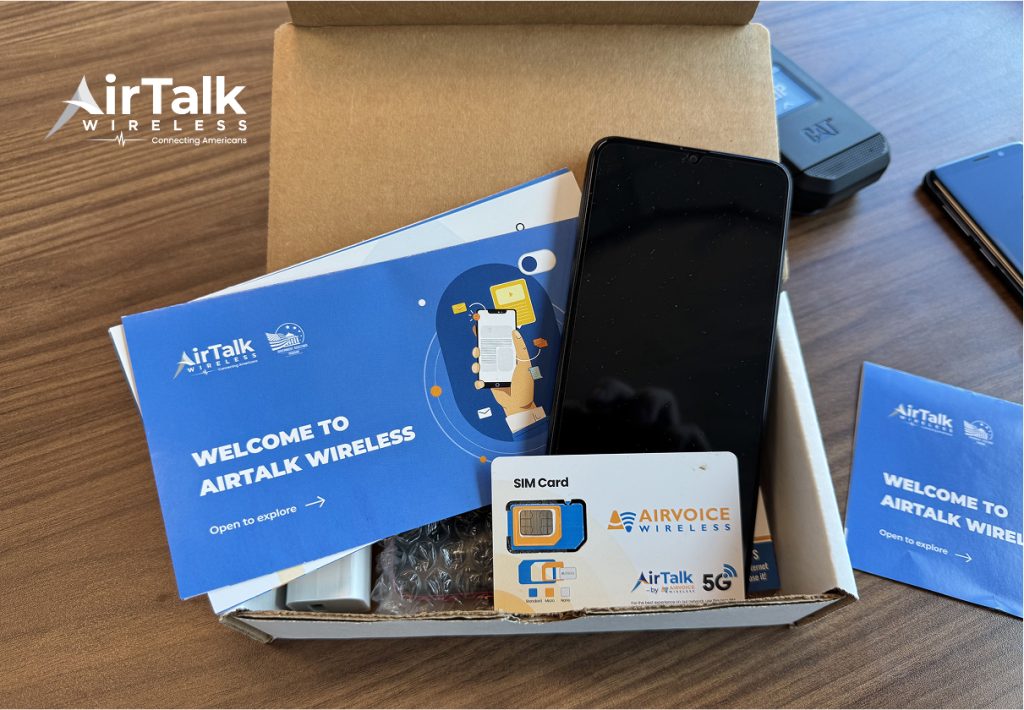
The carrier has recently announced its intention to merge with AirTalk Wireless, which is another reputable ETC, promising a much streamlined and fulfilled experience for participants.
Through this merger, eligible customers may have access to a broader range of devices, plans, and support resources.
Depending on eligibility, location, and current promotional offers, qualified customers may receive:
- A free smartphone
- Unlimited talk and text
- Monthly data allowance
- $0 monthly service cost
Note: Eligibility varies by state and program. Offers depend on availability and qualifications. AirTalk Wireless and Cintex operate under the federal Lifeline Program as an Eligible Telecommunications Carrier (ETC). Service is non-transferable and limited to one service per household.
>>> Read more: How to Lock SIM Card on Android: A Quick Step-by-Step Guide
FAQ
Q1. What is the default SIM PIN for my carrier?
Common default SIM PINs include 1234 and 0000, although many carriers use different values. Check your carrier’s customer support page or the original packaging your SIM card came in, the PIN is often printed on the card holder.
Q2. What happens if I enter the wrong SIM PIN too many times?
After 3 incorrect attempts, your SIM card locks temporarily and asks for a PUK code. Your carrier provides this code; never guess it. If you enter the PUK code incorrectly 10 times, the SIM is permanently disabled, and you will need a replacement from your carrier.
Q3. Does a SIM PIN lock also protect my eSIM?
Yes. Many carriers support SIM PIN protection for both physical SIMs and eSIMs. Availability can vary depending on the carrier and device. The PIN is required every time you restart your device. Setting up a SIM PIN on your eSIM adds the same layer of protection as it does on a physical card.
Q4. Can I lock an eSIM?
In many cases, yes. Support depends on your carrier and device. On iPhone, go to Settings -> Cellular -> SIM PIN and toggle it on. This applies to both physical SIM and eSIM lines. On Android, the path varies by manufacturer but is typically found under Settings -> Security -> SIM Card Lock.
Final Words
How to lock a SIM card? It protects your number from physical theft, SIM swap attempts, and unauthorized use on another device. Set a PIN you will remember, store your PUK code somewhere safe, and use a strong screen lock alongside your SIM PIN for full protection.