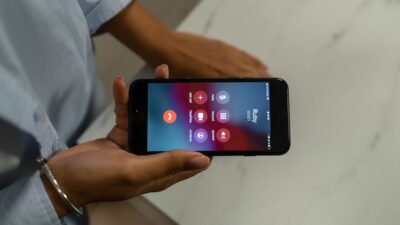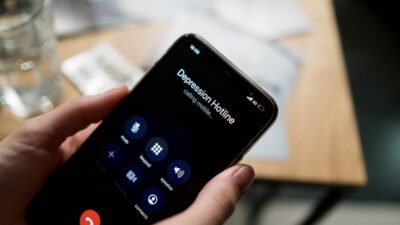
After recording a FaceTime call, you play back the video only to find that the conversation’s audio is missing. Capturing the screen and capturing both voices are different tasks.
Understanding how to record a FaceTime call starts with choosing audio, video, or both. Here’s what each method captures and what to test first.
1. How To Record A FaceTime Audio Call
On supported iPhones running iOS 18.1 or later, Apple’s built-in Call Recording feature can save one-to-one FaceTime Audio conversations. Availability depends on the device, software, language, and region.
Unlike FaceTime video recording, this feature captures the conversation’s audio and saves it directly in Notes.
Step 1. Check recording availability: Confirm device, software, and regional support.
Step 2. Start or answer FaceTime Audio: Connect with one other person.
Step 3. Obtain consent: Ask permission and follow applicable laws.
Step 4. Tap More > Call Recording: Both participants hear an announcement.
Step 5. Stop and locate the recording: Stop recording or end the call, then open Notes > Call Recordings.
On a compatible Mac, start a one-to-one FaceTime Audio call, click More > Call Recording, and follow the recording controls. Both participants hear an announcement. To find the saved audio, open Notes > Call Recordings.

2. Can You Screen Record A FaceTime Video Call With Sound?
You can try recording a FaceTime video call using your device’s screen-recording tools. However, capturing the video doesn’t guarantee that both participants’ voices will be included.
The result depends on your device, software, and audio-capture restrictions.
On iPhone and iPad
- Open Control Center.
- Touch and hold Screen Recording.
- Turn on the microphone if you want to capture available microphone audio.
- Tap Start Recording and return to FaceTime.
- Stop recording and open Photos to review the video.
Your screen may be recorded successfully while the other person’s voice is missing. Turning on the microphone doesn’t override FaceTime’s audio-capture restrictions.
On Mac
Mac users have additional recording controls:
- Start your FaceTime video call.
- Press Shift + Command + 5 to open the Screenshot toolbar.
- Choose the screen or window you want to capture.
- Under Options, select an available microphone.
- On macOS 27 or later, you can also select Include System Audio.
- Start recording, then review the saved file when finished.
The system-audio option offers additional capture capabilities, but you should still test whether FaceTime audio from both participants is included.
If you need a complete record of the conversation, don’t rely on screen recording until you’ve checked the result of a permitted test call.
>>> Read more: Can You Make Phone Calls on an iPad? Easy Ways
3. Other Ways to Save FaceTime Conversations
If ordinary screen recording doesn’t capture the audio you need, consider what part of the conversation you actually want to preserve.
Option 1: Record Your Side With Local Capture
On supported iPhones running iOS 26 or later, Local Capture can record high-quality audio and available camera video from your side of a video conversation.
To use it:
- Open your supported video-calling app.
- Open Control Center and find Local Capture. Add the control if it isn’t visible.
- Touch and hold the control, then select Start Recording.
- Stop the recording when finished.
- Find the saved file in Files > Downloads, unless you’ve selected another location.
Important: Local Capture doesn’t automatically include the other participant’s audio or video. If another app is using your camera, the recording may contain audio only.
It is best suited to recording your own contribution, such as a remote interview or presentation.
Option 2: Use a Separate Recording Device
With the required consent, you can use another phone or camera to film your FaceTime screen and capture the conversation through its microphone.
Keep the speakers audible, minimize background noise, and test the arrangement before an important call. Video framing and sound quality may be limited.
Option 3: Choose a Service With Dedicated Recording
If you’re arranging a formal interview or meeting that must be recorded, consider using a conferencing platform with built-in recording controls.
This would mean conducting the conversation through that platform instead of FaceTime. Review its account permissions, recording notifications, and storage policies first.

4. Why Does A FaceTime Recording Have No Sound?
Missing sound does not necessarily mean the entire recording failed. Troubleshooting how to record a FaceTime call starts with identifying what your method was designed to capture.
| Problem | Possible explanation | Check |
| Remote voice missing | Call audio unavailable | Supported capture method |
| No microphone audio | Input disabled | Recording input settings |
| Only your voice | Local Capture | Participants captured |
| Missing recording | Different save location | Notes, Photos, or Files |
| Distorted sound | Noise or placement | Microphone and environment |
The save location follows the method: native audio recordings go to Notes, iPhone screen recordings to Photos, and Local Capture generally to Files.
Turning on a microphone does not override app-level restrictions. Before relying on instructions for how to record a FaceTime call, make a short permitted test and review its picture and audio.
5. Does FaceTime Notify the Other Person When You Record?
It depends on how you record the call.
When you use Apple’s built-in FaceTime Audio recording feature, both participants hear an announcement that recording has started.
However, screen recording, Local Capture, and external recording equipment don’t necessarily provide the same automatic notification.
This distinction matters because the absence of an alert doesn’t mean recording is legally permitted.
In the United States, consent requirements vary by state, and interstate calls may involve different laws. Tell participants about the recording and obtain the permission required before starting.
>>> Read more: Can You Use A Phone Without A SIM Card? Fully Explained 2026
6. What About Your Data Budget?
Recording a FaceTime call is simple enough, but the call itself runs on data. Without Wi-Fi, every video call draws from your mobile plan, so it pays to know how much data you have before an extra charge shows up.
If keeping the wireless service affordable is a concern, Lifeline is a government assistance program that provides a monthly discount on phone service or internet service for eligible households.
Qualifying depends on household income at or below 135% of the Federal Poverty Guidelines or participation in qualifying programs, and Medicaid is one of them.
Your eligibility is verified separately, and each household receives one benefit that cannot be transferred.
The program provides the discount, and an Eligible Telecommunications Carrier (ETC) delivers the service and applies it to your plan. Once you qualify, you enroll with a participating ETC to start using the benefit.
Cintex Wireless is an ETC that also offers free or discounted phones, which helps if your current device is not keeping up with video calls. Its merger into AirTalk Wireless, another ETC, brings a broader device lineup and a simpler sign-up.
Depending on your ZIP code, stock, and offer terms, device options may include:
Enter your ZIP code on AirTalk Wireless’s website to compare device prices, coverage, and data allowances. If you also plan to record calls, verify recording support for the specific device, software, and region before choosing.
IMPORTANT: The government does not subsidize devices. Lifeline programs cover basic service costs only. Free or discounted devices, upgrade plans, or top-ups are exclusive benefits provided by AirTalk Wireless and Cintex Wireless as part of the promotional offers. Terms and conditions apply. Limited-time promotion—offers vary by state, stock availability, and eligibility.
7. FAQs
Can I record both incoming and outgoing calls?
Yes, in many cases. Supported built-in recording features on iPhone and Android may allow both incoming and outgoing calls to be recorded. However, Google Voice personal accounts generally support recording incoming calls only.
Will the other person hear a recording announcement?
Yes, with supported Apple and Google recording features. These tools automatically notify participants when recording begins. Other recording methods may behave differently, so always confirm applicable consent requirements before recording.
Can I record a call while using Bluetooth headphones?
Yes, potentially. Some devices support call recording while connected to Bluetooth headphones, but audio capture may vary. If you’re wondering, “How do I record a phone call?” while using headphones, test the feature first to ensure both voices are captured clearly.
Can I recover a conversation that was never recorded?
No. If a conversation was not recorded, its audio generally cannot be recovered afterward. Call history only stores information such as phone numbers, timestamps, and call duration, not the actual conversation.
Conclusion
Understanding how to record a Facetime call requires checking device compatibility, recording options, and consent requirements.
Whether using built-in tools or supported alternatives, test the recording method and confirm that both voices are saved clearly. Verifying the audio file helps prevent missing important conversations.