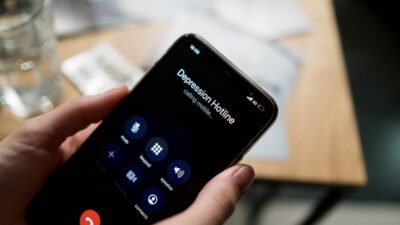
An unexpected call brings appointment instructions or booking details you want to revisit. You cannot install a recorder while trying to follow the conversation.
If you’re searching for how to record incoming call on iPhone without app, Apple’s built-in feature may help. Check availability, obtain permission, and follow these steps.
1. Can You Record An Incoming Call Without Downloading An App?
Yes. Compatible iPhones running iOS 18.1 or later can record incoming phone calls using Apple’s built-in Call Recording feature, where the feature is available.
You don’t need to install a third-party recorder. The Phone app captures the conversation, and Notes saves the audio automatically.
Basic recording also works without Apple Intelligence, although transcripts and AI-generated summaries have additional compatibility requirements.

2. How To Record Incoming Call On iPhone Without App
Before starting, obtain any consent required by applicable law. U.S. requirements vary, particularly when participants are in different states. Apple’s announcement informs callers but does not replace understanding those requirements.
Step 1. Answer the incoming call
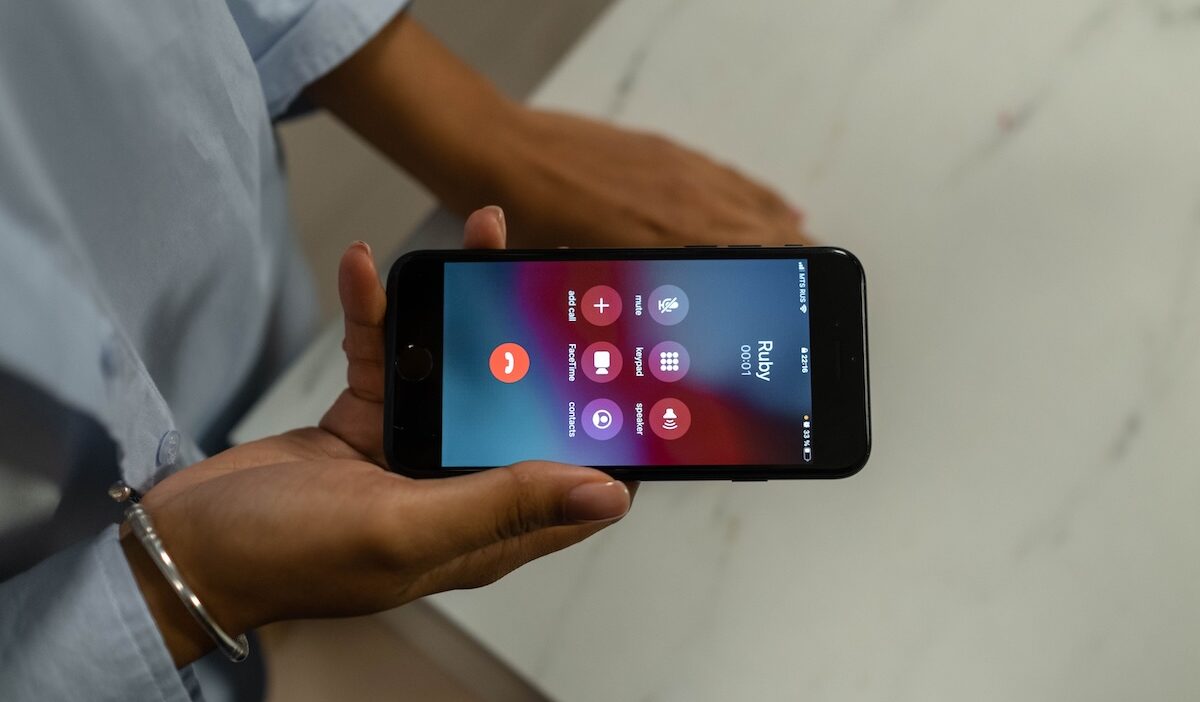
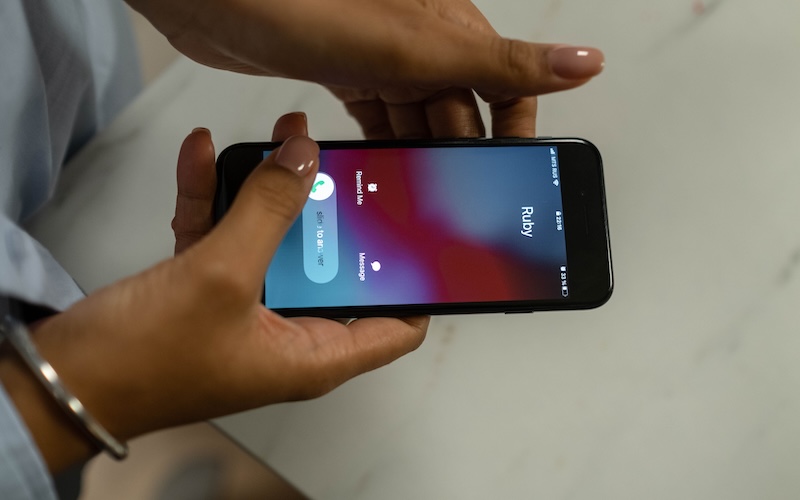
Accept the call and wait until connected. If the call appears as a banner, open the full call screen to access its controls.
For example, ask a clinic employee whether you may record their appointment instructions before proceeding.
Step 2. Find the recording control
During the connected call, tap More > Call Recording. The control’s appearance may differ across supported iOS versions, so follow the options displayed on your call screen.
When learning how to record a phone call on iPhone, follow the controls available on your installed version rather than expecting every screen to look identical.
Step 3. Listen for the recording announcement
Both participants hear an automatic announcement when recording starts. Wait until it finishes before continuing with the details you want to save. Remember that the announcement doesn’t replace any legally required consent.
This automatic notice is part of how to record incoming call on iPhone without app; the native feature is not designed for silent recording.
Step 4. Stop recording
Tap Stop, or end the call. Stopping the recording lets you continue talking without recording the remaining conversation. Only the portion captured after recording began is saved.
Step 5. Find and play the recorded call
Open Notes > Call Recordings, select the note, and play the audio. Check that the information you need is audible before relying on it.
Knowing how to record incoming call on iPhone without app includes verifying the saved result, not simply tapping the control.
>>> Read more: How To Record A FaceTime Call: Audio, Video, Or Both?
3. Why Can’t You Find The Call Recording Button On iPhone?
If the recording option doesn’t appear during an incoming call, your iPhone may not meet the feature’s requirements.
Start with these checks:
- iPhone model: Apple’s built-in recording requires iOS 18.1 or later. Models such as the iPhone 8 and original iPhone SE cannot install that software.
- Software version: Open Settings > General > About to check your installed iOS version. Update through Settings > General > Software Update if a compatible update is available.
- Regional availability: Apple restricts call recording in certain countries and regions, even on compatible devices.
- Recording settings: Go to Settings > Apps > Phone > Call Recording or Audio Call Recording, depending on your iOS version. The feature is normally enabled by default where supported.
- Call type: Apple’s built-in Phone recording feature is intended for eligible one-to-one calls, not every conference call or third-party calling app.
If the feature is unavailable, enabling microphone access or installing an ordinary screen recorder won’t necessarily capture both sides of the conversation.
For calls through WhatsApp or other internet-based services, check that service’s recording capabilities separately.
4. How To Record An Incoming iPhone Call Without The Built-In Recorder
A separate recorder offers another approach to how to record incoming call on iPhone without app, provided recording is lawful and participants give required consent.
- Obtain consent: Explain what you want to record and confirm agreement before capturing audio.
- Enable speakerphone: Answer the call and move to a quiet, private location.
- Prepare another recorder: Position a second phone or audio recorder where it can capture your voice and the iPhone’s speaker.
- Record and review: Start recording, then check the saved file for both voices and completeness.
Test the arrangement beforehand with a consenting friend. Speaker volume, microphone placement, and background noise affect quality. Headphones can prevent an external recorder from hearing the caller.
This method captures sound in the room rather than accessing the call’s audio stream directly. When choosing how to record incoming call on iPhone without app, account for that difference.
>>> Read more: How To Record A Phone Call: What Works On Your Phone?
5. Keep Important Calls Within Your Household Budget
A recording lets you go back over the details you missed the first time, but a recording only exists if the call happened in the first place. Follow-up calls about appointments, benefits, or family matters can come at any hour, and a phone plan you can afford keeps you ready to take them.
Lifeline is a government assistance program that provides a monthly discount on phone service or internet service for eligible households.
Eligibility depends on household income at or below 135% of the Federal Poverty Guidelines or participation in qualifying programs, and Medicaid is one of them.
Each household receives one benefit, and it cannot be transferred.
An approved Eligible Telecommunications Carrier (ETC) is the provider that delivers the service and applies the discount to your plan. Qualifying alone does not start service, so the next step is signing up with a participating ETC.
Cintex Wireless is an ETC that also offers free or discounted phones, so the support can include a device with room for the apps you rely on. It is merging into AirTalk Wireless, another ETC, which broadens the device selection and streamlines sign-up.
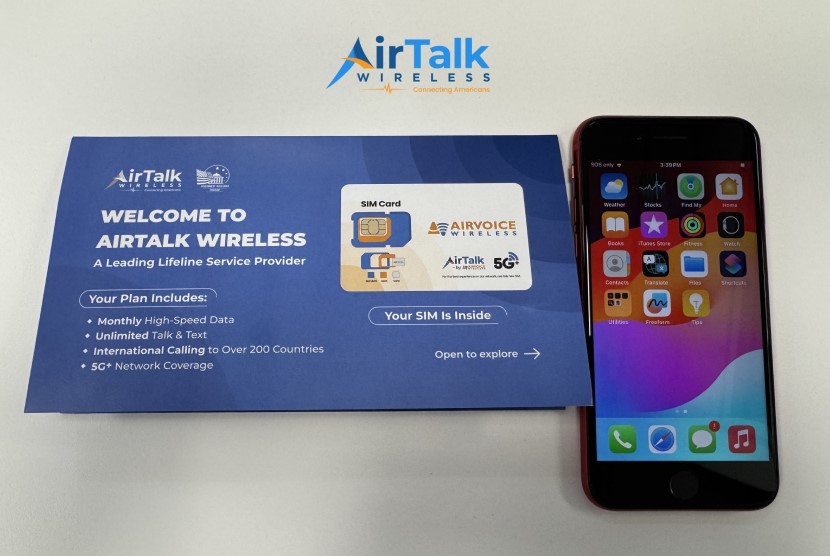
Depending on your location, inventory, and offer terms, available phones may include:
- Apple iPhone SE 3
- Apple iPhone XS
- Apple iPhone 8
- Apple iPhone 11
- Samsung Galaxy S21 5G
- Samsung Galaxy A32 5G
- Motorola 5G 2022
Enter your ZIP code on AirTalk Wireless’s website to compare coverage, plans, device prices, and any applicable charges. Free or discounted phones are carrier offers, so availability varies.
If how to record on iPhone is your priority, check the specific iPhone’s software support and regional recording availability before selecting it. Lifeline eligibility alone does not determine whether call recording will work.
IMPORTANT: The government does not subsidize devices. Lifeline programs cover basic service costs only. Free or discounted devices, upgrade plans, or top-ups are exclusive benefits provided by AirTalk Wireless and Cintex Wireless as part of the promotional offers. Terms and conditions apply. Limited-time promotion—offers vary by state, stock availability, and eligibility.
6. FAQs
Can I record an incoming call automatically?
No. Apple’s built-in call recording feature does not automatically record every incoming call. You must manually start recording during each eligible conversation after the call connects.
Do I need Apple Intelligence to record a call?
No. Basic call recording does not require Apple Intelligence. However, AI-generated call summaries require a compatible iPhone, supported software, and regional availability.
Does the caller need an iPhone?
No. The other participant can use an Android phone or another device. Recording availability depends on your iPhone’s supported features, iOS version, and region, not the caller’s phone.
Can I start recording halfway through a conversation?
Yes. You can begin recording after the call connects, even if the conversation is already underway. However, only audio captured after recording starts will be saved. Earlier audio cannot be recovered.
Conclusion
Understanding how to record incoming call on iPhone without app starts with checking device compatibility, regional availability, and consent requirements.
Use Apple’s built-in recording feature when supported, or test a separate recording device. Always verify the saved audio before relying on it.