How do I know if my phone is unlocked? A locked phone only works with one carrier. An unlocked phone can accept SIM cards from different carriers, as long as the device is compatible with the network’s supported bands and requirements.
This guide walks you through the fastest check for iPhone, Samsung, and any other Android device to see if it is unlocked or not.
1. How Do I Know If My Phone Is Unlocked?
A locked phone is restricted to one carrier and may not activate or may display an error when using another carrier’s SIM card.
An unlocked phone, on the other hand, has no carrier restriction; you can insert any compatible SIM and use it on any network.
Knowing your lock status matters before switching providers, traveling internationally, or activating a Lifeline SIM or eSIM on your device.
When testing your phone, these are common indicators of lock status. Results may vary slightly depending on device model and carrier.
| What You See | What It Means |
| “No SIM restrictions” (iPhone) | Phone is unlocked |
| Carrier name shown in Carrier Lock field | Phone is locked to that carrier |
| “SIM not supported” with a new SIM | Phone is locked |
| New SIM connects and allows calls | Phone is unlocked |
| Multiple carriers appear in Network Operators | Phone is likely unlocked |
The sections below show you exactly how to find this information on your specific device.
>>> Read more: Unlocked SIM Free Phones: Benefits, Downsides and More
2. Is My Phone iPhone Unlocked? How to Check in Settings
Checking your iPhone’s lock status takes three taps in Settings. No spare SIM card is needed.
- Open the Settings app
- Tap General
- Tap About
- Scroll down to Carrier Lock
- “No SIM restrictions” = your iPhone is unlocked
- A carrier name listed (or anything other than No SIM restrictions) = your iPhone is locked to that carrier
Compatibility note: This method works on iPhone XS and later running iOS 14 or newer. On older models, the Carrier Lock field may not appear; use the physical SIM test in Section 4 instead.
Tip: If you have a US iPhone 14 or later, which has no physical SIM slot, this settings check still applies. eSIM-capable iPhones display the same Carrier Lock field and follow the same process.
3. Is My Samsung Phone Unlocked? How to Check
Samsung gives you a pretty straightforward way to check your lock status. Here is what you can follow:
- Open Settings
- Tap Connections
- Tap Mobile Networks
- Tap Network Operators
- Tap Search Now (or disable “Select automatically”)
- Multiple carriers appear in results = phone is likely unlocked
- Only one carrier appears, or an error displays = phone is likely locked
Note: Menu paths may vary slightly by Samsung model and Android version. If you cannot find Network Operators, go to Settings -> About Phone -> Status -> SIM Status and look for a Network Lock or Carrier Lock field.
4. The Physical SIM Test for Any Phone
If the Settings methods above are unclear, the physical SIM test is one of the most reliable practical checks, but results may still depend on network compatibility and activation settings. Here is what you should do in sequence to test it out:
- Power off your phone completely
- Remove your current SIM card
- Insert a SIM card from a different carrier
- Power the phone back on
- Phone connects to the new network and allows calls = unlocked
- “SIM not supported” / “Network locked” / prompts for unlock code = locked
No spare SIM available? You can use your IMEI number on a carrier’s BYOD tool to check device compatibility with their network. Enter your IMEI number to confirm lock status without needing to swap any cards.
5. Locked Phone? You May Still Have Options
If you want to switch to a more affordable plan and your phone is still locked to its original carrier, you have two options. You can request an unlock from your carrier, or you can apply for a new free phone through the federal Lifeline program.
Option 1: Request a carrier unlock:
Most carriers will unlock a device once the contract or payment plan is complete and the account is in good standing. You can submit the request by phone, online, or in-store. Processing typically takes 1 to 5 business days. Let’s check the Unlocking Phone by the FCC.
Option 2: Apply for a new device:
If unlocking your current phone is not an option, the Lifeline program may provide a fresh start.
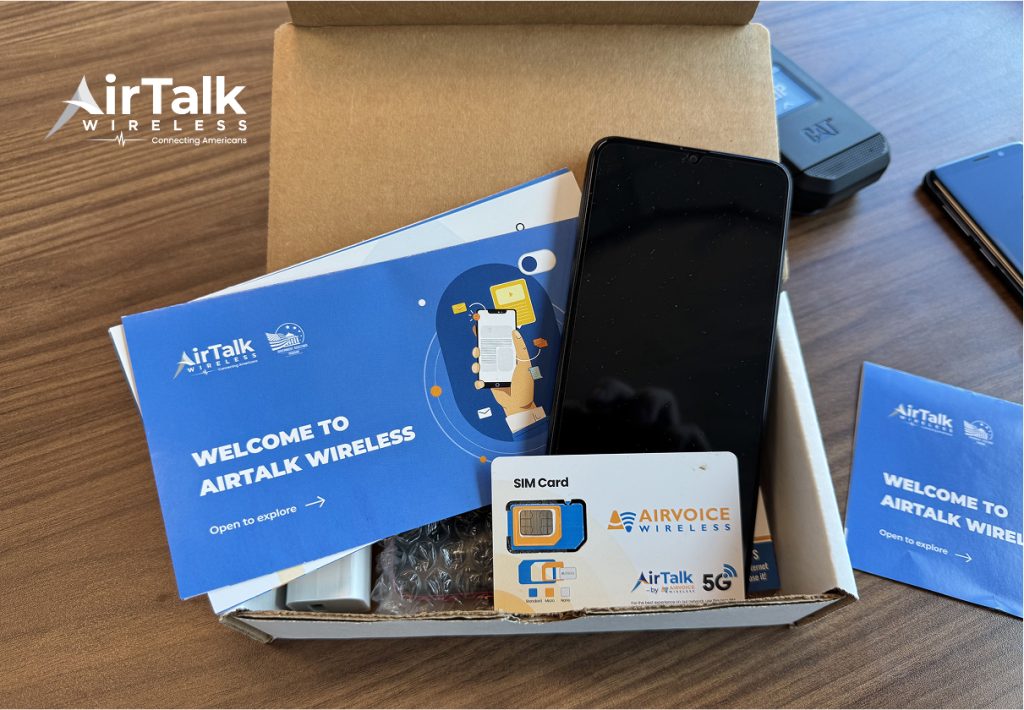
Lifeline is a federal assistance program that helps eligible low-income households maintain access to phone service at no monthly cost. Approved providers, like Cintex Wireless, may offer a free smartphone as a promotional device, already ready to use with a new SIM or eSIM included.
You may qualify based on income or program enrollment. Your household income must be at or below 135% of the Federal Poverty Guidelines, or you must be an active participant in Medicaid, SNAP, SSI, Section 8, or Veterans Pension.
Note: Eligibility varies by state and program. Offers depend on availability and qualifications. Cintex and AirTalk Wireless operate under the federal Lifeline Program as Eligible Telecommunications Carriers (ETCs). Service is non-transferable and limited to one service per household.
To be more specific, when applying for Lifeline, you are not applying directly to the program, but through a participating provider, known as an eligible telecommunications carrier (ETC). Each carrier offers a different variety of phone options and service plans.
Cintex Wireless is trusted by many participants for its straightforward and easy application process. Another important factor to consider when choosing this provider is its ongoing effort to improve service quality. It is currently merging with AirTalk Wireless, a well-established carrier that has served over 2 million eligible participants across the country.
This merger is expected to bring a wider selection of phone options and a more streamlined application process, making it easier for participants to access long-lasting, reliable connectivity.
Here is what eligible users can receive:
- A free 5G smartphone with a SIM or eSIM card ready to activate
- Unlimited talk and text every month
- A monthly data allowance for browsing and apps
- No monthly service fee
>>> Read more: Can I Use eSIM on a Locked iPhone? Honest Answer 2026
6. FAQ
Q1. How do I know if my phone is unlocked without a second SIM card?
Check your phone settings. On iPhone, go to Settings → General → About and look for “Carrier Lock”. “No SIM restrictions” means it’s unlocked. On Android, check the network or SIM status settings, which may vary by device. You can also use your phone’s IMEI on a carrier’s BYOD compatibility checker to confirm if it works on that network.
Q2. Can I use a Lifeline plan on my current locked phone?
It depends on which carrier your phone is locked to. If your phone is locked to a different carrier than your Lifeline provider, it will not accept the Lifeline SIM or eSIM. You would need to unlock your device through your original carrier first, or apply for a free phone directly through a Lifeline provider instead.
Q3. Does “No SIM restrictions” mean my phone works on every carrier?
“No SIM restrictions” means your iPhone is not locked to any specific carrier. However, compatibility also depends on whether your phone supports that carrier’s LTE or 5G frequency bands. Most recent iPhone models are compatible with major US carriers, but compatibility still depends on network bands and carrier requirements.
Conclusion
Now you know how to check if your phone is unlocked on any device. iPhone users can confirm in under a minute through Settings. Samsung users have two reliable ways to navigate the menus or use a quick dial code. And the physical SIM test works on any phone when you want a definitive answer.
If your phone is locked and you qualify for government assistance, an approved Lifeline provider may offer a free device and $0 monthly service so you can switch without waiting.