If you need to activate a new mobile plan, switch carriers, or troubleshoot network issues, you may be asked to provide your SIM number. Fortunately, discovering how to find SIM number on iPhone is straightforward, and there are several ways to do it depending on your device and SIM type.
In this article, we’ll walk you through the easiest method to find your SIM number and explain what to do if you cannot locate it.
1. What is SIM Number on iPhone?
The SIM number on an iPhone is technically called the ICCID, or Integrated Circuit Card Identifier. It is a unique numeric identifier assigned to a physical SIM card or an eSIM profile.
A physical SIM may have the ICCID printed on its surface or on its original packaging. However, the text can be difficult to read on a small nano-SIM. An eSIM also has an ICCID, even though there is no removable card.
The ICCID is different from:
- Phone number: Identifies your mobile line
- IMEI: Identifies the iPhone itself
- EID: Identifies the iPhone’s built-in eSIM hardware
Knowing how to find SIM number on iPhone can help when activating a SIM, replacing one, transferring service to another device, or speaking with your carrier.
However, seeing an ICCID does not confirm that the mobile line is active or successfully connected to the network.
2. How to Find SIM Number on iPhone?
The most straightforward way to find your iPhone’s SIM number is through Settings. Follow these steps:
- Launch the Settings app on your iPhone.
- Tap General.
- Tap About.
- Scroll down to find ICCID.
- Your SIM or eSIM number appears next to this field.
If your iPhone has multiple mobile plans, you may see more than one set of cellular identifiers. Check the carrier or eSIM information near each entry to make sure you copy the ICCID for the correct line.

To avoid copying the wrong number:
- Make sure you select ICCID rather than IMEI or EID.
- Touch and hold the number to copy it when that option is available.
- Compare the carrier information if multiple plans are installed.
- Contact your carrier if you cannot tell which ICCID belongs to the line you need.
Your iPhone does not need an active cellular signal to show an ICCID already stored on the device.
3. How to Find SIM Number on iPhone on a Physical SIM Card?
If your iPhone uses a physical SIM card, you can also find the SIM number directly on the card itself.
First, confirm that your iPhone has a physical SIM tray. Some iPhone models and regional versions use eSIM only.
- Remove the SIM tray: Insert a SIM-eject tool or a straightened paperclip into the hole beside the tray. Push gently toward the iPhone, but do not force it.
- Check the printed SIM number: Carefully remove the card and look for a long number printed on its surface. The text may be extremely small, abbreviated, or worn, so the complete ICCID may be easier to read in Settings or on the original SIM packaging.
- Reinsert the SIM card: Place it back into the tray so the notched corner matches the tray shape. Reinsert the tray in the same orientation in which it was removed.
4. What If You Cannot Find SIM Number on iPhone?
Now you know how to find SIM number on iPhone. However, the ICCID may be missing if the iPhone is not detecting the physical SIM or if an eSIM profile has not been installed correctly.
If you can’t find it, a few basic troubleshooting techniques will help you fix the problem.
Confirm That a SIM or eSIM Is Installed
Go to Settings > Cellular or Mobile Data and check whether your mobile line appears.
If no line is listed, the physical SIM may not be detected, or the eSIM profile may have been removed or not activated.
Restart Your iPhone
Restarting the device will update the system processes and network settings.
Temporary issues can prevent important information from appearing correctly in the settings menu. After the phone turns back on, return to Settings > General > About and check for the ICCID again.
Check the Physical SIM
If your iPhone has a SIM tray, remove the SIM and make sure it is properly seated and not visibly damaged. Reinsert the tray completely, then restart the iPhone.
Update iOS
An outdated version of iOS may cause system information to appear incorrectly or not at all. Therefore, updating the iPhone to the latest software version can resolve these issues and improve device stability.
If you are still unsure how to find SIM number on iPhone after the update, you can check the settings again.
Contact Your Mobile Carrier
If the SIM number is still not found on the device, contact your mobile carrier for assistance.
Customer service staff may typically retrieve the SIM number associated with your account via their system.
Also, they may walk you through further procedures to validate your SIM information or activate a replacement SIM if necessary.
>>>Read more: 4 Types Of iPhone SIM Card You Must Know [Latest Guide]
5. Want to Stay Connected? Explore an Affordable Option
If you’re looking for an affordable wireless plan for your iPhone, check if you are eligible for the Lifeline program.
This is a government assistance program that helps eligible households secure connectivity without breaking the bank.
Eligible households can receive free or discounted monthly service with talk, text, and data, so they can stay connected without the high cost of a traditional phone plan.
Generally, you can qualify if your annual household income does not exceed 135% of the Federal Poverty Lines or if you participate in qualifying programs like Medicaid, SSI, etc.
What is great about Lifeline is that it works with Eligible Telecommunications Carriers such as Cintex Wireless.
These companies directly offer a free device with a SIM card/eSIM, or just the SIM card, to help eligible households receive support that lasts beyond the short term.
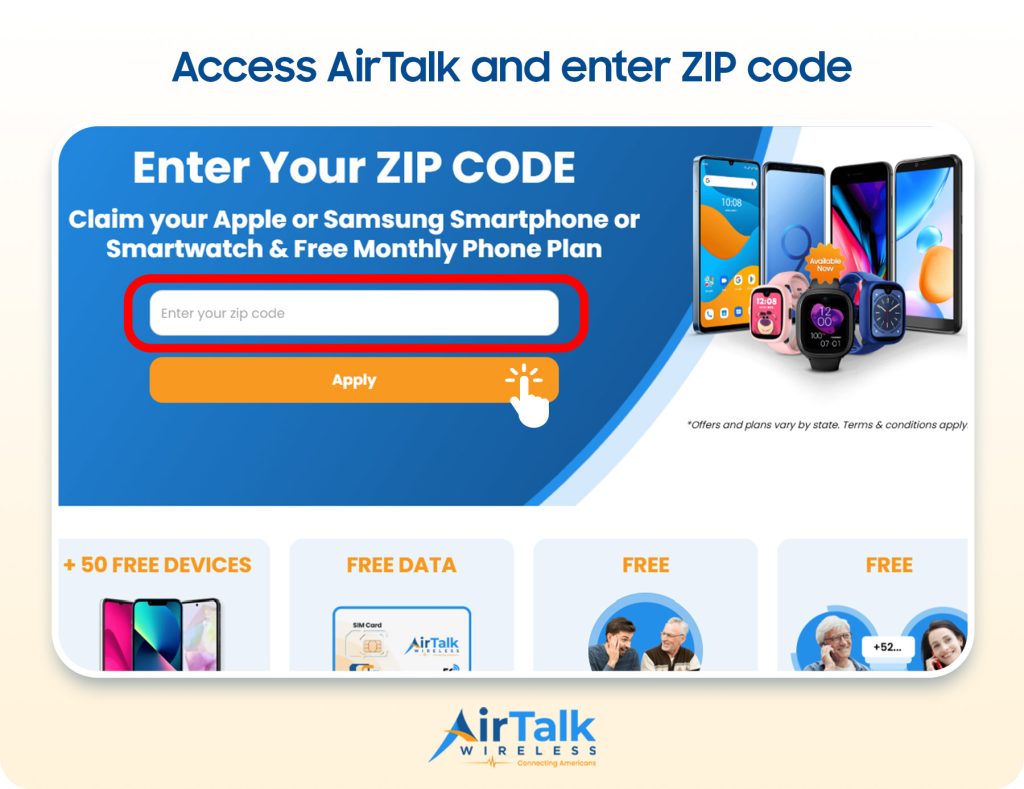
Notably, Cintex is merging into AirTalk Wireless to offer Lifeline applicants more device options and a streamlined application process as follows:
- Enter your ZIP code to check whether AirTalk Wireless service is available in your area.
- Select your service plan and, if eligible, choose an available device (may vary by state and current inventory).
- Complete the online application and provide any required documentation for verification.
- Submit the application and wait for approval.
Note: Eligibility varies by state and program. Offers depend on availability and qualifications. Cintex Wireless and AirTalk Wireless operate under the federal Lifeline Program as an Eligible Telecommunications Carrier (ETC). Service is non-transferable and limited to one service per household.
Conclusion
Knowing how to find SIM number on iPhone can save time when activating a new plan, switching carriers, or resolving network issues.
In most cases, you can quickly locate your SIM information through the Settings app. If the SIM number isn’t displayed, your carrier can help you access it using your account details.