Whether you’re switching to a new phone, changing carriers, or no longer need a mobile line, there may come a time when you want to remove your eSIM. Before doing so, it’s important to understand what happens afterward, since deleting an eSIM is different from simply turning it off.
If you’re looking for how to remove an eSIM from iPhone, this guide explains when removing an eSIM makes sense, how to do it safely, and which option is best if you’re only making a temporary change.
1. Should You Remove Your eSIM?
The answer depends on what you’re trying to accomplish. Before following how to remove an eSIM from iPhone, ask yourself whether you need to permanently remove the eSIM profile or simply stop using the line for a while.
Removing an eSIM is usually the right choice if you:
- Have already transferred your number to another phone.
- Are permanently switching to a different carrier.
- Plan to sell, trade in, or give away your iPhone.
- No longer need the mobile line stored on your device.
Taking a moment to choose the right option before starting how to remove an eSIM from iPhone can save time and help you avoid unnecessary activation requests.
2. Remove an eSIM From Your iPhone
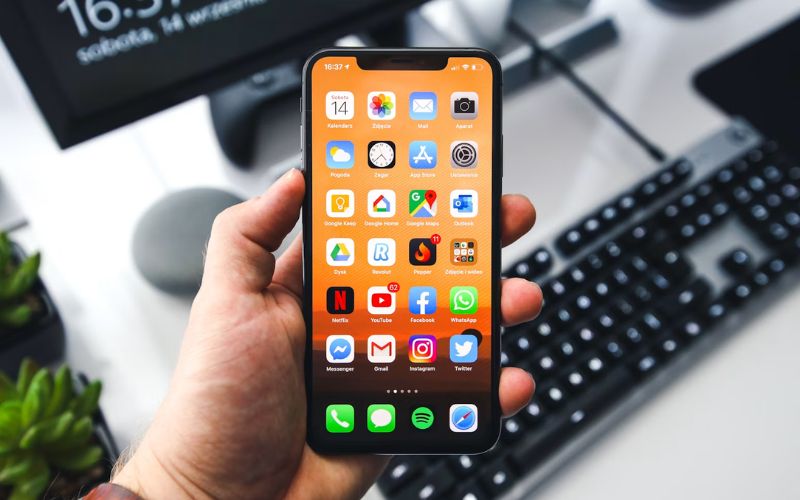
How do I delete eSIM from my iPhone? The exact option shown depends on whether your iPhone has one cellular plan or multiple plans.
Step 1: Open the Settings app.
Step 2: Tap Cellular or Mobile Data, depending on your region.
Step 3: Follow the appropriate option:
- If you have one cellular plan, tap Delete eSIM.
- If you have multiple plans, select the eSIM you want to remove and tap Delete Plan.
Step 4: Read the confirmation message and confirm that you want to delete the eSIM.
After completing how to remove an eSIM from iPhone, the cellular profile is deleted from the device. Your phone number and carrier plan normally remain active unless you cancel or transfer the service separately.
Do not delete an eSIM merely to troubleshoot cellular problems unless your carrier instructs you to do so. Once the profile is removed, you may need to contact the carrier for a new eSIM before using the line again.
>>> Read more: How To Transfer eSIM From iPhone To Android Easily? Detailed Guide 2026
3. When Removing an eSIM Is the Right Choice
Removing an eSIM isn’t something you need to do every time you stop using a mobile line. Instead, it’s best reserved for situations where you no longer need the profile on your current device. Here are some examples where how to remove an eSIM from iPhone is the appropriate solution:
- You’ve already activated the line on a new iPhone: Once your number has been successfully transferred and everything is working, removing the old eSIM helps prevent confusion.
- You’re permanently changing carriers: Wait until your number transfer is complete and calls, texts, and mobile data work through the new carrier. You can then remove the old carrier’s eSIM if it is no longer needed.
- You’re preparing to sell, trade in, or give away your iPhone: Back up your data, then go to Settings > General > Transfer or Reset iPhone > Erase All Content and Settings. When prompted, choose the option to delete the eSIM and erase the device. This removes both your personal information and the cellular profile before the iPhone changes ownership.
- The carrier instructed you to install a new eSIM: Occasionally, troubleshooting or account changes require replacing the existing profile with a newly issued one.
For example, if you’ve upgraded from an iPhone 13 to an iPhone 16 and confirmed your number is already working on the new device, completing how to remove an eSIM from iPhone on the old phone is a sensible final step before resetting it.
4. Remove, Turn Off, or Transfer: Which Option Should You Choose?
If you’re learning how to remove an eSIM from iPhone, these three actions may sound similar but serve different purposes.
| Feature | Remove | Turn Off | Transfer |
| Keeps the eSIM profile on the current iPhone | No | Yes | Usually no after a successful transfer |
| Stops cellular service on the current iPhone | Yes | Yes | Yes after the transfer completes |
| Keeps your phone number | Yes, while the carrier account remains active | Yes, while the account remains active | Yes, after a successful number transfer |
| Easy to reverse | Usually requires carrier reactivation | Yes | Depends on the carrier |
| May require a new eSIM | Yes | No | Sometimes |
| Best use case | Permanent profile removal | Temporary pause | Moving the line to another phone |
Understanding these differences makes how to remove an eSIM from iPhone much easier to decide. If you expect to use the same line on the current iPhone again, turning it off is usually more convenient than deleting it.
5. Changing Your Mobile Line? It May Also Be Time to Review Your Service
If you’re learning how to remove an eSIM from iPhone, there’s often a bigger change happening at the same time.
You may be switching carriers, transferring your phone number, or setting up service on a different device. Before activating your next line, it’s a good time to compare service options that fit both your needs and your budget.
The Lifeline program is a government assistance program that makes connectivity affordable to those underserved. The program provides a monthly discount to approved Eligible Telecommunication Carriers (ETCs).
These carriers then apply that discount to their service plan, which may result in the cost being as low as $0. In many cases, the ETCs can also offer a free device along with the Lifeline-discounted service plan.
To receive the benefit, your household generally needs to meet either one of the two requirements:
- your household income is at or below 135% of the Federal Poverty Guideline
- or you have already participated in another qualifying program like SNAP, SSI, etc.
As an official ETC, Cintex Wireless offers flexible ways to stay connected. Depending on your eligibility, location, and current availability, you may be able to:
- Keep your compatible phone and activate service using a physical SIM card or eSIM.
- Transfer your existing phone number when setting up a new line, if your number is eligible for transfer.
- Explore available smartphones with eSIM support through qualifying offers, subject to inventory.
As Cintex Wireless transitions to AirTalk Wireless, eligible applicants can continue exploring eSIM-compatible devices, eSIM-ready options, and available service plans through an updated enrollment experience and expanded customer support.
DISCLAIMER: The government does not cover device costs, only basic service through Lifeline. Any free or discounted devices, upgrades, or top-ups are limited-time Cintex Wireless and AirTalk Wireless offers and may vary by state, eligibility, and availability. Terms and conditions apply.
6. FAQs
Can I reinstall an eSIM after removing it?
You may be able to reactivate the same mobile plan, but the deleted eSIM profile cannot always be restored directly. Contact your carrier to receive a new eSIM through its app, an activation link, a QR code, or another supported method.
Does removing an eSIM cancel my mobile plan?
No. Removing an eSIM deletes the profile from your iPhone, but it doesn’t automatically cancel your mobile service. If you want to end the plan, you’ll need to contact your carrier separately.
Will removing an eSIM erase my iPhone?
No. Deleting an eSIM only removes the cellular profile. Your photos, contacts, apps, messages, and other personal data remain unchanged.
Can I remove an eSIM without Wi-Fi?
Yes. Removing an existing eSIM doesn’t require a Wi-Fi connection. However, if you plan to activate a new eSIM immediately afterward, internet access may be required depending on your carrier’s activation process.
Is removing an eSIM the same as deactivating it?
No. Removing an eSIM deletes its profile from the iPhone, while turning the line off keeps the profile installed for later use. Neither action automatically cancels the carrier plan, but deleting the profile may require a new eSIM before you can reconnect the line.
Conclusion
Knowing how to remove an eSIM from iPhone helps you manage your mobile service with confidence when changing devices or carriers. If you no longer need the eSIM profile on your current iPhone, removing it is a straightforward process. However, if the change is only temporary, turning the eSIM off may be the more convenient choice.