After installing an eSIM, it’s natural to wonder whether everything is working correctly. Seeing the profile appear on your phone doesn’t always mean it’s fully connected to your carrier, and activating a mobile plan can sometimes take a little longer than expected.
If you’re searching for how to know if eSIM is activated, there are several quick ways to confirm your eSIM is working. This guide explains the signs of a successful activation, where to check on iPhone and Android, and what to do if your eSIM still isn’t connecting.
1. What Does an Activated eSIM Actually Look Like?
A successful activation means more than simply downloading an eSIM profile. Before confirming how to know if eSIM is activated, your phone should be able to connect to your carrier’s network and use the services included in your mobile plan.
An activated eSIM should show several signs on the specific line you installed:
- The eSIM appears under Cellular, Mobile Data, or SIM settings.
- The eSIM line is enabled rather than turned off.
- That line displays a carrier or network status instead of an activation error.
- Mobile data works when the eSIM is selected as the cellular-data line.
- Calls and text messages work if they are included in the plan.
A carrier name or signal bars alone do not prove that the eSIM is active, especially when another physical SIM or eSIM is also enabled.
For a more reliable answer to how to know if eSIM is activated, select the eSIM as your mobile-data line, turn off Wi-Fi, and test the connection. You can also temporarily disable the other SIM to make sure the service is coming from the eSIM you are checking.
2. The Fastest Ways to Check
If you’re wondering how to know if eSIM is activated, check the specific eSIM line rather than relying only on the icons at the top of the screen.
- Confirm that the line is enabled: Open your cellular or SIM settings, select the eSIM, and make sure the line is turned on.
- Check the line’s network status: Look for the carrier name or network status attached to that eSIM. On a Dual SIM phone, open the expanded cellular status or Control Center so you can distinguish between the two lines.
- Select the eSIM for mobile data: Set the eSIM as the preferred cellular-data line. Otherwise, your phone may continue using another SIM.
- Test without Wi-Fi: Turn off Wi-Fi and open a website or app. If you use two SIMs, temporarily disable the other line for a clearer test.
- Test voice and messaging when included: Place a call or send a text using the eSIM line. Skip this test for travel or tablet-style plans that provide data only.
- Check for activation errors: Messages such as No Service, SOS Only, Emergency Calls Only, or an activation warning indicate that the profile may be installed but is not currently connected to normal carrier service.
Using several of these checks together gives you a reliable answer for how to know if eSIM is activated, even if activation finished only a few minutes ago.
>>> Read more: eSIM Compatibility Check On iPhone, Samsung & More [1-Minute Check]
3. Check Your iPhone or Android Settings
The exact menus vary by device, but both iPhone and Android make it easy to verify whether an eSIM has been activated.
iPhone
How will I know if my iPhone is eSIM? There are two separate things to check: whether the iPhone supports eSIM and whether an installed eSIM line is active.
To check whether the iPhone supports eSIM:
- Open Settings.
- Tap General > About.
- Look for an EID.
An EID indicates that the device includes eSIM capability. Support can still vary by iPhone model, purchase region, and carrier.
To check whether an installed eSIM is activated:
- Open Settings > Cellular or Mobile Data.
- Select the eSIM under SIMs.
- Make sure Turn On This Line is enabled.
- Return to Cellular and select the eSIM under Cellular Data.
- Open Control Center and check that the carrier appears for that specific line.
- Turn off Wi-Fi and test mobile data.
On a Dual SIM iPhone, the status bar can show signal information for two lines. Open Control Center to view the carrier names and plan labels more clearly.
Android
The exact path depends on the phone manufacturer.
On Google Pixel:
- Open Settings.
- Tap Network & internet > SIMs.
- Select the eSIM.
- Confirm that the line and Mobile data are enabled.
- Select the eSIM as the preferred SIM for data when testing it.
On Samsung Galaxy:
- Open Settings.
- Tap Connections > SIM manager.
- Find the eSIM profile.
- Make sure its toggle is enabled.
- Select it as the preferred mobile-data SIM when appropriate.
For other Android phones, look for SIMs, SIM Manager, Mobile Network, or Cellular Network in Settings.
After selecting the eSIM for data, turn off Wi-Fi and open a website. If another SIM is installed, temporarily disable it so you can confirm which line is providing the connection.

4. What to Do If Your eSIM Isn’t Active Yet
If the profile appears but does not connect, try these steps before deleting it or requesting a replacement.
Step 1: Confirm That the Line Is Turned On
Open the phone’s cellular or SIM settings, select the eSIM, and make sure the line is enabled. If it is already on, turn it off briefly and then turn it back on.
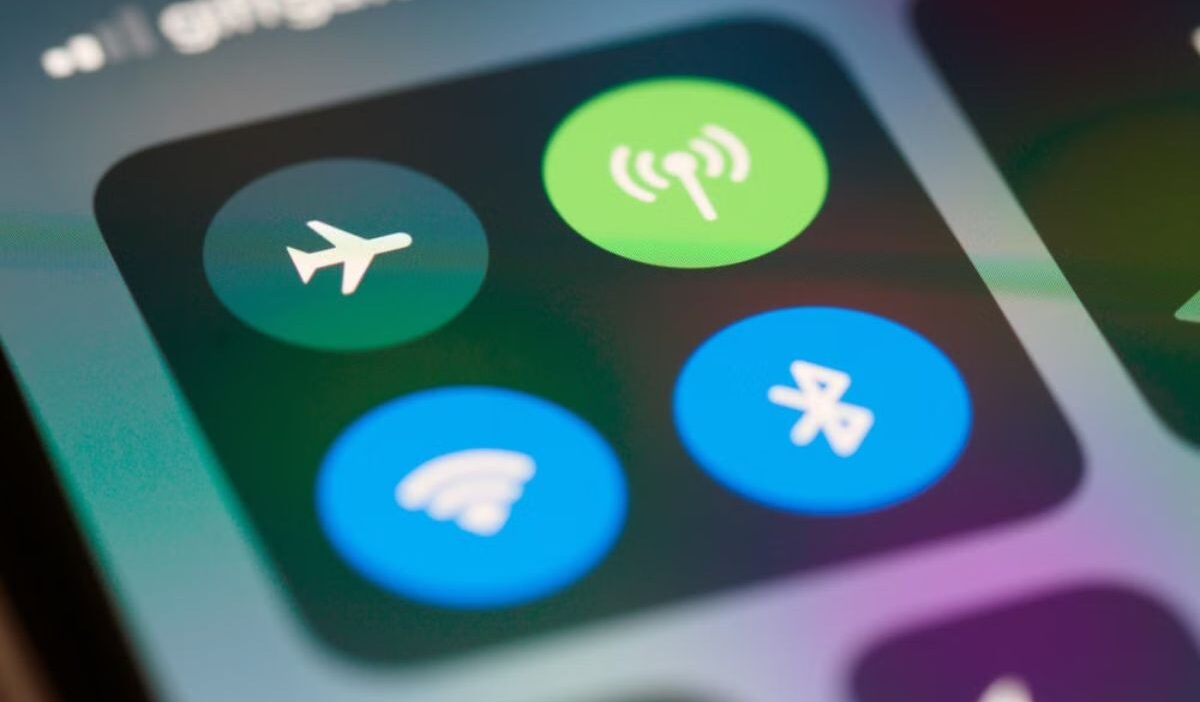
Step 2: Toggle Airplane Mode
Turn Airplane Mode on, wait about 15 seconds, and turn it off. This forces the phone to search for the carrier network again.
Step 3: Check Your Internet Connection
Downloading and setting up an eSIM normally requires internet access. Connect to Wi-Fi or a reliable hotspot unless your phone, carrier, and region support activation through another cellular connection.
Step 4: Restart the Phone
Restarting can refresh the device’s network connection. However, it will not fix an incomplete carrier account setup or an invalid activation request by itself.
Step 5: Check Carrier Settings on iPhone
On iPhone, go to Settings > General > About. Install a carrier-settings update if a prompt appears.
Android phones do not use the same universal carrier-settings update process. Install available system updates and follow any instructions from the carrier or phone manufacturer.
Step 6: Check the Device and Activation Details
Activation may fail when:
- The phone is locked to another carrier.
- The eSIM details or QR code are invalid or have already been used.
- The carrier does not support the device.
- The account or mobile plan is not active.
- The number transfer is still being processed.
- There is a carrier outage or no coverage.
Step 7: Contact the Carrier
If the eSIM remains disconnected, ask the carrier to confirm that the plan and eSIM are active on its system. The carrier may need to complete the activation, correct the account, or issue new eSIM details.
>>> Read more: How Long Does It Take To Activate eSIM? Tips For Quick Connection
5. Activation Depends on More Than Your Device
Once you understand how to know if eSIM is activated, the next step is making sure the line has an active service plan. If monthly wireless costs are a concern, Lifeline may be worth considering.
This is a federal assistance program that helps eligible households afford wireless service without straining their financial situation. Specifically, the program provides a discount of up to $9.25 per month, or up to $34.25 on qualifying Tribal lands, toward phone service or internet service.
The discount is applied by an approved Eligible Telecommunications Carrier (ETC) and may reduce the cost of a qualifying plan to as low as $0, depending on the provider, plan, and location.
Eligibility is generally based on household income or participation in qualifying programs. Only one Lifeline benefit is allowed per household, and it is non-transferable.
Cintex Wireless is one participating ETC that helps eligible customers apply online, review available service plans, and activate service on a compatible device.
Depending on your ZIP code and current availability, you may be able to bring your own phone and use an available physical SIM or eSIM activation option, or get a free device along with an eSIM/SIM card. All come with the Lifeline-discounted service.
Notably, Cintex Wireless is merging into AirTalk Wireless. This change is designed to give customers a more streamlined enrollment experience, broader device and service options, and expanded customer support through one platform.
DISCLAIMER: The government does not cover device costs, only basic service through Lifeline. Any free or discounted devices, upgrades, or top-ups are limited-time Cintex Wireless and AirTalk Wireless offers and may vary by state, eligibility, and availability. Terms and conditions apply.
6. FAQs
Does eSIM activate automatically?
Sometimes. A carrier may assign and activate the eSIM during phone setup, while other providers require a QR code, app, transfer process, or account verification. Even if the profile appears automatically, test the specific line to confirm that it has connected to the carrier network.
Can an eSIM appear in Settings without being active?
Yes. An eSIM profile can appear in your phone’s settings before activation is complete. If you don’t see a carrier name, signal bars, or a working mobile connection, the profile may still be inactive.
Why do I have an eSIM but no signal?
There are several possible reasons. Your activation may still be processing, your phone could be carrier locked, the eSIM profile may not have downloaded correctly, or there could be a temporary network issue. Checking your carrier settings and restarting your phone often resolves the problem.
Can I activate an eSIM without Wi-Fi?
Sometimes. eSIM setup normally requires internet access, but it does not always have to come from Wi-Fi. A hotspot or another cellular connection may work, and some eSIM-only iPhones can activate without Wi-Fi in supported countries and regions. Requirements depend on the device, carrier, and activation method.
Conclusion
Learning how to know if esim is activated involves checking more than the carrier name or signal bars. Confirm that the specific eSIM line is enabled, select it for mobile data, turn off Wi-Fi, and test the connection. If the plan includes calls and texts, test those services from the same line as well.
When the profile appears but service still does not work, the carrier may need to finish the activation or correct an account, compatibility, or number-transfer issue.