
A weak or unavailable Wi-Fi connection can make it hard to work, study, or stay productive. Public Wi-Fi may also be slow or unsafe. Using a phone hotspot can drain your battery and use up your mobile data.
Luckily, a laptop SIM card offers a more reliable way to stay connected. It can be useful for remote workers, students, frequent travelers, and anyone who needs internet access on the go.
1. Can a Laptop Use a SIM Card?
Some laptops support cellular connectivity through a built-in WWAN (Wireless Wide Area Network) module, which may include a physical nano-SIM tray or eSIM support, depending on the model.
A physical SIM tray alone is not enough. The laptop also needs compatible WWAN hardware, the necessary drivers, and an active carrier-supported cellular plan.
If you are wondering “Can I add SIM to my laptop?” The answer depends entirely on whether your specific model came equipped with a built-in WWAN cellular module and internal antennas.

Then you might question why most computers lack SIM slots. In fact, unlike smartphones, laptops prioritize battery life, thinness, and global Wi-Fi compatibility over always-on cellular connectivity.
Adding LTE or 5G hardware increases manufacturing costs, requires additional antennas and certification, and can affect battery life and device design.
For this reason, WWAN support is more common in business laptops, although some premium consumer models also offer cellular connectivity.
2. Benefits of a Laptop SIM Card
Is there a laptop with a SIM card? Yes, and it brings lots of benefits as follows:
- Internet access without Wi-Fi: Connect through a mobile network wherever coverage is available.
- Better mobility: Work, study, or browse while traveling.
- More reliable connection: Avoid slow or unstable public Wi-Fi networks.
- Improved security: Use a private cellular connection instead of public hotspots.
- No phone hotspot needed: Save your phone battery and mobile data.
- Easy setup: Insert a SIM card or activate an eSIM on a compatible laptop.
- Flexible data plans: Choose a plan based on your budget and usage needs.
3. How to Know if Your Laptop Supports a SIM Card?
A visible SIM tray does not ensure operation. Here’s how to validate the true WWAN functionality to recognize laptop SIM card:
- Check the specifications: Visit the manufacturer’s website and confirm whether your exact laptop configuration supports LTE, 5G, WWAN, or eSIM.
- Check Windows Settings or Device Manager: On Windows, open Settings > Network & Internet or Device Manager to see whether a cellular adapter is installed. If no cellular adapter appears, your laptop may not include WWAN hardware.
- Check BIOS/UEFI settings: Some business laptops allow the WWAN module to be enabled or disabled in BIOS/UEFI. If your laptop includes WWAN hardware but Windows does not detect it, check the BIOS settings or consult the manufacturer’s documentation.
- Confirm driver availability: Go to the manufacturer’s support website and search for your precise model + “WWAN driver”. Even when the hardware is fine, SIM recognition fails due to missing or outdated drivers.
4. Laptop SIM Card vs Laptop eSIM: Which One is Better?
A physical SIM card is a good choice for users who want simple setup and broad carrier support. It also works well for people who often move the same SIM between devices.
Meanwhile, an eSIM laptop is better for frequent travelers and remote workers. It allows faster plan activation and easier carrier switching.
Ultimately, the best option depends on your laptop, mobile provider, and travel needs. Look at the table below:
| Feature | Laptop SIM card | Laptop eSIM |
| Setup | Insert a physical SIM card | Activate a digital mobile plan |
| Availability | Supported by many carriers | Support depends on the laptop and carrier |
| Carrier switching | Requires changing the SIM card | Switch plans through device settings |
| Device switching | Easy to move between compatible devices | Usually is activated on one device at a time |
| Risk of damage | Can be lost or damaged | Cannot be lost or removed |
| Multiple plans | Limited by available SIM slots | Can store several eSIM profiles |
5. What to Use If Your Laptop Does Not Support SIM or eSIM?
You can still access mobile internet if your laptop does not support a SIM card or eSIM. Several alternatives can connect your laptop to a cellular network:
- Phone hotspot: Turn your smartphone into a Wi-Fi hotspot. Your laptop can connect to it like a regular Wi-Fi network. This option is easy to set up. However, it can drain your phone battery quickly.
- USB tethering: Connect your phone to your laptop with a USB cable. Your laptop will use the phone’s mobile data connection. USB tethering is often more stable than a wireless hotspot. It can also charge your phone during use.
- Portable mobile hotspot: Use a separate hotspot device with its own SIM card and data plan. It can provide internet access for several devices. This is a practical option for frequent travelers and remote workers.
- USB cellular modem or cellular router: USB cellular modems are another option on some networks. They accept a SIM card and provide mobile internet directly to the laptop, although portable hotspots are now more common.
>>> Read more: Tablet With SIM Card: How It Keeps You Connected (2026)
6. If Laptop SIM Card isn’t an Option, Here is an Alternative
A laptop SIM card can be expensive. Not to mention, many standard laptops also do not have a SIM card slot or eSIM support.
In this case, a smartphone can be a practical alternative, which allows you to access mobile data directly on the phone.
Fortunately, the Lifeline program, a government assistance program, can help eligible low-income consumers reduce the monthly cost of phone service or internet service.
Eligibility is based on income or participation in other federal assistance programs like SSI, SNAP, etc.
The program works through approved Eligible Telecommunications Carriers, which can provide a free or discounted smartphone as part of their current offers.
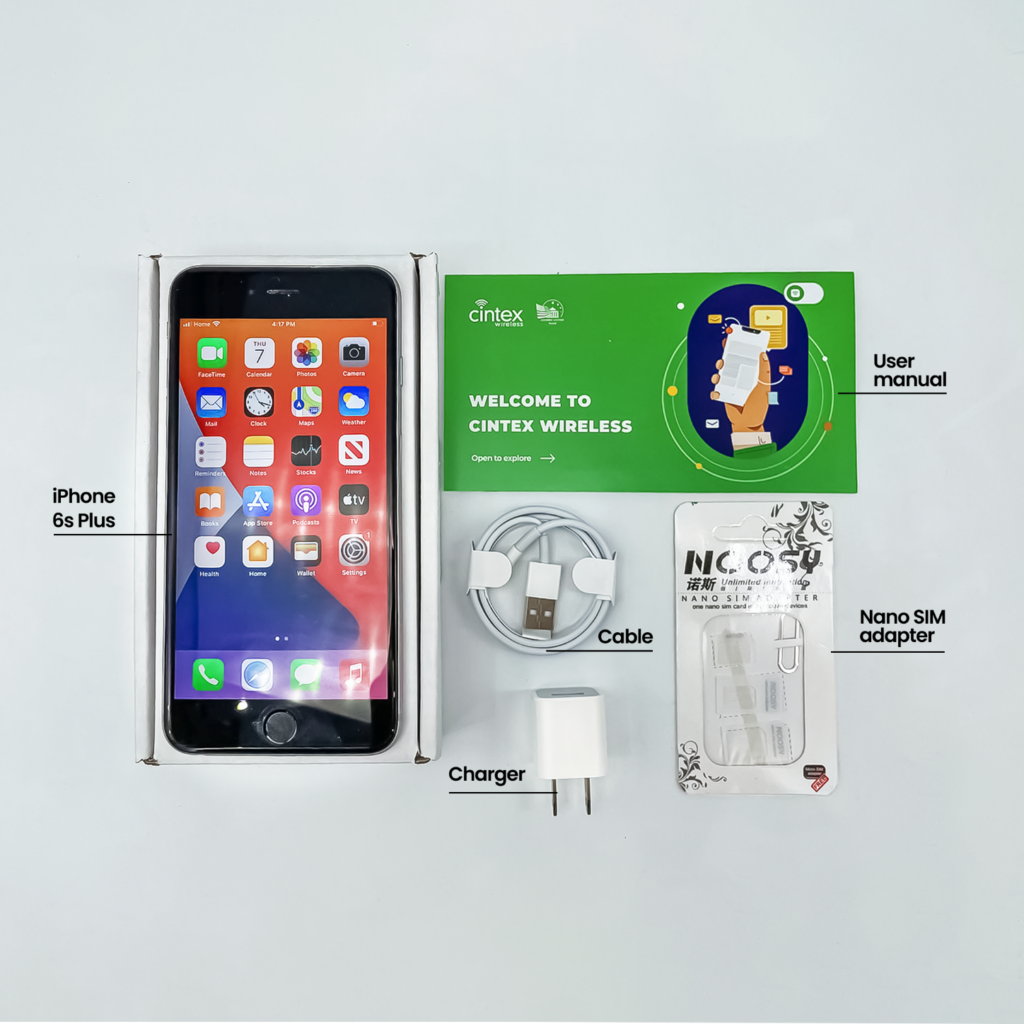
Cintex Wireless is one provider that offers Lifeline-supported services.
It is currently merging with AirTalk Wireless. New applicants may be directed to AirTalk’s unified enrollment platform.
This change is designed to provide a smoother application experience. Simply enter ZIP code to check the available plans and devices and choose the one suit you most. Then, submit required documents and follow the instructions.
Keep in mind that Lifeline benefits are exclusively meant for the approved beneficiary. The service cannot be transferred to another individual and is often restricted to one benefit per qualifying family.
IMPORTANT: The government does not subsidize devices. Lifeline programs cover basic service costs only. Free or discounted devices, upgrade plans, or top-ups are exclusive benefits provided by Cintex and AirTalk Wireless as part of our promotional offers. Terms and conditions apply. Limited-time promotion—offers vary by state, stock availability, and eligibility.
Conclusion
Reliable internet access can make a real difference when you are working, studying, or traveling away from a trusted Wi-Fi connection. For people who need to stay productive on the go, mobile connectivity offers more freedom and fewer interruptions.
A laptop SIM card can be a useful solution, but only when the device includes compatible WWAN or eSIM support. Before choosing this option, check your exact laptop configuration, carrier compatibility, and data plan costs. If cellular support is unavailable, a phone hotspot, USB tethering, or portable hotspot can still help you stay connected when it matters most.