
A failed call can leave you wondering whether the problem is your phone, your network, or the person you’re trying to reach. The frustrating part is that your phone may look perfectly fine, yet the call still won’t go through.
Instead of continuing to wonder, “Why does my call keep failing?” let’s look at the most common reasons and how to fix them.
1. Why Does My Call Keep Failing? 7 Common Reasons
A failed call does not always mean your phone is broken. The problem could come from your cellular connection, wireless carrier, SIM card, or even the number you’re trying to reach.
Here are seven common reasons your calls may not go through.
Weak or Unstable Cellular Signal
Your phone needs a stable connection to a cellular network to place calls. When you’re in a basement, elevator, rural area, or building with thick walls, the signal may become too weak to complete a call.
Common signs include:
- Dropping signal bars
- Calls taking longer to connect
- Connections dropping shortly after dialing
Carrier Outage or Network Problems
Sometimes, the problem has nothing to do with your phone. Your wireless carrier may be experiencing a temporary outage, network congestion, or maintenance in your area.
These issues can prevent calls from connecting even when your phone displays several signal bars. You may also experience other service disruptions, such as slow mobile data or problems sending text messages.
SIM or eSIM Issues
Your SIM card connects your phone to your carrier’s network. A damaged, improperly inserted, or inactive SIM can interrupt that connection and prevent outgoing calls.
eSIM problems may occur when:
- The cellular plan has not been activated correctly.
- The wrong line is selected on a dual-SIM phone.
These issues are more likely after switching carriers, replacing a SIM, or transferring your number to another device.
Account or Service Restrictions
An inactive account or a restriction placed by your carrier can also explain why your calls keep failing.
Common causes include:
- Unpaid bills
- Expired prepaid service
- Account suspension
- Incomplete service activation
Some carriers also restrict certain types of calls based on your plan or account settings.
Incorrect Phone Settings
A few incorrect settings can interfere with cellular service. Your phone might be:
- Stuck in Airplane Mode
- Using the wrong SIM for outgoing calls
- Configured with network preferences that don’t work well in your location
Call restrictions and carrier-specific settings may also affect which numbers you can reach. This is particularly worth considering if the problem started after you changed your phone’s cellular or calling settings.
Outdated Software or Temporary Glitches
Your phone’s operating system and carrier settings help it communicate with the mobile network. Outdated software or a temporary system error can interfere with that process.
For instance, you may experience:
- Compatibility issues after a software update
- Failed calls caused by temporary network registration errors
- Other cellular functions behaving abnormally
Problems With the Number You’re Calling
If your calls work normally with other contacts, the problem may be specific to the number you’re dialing.
An incorrect number, international dialing format, disconnected line, or carrier routing issue could prevent the call from connecting.
The recipient’s phone may also be unavailable, although this often sends calls to voicemail rather than displaying a “Call Failed” error.
Try another contact before changing your phone settings. If only one number fails repeatedly, the problem may not be with your device.
2. How to Fix a Phone Call That Keeps Failing: Follow These 8 Steps
Once you have an idea why does my call keep failing, try these troubleshooting steps in order. Make a test call after each one to see whether the problem is resolved.
Step 1 – Check your cellular signal
First, move to an open area or somewhere with better reception. Try calling again once your signal improves.
Step 2 – Turn Airplane Mode on and off
Enable Airplane Mode for about 5 to 15 seconds, then disable it. This prompts your phone to reconnect to the cellular network.
Step 3 – Restart your phone
A simple restart can clear temporary glitches affecting your phone’s network connection.
Step 4 – Check your SIM or eSIM
Make sure your physical SIM is inserted correctly. For an eSIM, confirm that the cellular plan is installed and enabled.
Step 5 – Review your phone and network settings
Check your selected SIM, preferred network mode, and any call restrictions. Make sure Airplane Mode is off.
Step 6 – Update your phone and carrier settings
Install available operating system and carrier configuration updates. These can address network compatibility issues.
Step 7 – Reset network settings
If calls still fail, ask your carrier to check for outages, account restrictions, SIM activation problems, or errors affecting your line.
Step 8 – Contact your carrier
If the earlier fixes haven’t helped and the carrier cannot identify a service issue, consider resetting your phone’s network settings.
This can remove saved Wi-Fi connections and other network preferences. On iPhone, don’t confuse Reset Network Settings with Delete All eSIMs. Never delete your eSIM as a troubleshooting step unless your carrier instructs you to do so.

>>> Also read: How to Reset SIM Card: Effective Fixes for Android and iPhone
3. Call Failed on iPhone or Android? Try These Device-Specific Fixes
The general troubleshooting steps are similar across phones, but the settings and diagnostic tools differ. Here’s where to find them on iPhone and Android.
If You’re Using an iPhone
When investigating why does my call keep failing on an iPhone, start by checking these settings:
- Check your cellular line: Go to Settings > Cellular and make sure your preferred SIM or eSIM line is turned on. If you use Dual SIM, confirm that the correct line is selected for outgoing calls.
- Check carrier settings: Open Settings > General > About. If a carrier settings update is available, follow the prompt to install it.
- Review call-related settings: Go to Settings > Apps > Phone to check Call Blocking, Call Forwarding, and other available options.
Additionally, on iPhones running iOS 18 or later, download the latest Apple Support app to run additional diagnostics. These tests can help identify potential issues with your device and determine whether further support is needed.
If You’re Using an Android Phone
Android menu names vary by manufacturer, so the exact steps may differ between Samsung, Google Pixel, and other devices.
Try these checks:
- Check your SIM status: Open Settings > Network & Internet or Connections > SIM Manager, depending on your device. Make sure your active SIM is enabled.
- Review network operator settings: Check that your phone is connected to your carrier’s network. If automatic network selection is available, enable it.
- Check for software updates: Go to Settings > System > Software Update or use your manufacturer’s update menu.
Also, Samsung Galaxy users can run diagnostics through the Samsung Members app. Open the app, select Diagnostics, and run the Mobile network or SIM card tests.
You can choose Test all to check other phone functions. If a test fails, follow the troubleshooting suggestions provided in the app.
4. Why Does My Call Fail When I Call One Specific Number?
When calls to most contacts work, but one particular number keeps failing, the issue may be on the recipient’s end. Before changing your phone settings or contacting your carrier, try these checks:
- Verify the phone number. Check for missing or incorrect digits, especially the country and area codes for international calls.
- Call another contact. If the call connects normally, your cellular service is likely working.
- Check the recipient’s phone status. Their device may be switched off, outside network coverage, disconnected from service, or experiencing a temporary network issue.
- Consider whether your number is blocked. However, a failed call alone cannot confirm this.
If the number still won’t connect, try sending a text or contacting the person through another channel. You can also ask your carrier whether any restrictions are preventing the call.
5. Still Having Connection Problems? Check Your Wireless Options
If your calls keep failing despite trying these fixes, it may be worth reviewing your wireless service. A reliable plan with dependable network coverage and helpful customer support can make a difference when you need to stay reachable.
Did you know you may be able to get reliable phone service without paying a high monthly bill? Lifeline, a federal assistance program, makes this possible by helping eligible low-income households save on phone service or internet service through monthly discounts.
To access these discounts, eligible households can turn to wireless providers that participate in the Lifeline program. Cintex Wireless is one such provider, offering Lifeline-supported services to eligible customers.
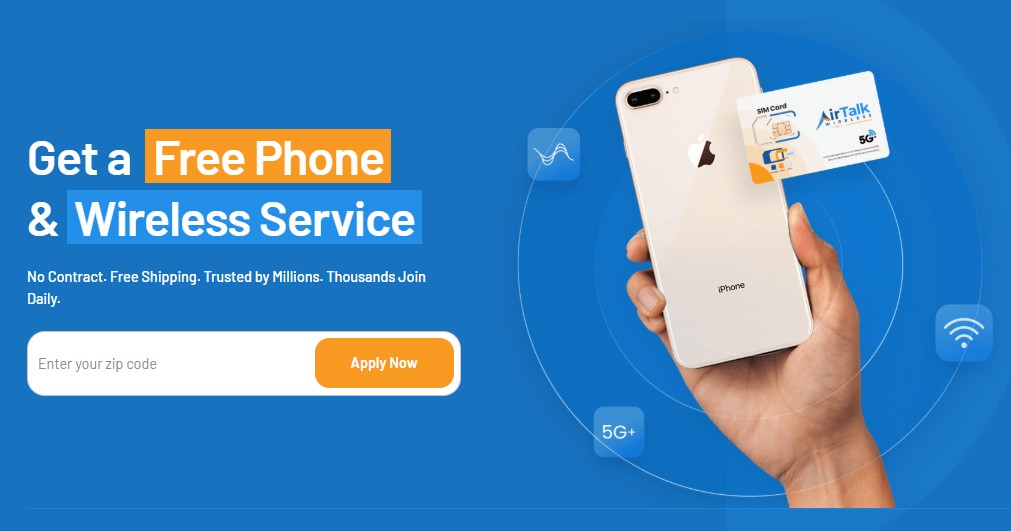
This carrier has recently merged with AirTalk Wireless to create a more convenient online application path while connecting applicants with AirTalk’s service plans and available device offers.
AirTalk’s Lifeline plans offer unlimited talk and text, monthly data, free international calling to over 200 countries and territories, Wi-Fi Calling, SIM or eSIM options, and free or discounted smartphones for eligible applicants.
So, what makes AirTalk service worth considering? Beyond the range of features included in its Lifeline plans, it offers nationwide network coverage and responsive customer support to help you resolve service issues when they arise.
To apply online:
- Check the Lifeline eligibility requirements.
- Visit AirTalk Wireless.
- Enter your ZIP code to see available plans and device offers.
- Submit any required documents and complete the application.
Check your ZIP code with AirTalk Wireless now to find a more reliable way to stay connected!
DISCLAIMER: The government does not subsidize devices. Lifeline programs cover basic service costs only. Free or discounted devices, upgrade plans, or top-ups are exclusive benefits provided by AirTalk Wireless and Cintex Wireless as part of the promotional offers. Terms and conditions apply. Limited-time promotion—offers vary by state, stock availability, and eligibility.
Conclusion
You shouldn’t have to worry every time you make a phone call. If you’re still asking, “Why does my call keep failing?” start with the simplest fixes and work your way through the possible causes.
If nothing works, contact your carrier to get the issue checked. A reliable phone connection should be something you can count on, not another thing to troubleshoot.