
Seeing No Service after inserting a SIM can be confusing because the iPhone may recognize the card without connecting to the mobile network. In most cases, the problem comes from weak coverage, incorrect settings, an outdated carrier profile, or an issue with the SIM itself.
This guide explains what SIM card inserted but no service iPhone means, the likely causes, and the steps you can try before replacing the card or contacting your carrier.
1. What Does “SIM Card Inserted But No Service iPhone” Mean?
A “SIM Card inserted but no service iPhone” issue generally means the iPhone is not connected to the carrier’s cellular network, even though a physical SIM has been inserted or an eSIM line has been set up. The cause may involve coverage, account status, cellular settings, the carrier network, or a SIM that is not being read correctly.
You may still be able to use Wi-Fi, apps, iMessage, and FaceTime, but regular calls, SMS, and mobile data will remain unavailable until the connection is restored.
Depending on the situation, the status bar may display:
- No Service
- Searching
- SOS
- SOS Only
If the status bar shows SOS or SOS Only, the iPhone is not connected to its regular carrier network but may still be able to make emergency calls through another available carrier. Apple notes that this status indicator is available in Australia, Canada, and the United States.
2. What Causes SIM Card Inserted But No Service iPhone?
The source of the problem is not always the SIM card. It may involve the phone, network coverage, carrier account, or software.
Damaged or faulty SIM card
A scratched, worn, dirty, or poorly seated SIM may fail to connect properly. The card may also need to be replaced if it no longer works on another compatible phone.
Device Issues
Damage to the SIM tray, card reader, antenna, or internal hardware can cause No Service. This is more likely after a drop, water exposure, or repair.
Glitch Software
A temporary iOS error may interrupt the cellular connection. Restarting the phone or toggling Airplane Mode often clears minor glitches.
Weak or Unavailable Cellular Coverage
Weak cellular coverage can leave the phone without service in basements, remote areas, or buildings with thick walls. Moving to another location may restore the signal.
Carrier Issues
The issue may also be caused by a local outage, a suspended account, an incomplete number transfer, or an improper SIM activation. Contact the carrier if the line remains unavailable after basic troubleshooting.
>>> Read more: How To Set Up Cellular On New iPhone? 5 Quick Steps
3. How to Fix SIM Card Inserted But No Service iPhone?
Try the steps below in order. After each one, wait briefly to see whether the carrier name and signal bars return.
Move to an Area with Better Coverage
Start by changing your location. Go outdoors, move closer to a window, or leave a basement or enclosed building.
If another phone using the same carrier also has no signal nearby, the issue is probably related to coverage or a local outage rather than your iPhone.
Toggle Airplane Mode On and Off
Open Control Center or go to Settings, turn on Airplane Mode, and leave it enabled for at least 15 seconds. Then switch it off.
This forces the iPhone to disconnect and reconnect to the mobile network. Apple includes this among its first recommendations for No Service and Searching errors.
Restart Your iPhone
Power the phone off, wait a few seconds, and turn it back on. A restart refreshes the network connection and can remove a temporary software fault.
For newer iPhones, hold the volume and side buttons until the power slider appears. Holding down the side button will restart the device after it has shut down.
Check Cellular Data and SIM/eSIM line settings
Open: Settings > Cellular
Make sure the affected line appears and is switched on. On a Dual SIM iPhone, tap the correct phone number and confirm that Turn On This Line is enabled.
Also check that:
- The affected cellular line is turned on.
- The correct line is selected for cellular data if you want to use mobile internet.
- Data Roaming is enabled when you are abroad, and your carrier plan permits roaming.
- The eSIM profile has not been accidentally disabled or deleted.
Remove and Reinsert the Physical SIM Card
See the message “SIM card inserted but no service iPhone?”
Turn off the iPhone before opening the SIM tray. After removing the card using the ejector tool, look for any dirt, cracks, or bent edges.
Place it back into the tray in the correct position, make sure it sits flat, and insert the tray gently. Do not force it or use a modified card, as Apple warns that cutting a SIM can damage the tray and interfere with cellular service.
Turn the phone on and allow it a moment to reconnect.
Check for a Carrier Settings Update
Carrier settings help the iPhone connect to mobile services, including calls, data, messaging, and network features.
Connect the phone to Wi-Fi, then open: Settings > General > About
Wait on the About screen for several seconds. A prompt will show up if an update is available. According to Apple, updated carrier settings could be necessary for a new physical SIM or eSIM.
Update iOS
Go to: Settings > General > Software Update
Install the most recent version of iOS on the phone. Software updates may include cellular fixes and compatibility changes.
Keep the iPhone connected to power and Wi-Fi until the installation is complete.
Reset Network Settings
When the earlier steps do not work, open:
Settings > General > Transfer or Reset iPhone > Reset > Reset Network Settings
This removes saved Wi-Fi networks, passwords, VPN settings, and cellular preferences. It does not delete photos, apps, or other personal data.
After the restart, reconnect to Wi-Fi and check whether cellular service returns.
Contact Your Carrier
Contact the carrier if the phone still shows No Service. Ask the representative to confirm:
- The line is active
- There is no outage in your area
- The account is not suspended
- The SIM or eSIM is registered correctly
- The phone is approved for the network
- The IMEI is not blocked
- A number transfer has been completed
4. How to Find the SIM Number on iPhone?
The SIM number on iPhone normally refers to the ICCID, a unique identifier attached to the physical SIM or eSIM profile.
To find it, open: Settings > General > About > ICCID
You may need to scroll down. Touch and hold the number to copy it into a carrier chat or support form. Apple confirms that ICCID, EID, IMEI, and related identifiers are available on the About screen.
Your carrier may ask for the ICCID when:
- Activating or replacing a SIM
- Checking which SIM is linked to the account
- Moving service to another phone
- Troubleshooting a failed connection
- Confirming an eSIM profile
- Completing a number transfer
However, do not confuse the ICCID with the IMEI. The ICCID identifies the SIM profile, while the IMEI identifies the iPhone itself.
If no ICCID appears for an inserted physical SIM, remove and reinsert the card, then restart the iPhone.
If the number is still missing, the phone may not be reading the SIM correctly. Contact your carrier to test or replace the SIM, especially if the card also fails in another compatible phone.
5. Need a New SIM Card? How Cintex Wireless Can Help
When replacing a damaged SIM or changing wireless service, Lifeline may offer a more affordable way to stay connected.
Lifeline is a government assistance program that provides a monthly discount on qualifying phone service or internet service.
A household may qualify if its income is at or below 135% of the Federal Poverty Guidelines or if a member participates in an approved program such as SNAP, Medicaid, or SSI.
The benefit is delivered through approved Eligible Telecommunications Carriers, or ETCs. These providers apply the Lifeline discount to eligible service plans and may add their own device or SIM promotions.
Cintex Wireless is one of the participating carriers and is known for its relatively simple online enrollment process.
Cintex is also merging with AirTalk Wireless, an established Lifeline provider, giving applicants access to an updated application system, a broader range of devices, and expanded support.
Depending on your state, eligibility, and available inventory, benefits may include:
- Monthly talk, text, and mobile data
- An eSIM-compatible smartphone
- No annual service contract
- Nationwide network coverage
- Digital activation on supported devices
Offers vary by location and stock, so review the available plan and phone details before submitting an application.
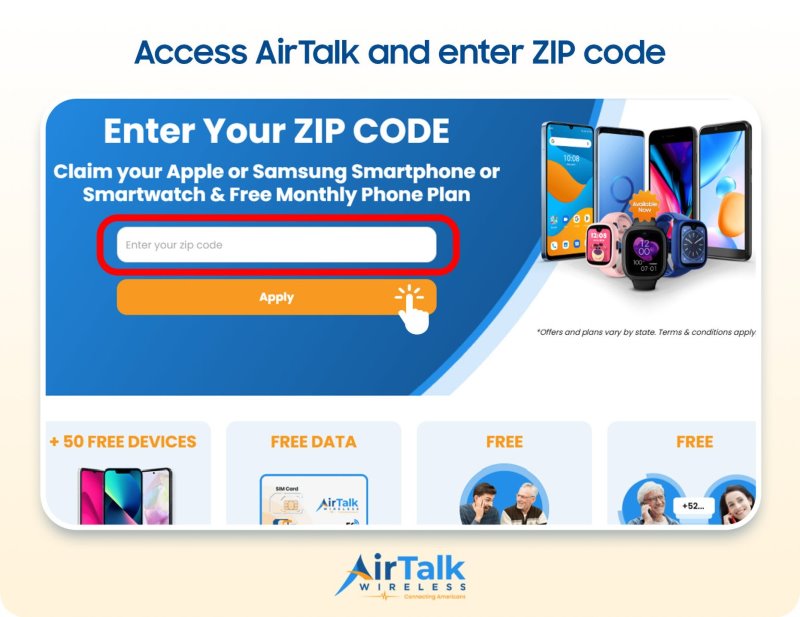
Note: Eligibility varies by state and program. Offers depend on availability and qualifications. Cintex and AirTalk Wireless operate under the federal Lifeline Program as Eligible Telecommunications Carriers (ETCs). Service is non-transferable and limited to one service per household.
Conclusion
A SIM card inserted but no service iPhone problem often comes down to coverage, cellular settings, outdated software, or an inactive SIM. Start with Airplane Mode and a restart, then check the SIM, carrier update, and account status.
Keep the SIM number on iPhone ready if you need carrier support, as the ICCID can help identify whether the correct physical SIM or eSIM is attached to your line.