How to call private on iPhone when you need to reach someone you barely know? Maybe you’re contacting an online seller or asking about an apartment, and you’d rather not have your personal number saved on a stranger’s phone.
You’ve heard that a dialing code can hide your number, but will it work on your iPhone? And what if you want to keep your number hidden for more than one call?
Find out which option fits your situation and what to check before making that private call.
1. Hide Your Caller ID In iPhone Settings
Where supported, disabling Show My Caller ID prevents your number from appearing on ordinary outgoing calls. The setting remains selected until you change it.
How to make a private call on iPhone
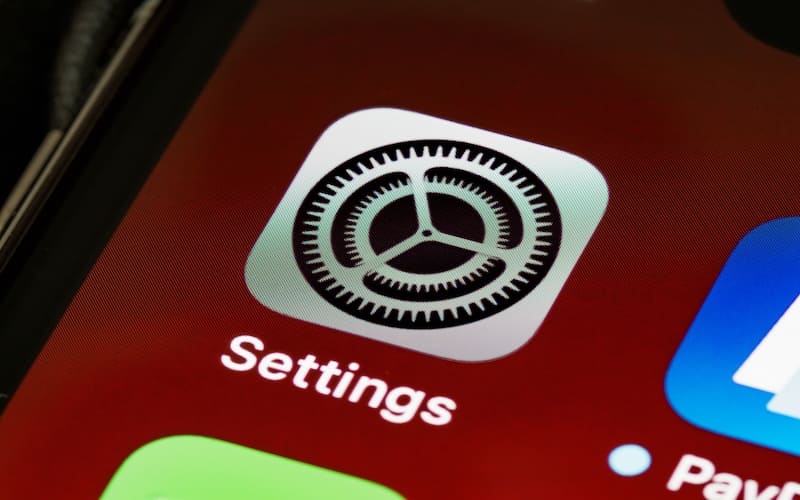
- Open Settings.
- Select Apps > Phone. Tap Show My Caller ID.
- Turn the switch off.
- Make a test call to someone who agrees to check the display.
To restore your number, return to the same setting and turn it on. This controls outgoing identification, not how incoming callers are identified. Your carrier determines whether the option is available.
For example, if you hide your number before several calls, remember to restore it before calling someone who expects to recognize you. Understanding how to call private on iPhone includes managing what happens afterward.
2. Need To Hide Your Number Just Once?
Changing your default may be unnecessary for one conversation. On supported U.S. networks, *67 requests caller ID blocking for that individual call.
- Open Phone > Keypad.
- Enter *67 followed by the complete destination number, including its area code.
- Place the call.
For example, dial *672125550123 to request caller ID blocking when calling 212-555-0123. On supported U.S. networks, the recipient may see “Private” or “No Caller ID” instead of your number.
This approach to how to call private on iPhone generally leaves subsequent calls using the line’s previous setting. However, *67 is a carrier feature, not an Apple feature; other networks or countries may use different methods.
If you searched “how to private call on iPhone,” first decide whether you need this temporary approach or a continuing default.
>>> Read more: What Is A SIM Free iPhone? Enjoy Your Connectivity Freedom 2026
3. Why Is Show My Caller ID Missing Or Grayed Out?
If you can’t find Show My Caller ID under Settings > Apps > Phone, your carrier may not allow you to control outgoing caller ID directly from your iPhone.
Here’s what to check:
- The option is missing: Confirm you’re looking under Phone settings, then contact your carrier to ask whether outgoing caller ID blocking is supported.
- The switch is grayed out: Your carrier may control the feature. Restarting your iPhone or installing another app won’t necessarily make it available.
- Your number still appears: Test another eligible call and confirm that your carrier supports the selected blocking method.
- You only need privacy for one call: Ask whether your carrier supports dialing *67 before the number.
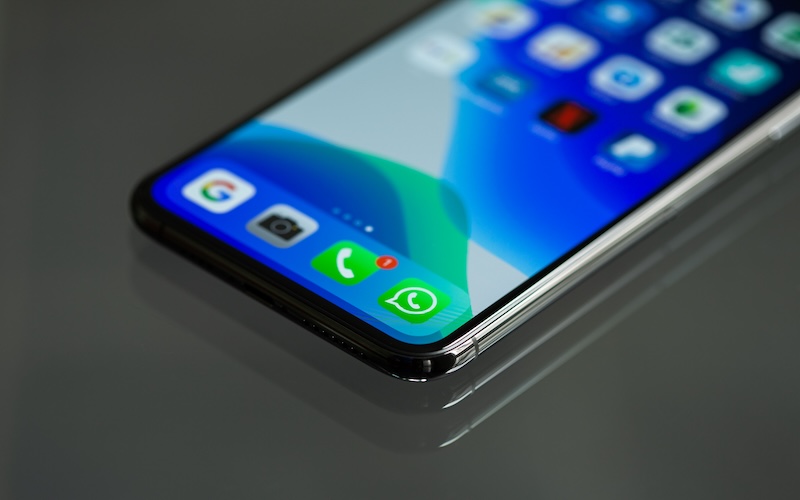
4. What Can People Still See When You Call Privately?
Instructions for how to call private number on iPhone concern the recipient’s ordinary caller ID display. Your carrier and authorized systems may still identify the call.
| Calling situation | What to know |
| Ordinary cellular call | A private or unidentified label may appear |
| Emergency or toll-free call | Blocking may not apply |
| Anonymous-call rejection | The call may be rejected or screened |
| SMS and iMessage | Messaging identity is not hidden by this setting |
| FaceTime | Uses a phone number or Apple Account email |
| WhatsApp and other apps | Each application manages identification separately |
Does Hiding Caller ID Also Hide Your Number on FaceTime?
No. Turning off Show My Caller ID for regular phone calls doesn’t make FaceTime calls anonymous.
FaceTime has its own caller identification settings. Open Settings > Apps > FaceTime, then review the Caller ID option. Depending on your account setup, you may be able to choose your phone number or an associated Apple Account email address.
Selecting an email address changes which identity appears, but it doesn’t hide your identity completely.
The same distinction applies to iMessage and third-party calling apps, which use their own identification methods.
Also, remember that some people reject unidentified calls. Hiding your number doesn’t guarantee that the recipient will answer.
>>> Read more: SIM Card Inserted But No Service iPhone? 9 Easy Troubleshooting Tips
5. Keep Everyday Calls Affordable As You Manage Your Privacy
You may already have an iPhone that does everything you need, including access to caller ID privacy settings. But if your monthly wireless bill is becoming difficult to manage, replacing your phone isn’t necessarily the answer.
The federal Lifeline program may help eligible households reduce the cost of phone or internet service.
You may qualify through Medicaid, SNAP, SSI, Federal Public Housing Assistance, or household income at or below 135% of the Federal Poverty Guidelines. Generally, only one Lifeline benefit is allowed per household.
To receive the discount, you can enroll through a participating Eligible Telecommunications Carrier (ETC).
Cintex Wireless has been fulfilling that role for many years. The carrier is merging into AirTalk Wireless, another ETC. This merger expands device selection and simplifies enrollment, helping eligible applicants compare phones alongside service plans.
Depending on location and offer terms, options may include:
- A variety of phone and tablet options from well-known brands
- Plenty of mobile data included each month
- Unlimited talk and text at no cost
- Free international calls to multiple countries and regions
- No contracts, credit checks, activation fees, or other complicated requirements
Enter your ZIP code to review coverage, allowances, device availability, and charges. Confirm caller ID blocking separately before choosing service.
IMPORTANT: The government does not subsidize devices. Lifeline programs cover basic service costs only. Free or discounted devices, upgrade plans, or top-ups are exclusive benefits provided by AirTalk Wireless and Cintex Wireless as part of the promotional offers. Terms and conditions apply. Limited-time promotion—offers vary by state, stock availability, and eligibility.
6. FAQs
Does *67 work on every iPhone and carrier?
No. The *67 code is not supported by every carrier or calling service. Its effectiveness depends on your mobile provider, network, and call destination. Check with your carrier before using it.
Can I hide my number without downloading an app?
Yes. You can hide your phone number using supported iPhone settings or a carrier-specific blocking code. Availability varies by carrier, so confirm which option works with your service.
How to call someone private on iPhone without changing future calls?
Dial *67 before the recipient’s phone number if your carrier supports it. This temporarily blocks your caller ID for one call without changing how your number appears on future calls.
Can I call back a number displayed only as Private or No Caller ID?
No, not directly. If a call appears as Private or No Caller ID, your iPhone does not display a usable callback number. You would need the caller’s actual phone number to return the call.
Conclusion
Knowing how to call private on iPhone gives you more control over when your personal number appears to others. Whether you’re making one private call or prefer to keep your caller ID hidden more regularly, understanding your phone’s settings and carrier limitations helps you make the right choice.
While private calling doesn’t guarantee complete anonymity, you can now approach unfamiliar calls with greater confidence and fewer privacy concerns.