Getting a new phone is exciting until you realize your mobile number still needs to come with you. Many people worry they’ll lose service or accidentally deactivate their eSIM during the process.
Fortunately, if you know how to transfer eSIM and your carrier supports the right activation method, moving your number is usually quick and straightforward.
This guide explains what to prepare, how to transfer your eSIM safely, and what to do if Quick Transfer isn’t available.
1. Before You Transfer Your eSIM
Before you begin how to transfer eSIM, spending a few minutes preparing both devices can help prevent activation problems or unnecessary delays.
Confirm your new phone supports eSIM: Not every smartphone is eSIM-compatible. Check your device specifications or your carrier’s supported device list before starting the transfer.
Update both phones if possible: Installing the latest software helps reduce compatibility issues and improves the chances that the transfer process will work smoothly.
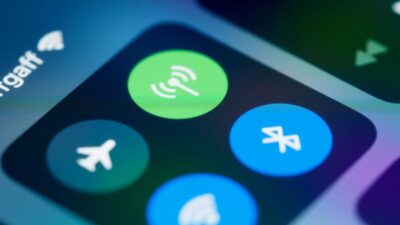
Use the same Apple Account and turn on Bluetooth: For iPhone-to-iPhone Quick Transfer, Apple says both devices should be signed in with your Apple Account, nearby, and have Bluetooth turned on. Your previous iPhone also needs to be unlocked with its passcode.
Keep your old phone unlocked and nearby: During how to transfer eSIM, your old phone may need to approve or complete the transfer request, so keep it powered on and within Bluetooth range.
Do not erase the old phone until the new eSIM is active: Wait until you’ve confirmed that calls, text messages, and mobile data work on the new device before resetting or selling your old phone.
2. How to Transfer eSIM to New iPhone
If you’re planning how to transfer esim to new iPhone, Apple provides a built-in transfer feature that makes moving your number much easier, provided your carrier supports it.
Step 1: Turn on your new iPhone
Follow the initial setup process until you reach the Set Up Cellular screen.
Step 2: Select the option to transfer your eSIM
Choose Transfer From Nearby iPhone if the option appears. This starts Apple’s Quick Transfer process.
If you have already finished iPhone setup, go to Settings > Cellular > Set Up Cellular or Add eSIM, then choose a plan to transfer or tap Transfer From Nearby iPhone if your number does not appear.
Step 3: Approve the transfer on your old iPhone
Follow the prompts on your previous iPhone. You may need to tap Transfer or enter a verification code shown on the new iPhone.
Step 4: Wait while the eSIM transfers
Your carrier plan or phone number transfers to the new iPhone, and the previous SIM is deactivated when the new cellular plan activates. During this time, keep both phones unlocked, connected, and close together.
Step 5: Complete activation
Once the transfer finishes, wait a few moments for your carrier to activate the line. After activation, test calls, SMS or verification texts, and mobile data, before erasing the old phone. Completing these steps is usually the fastest way to learn how to transfer eSIM without changing your phone number.
Note: If your new iPhone shows a banner that says Finish Setting Up Your Carrier’s Cellular Plan, tap it and follow the carrier webpage instructions. If activation still fails, contact your carrier.
>>> Read more: How To Transfer eSIM From iPhone To Android Easily? Detailed Guide 2026
3. Transfer eSIM Without the Old Phone
Losing access to your previous phone doesn’t necessarily mean you’ll lose your number. If you no longer have the old device, how to transfer eSIM depends on the options your carrier provides.
- Check your carrier app or online account
Many carriers let you manage your eSIM through their mobile app or customer portal. Sign in to your account to see whether you can activate your eSIM on a new device without the old phone.
- Request a new eSIM QR code or activation
If self-service isn’t available, ask your carrier to issue a new eSIM QR code or activation code. You’ll scan it during your new phone’s cellular setup. On iPhone with iOS 17.4 or later, you can tap and hold a QR code received in a default email app or browser, then tap Add eSIM.
- Contact carrier support if the old device is unavailable or the activation is blocked
Depending on your carrier, you might need to verify your identity before transferring an eSIM to a different device. If that’s the case, customer support can help release the number and activate it on your new device.

4. What If eSIM Quick Transfer Does Not Show Up?
Sometimes the Quick Transfer option doesn’t appear even though both devices support eSIM. Before assuming something is wrong, check these common causes. Troubleshooting these items often resolves how to transfer eSIM without needing additional support.
- Your carrier may not support Quick Transfer: Not every carrier allows Apple’s built-in transfer feature. In this situation, you’ll need a new eSIM activation from your provider.
- The old phone may not be nearby or unlocked: Keep both iPhones nearby, make sure the previous iPhone is unlocked with its passcode, and keep Bluetooth turned on.
- Bluetooth or internet setup may be missing: Turn on Bluetooth and keep both iPhones nearby. Apple also says the new iPhone should connect to Wi-Fi or a hotspot for eSIM setup, except in some countries and regions where eSIM-only iPhone models can activate without Wi-Fi.
- One or both iPhones may need an iOS update: Apple currently lists iOS 18.4 or later for iPhone-to-iPhone eSIM Quick Transfer.
- You may need a QR code or carrier activation from your provider: If Quick Transfer still isn’t available, request a new activation method from your carrier.
- Regional model differences may apply: Apple notes that iPhone eSIM support varies in some regions, including mainland China, Hong Kong, and Macao. Check the exact iPhone model and region if eSIM options do not appear.
This is often the fastest alternative when how to transfer eSIM can’t be completed through Apple’s built-in feature.
>>> Read more: How To Activate eSIM On iOS And Android? 2026 Tutorial
5. Your eSIM Transfer Could Be a Chance to Review Your Mobile Plan
Now that you’ve learned how to transfer eSIM, it’s also worth asking whether your current mobile plan still meets your needs.
If you’re paying more than necessary or your service has changed over time, this may be a good opportunity to review your options.
If you qualify, the Lifeline program may help reduce the monthly cost of your phone service.
Lifeline is a federal assistance program that works through Eligible Telecommunications Carriers (ETCs) to provide discounted phone service to qualifying households.
Qualified for Lifeline usually goes down to two pathways: through meeting the household’s income limit or participation in qualifying programs like SSI, SNAP, Section 8, etc.
Eligible carriers such as Cintex Wireless have helped eligible customers apply for Lifeline through a simple application process.
Another reason people may feel confident applying through Cintex is that the carrier is merging into AirTalk Wireless, a reputable ETC with more than two decades of experience in the Lifeline industry. This merge helps create a more streamlined application experience and stronger support for eligible customers.
Depending on your eligibility, location, plan availability, device compatibility, and current inventory, you may be able to choose BYOD or a free device to access Lifeline-supported, discounted service. SIM or eSIM support may also be available based on your device, plan, and provider terms.
DISCLAIMER: The government does not cover device costs; only basic service through Lifeline is covered. Any free or discounted devices, upgrades, or top-ups are limited-time Cintex Wireless and AirTalk Wireless offers and may vary by state, eligibility, and availability. Terms and conditions apply.
6. FAQ
Is it possible to transfer an eSIM from iPhone to Android?
Yes. However, the transfer isn’t handled directly between devices. Most carriers require you to activate a new eSIM on the Android phone using a QR code, carrier app, or customer support.
Does eSIM transfer work without Wi-Fi?
No, in most cases. An internet connection is usually required during activation or when downloading the eSIM profile. Wi-Fi is the most common option, although some carriers may allow activation using a mobile connection.
Can I use the same eSIM on two phones?
No. An active eSIM can only be associated with one device at a time. If you move it to another phone, the previous device is normally deactivated.
Why is my eSIM stuck activating?
Common causes include temporary carrier delays, poor internet connectivity, incomplete activation, or incorrect account verification. If activation doesn’t finish after several minutes, restart the device and contact your carrier if the problem continues.
Conclusion
Learning how to transfer eSIM becomes much easier once you understand the correct order of each step.
Preparing your devices, waiting until the new eSIM is fully active, and following your carrier’s instructions can help you move your phone number without interruption.