How to transfer eSIM to new iPhone? If your carrier supports it, Apple’s Quick Transfer feature moves your eSIM directly from your old iPhone to the new one without calling anyone or visiting a store. The process takes a few minutes and runs entirely through Settings.
This guide covers the Quick Transfer checklist, the full step-by-step process, what the “Keep eSIM” option means, and what to do when Quick Transfer is not available.
1. How to Transfer eSIM to New iPhone Using Quick Transfer
If supported by your carrier, Apple’s eSIM Quick Transfer feature allows you to move an eSIM from one iPhone to another without contacting your carrier.
Both iPhones should be running a recent version of iOS that supports eSIM Quick Transfer. Once set up, the eSIM activates on the new phone and deactivates on the old one automatically.
Quick Transfer works by communicating between the two iPhones over Bluetooth. Your carrier must have enabled this feature for the option to appear during setup. Quick Transfer was introduced in iOS 16 and is available on iPhone XS and later.
Not all carriers support Quick Transfer. If the option does not appear on your new iPhone during setup, skip to the alternative methods covered in Section 5 of this guide.
2. Before You Start: Quick Transfer Checklist
Before starting the transfer, make sure all of the following are in place.
- Both iPhones must be nearby and within close range of each other
- Bluetooth must be turned on on both devices
- Being signed into the same Apple Account on both devices isn’t required, but it can make the process smoother
- Both devices must be running a recent version of iOS that supports Quick Transfer
- Your old iPhone must be unlocked with its device passcode before starting
>>> Read more: How to Delete eSIM on iPhone: Safe Steps and What Happens
3. How to Transfer eSIM From One iPhone to Another
Once the checklist above is confirmed, follow these steps on the new iPhone.
- Open Settings on the new iPhone
- Tap Cellular
- Tap Set Up Cellular or Add eSIM
- Select the cellular plan you want to transfer, or tap Transfer From Nearby iPhone if no list appears
- On the old iPhone, a prompt will appear asking to confirm the transfer; tap Transfer to continue
- Enter the verification code shown on the new iPhone into the old iPhone if prompted, or authenticate with Face ID or Passcode
- Follow the on-screen verification prompts on both devices
- Wait for activation. This typically takes a few seconds to a few minutes
- The eSIM activates on the new iPhone and deactivates on the old one automatically
If a banner reading “Finish Setting Up Your Carrier’s Cellular Plan” appears on the new iPhone after activation, tap it to complete the process.
4. Keep eSIM and Erase Data
When you erase an iPhone, iOS gives you a choice about what happens to your eSIM. Understanding the difference between the two options prevents you from accidentally losing your plan or leaving it on a device you no longer own.
What does it mean?
“Keep eSIM” is an option that appears when you erase your iPhone through Settings > General > Transfer or Reset iPhone > Erase All Content and Settings. Choosing it wipes all personal data, apps, and settings from the device but leaves the eSIM profile stored and active on the same iPhone. This is different from Delete All eSIMs, which removes every eSIM profile permanently.
When to choose this option
Choose “Keep eSIM” when you are resetting your own iPhone and plan to continue using it after the erase.
For example, if you are troubleshooting a software issue and want to start fresh without re-downloading your eSIM, this option keeps your phone number and carrier plan active on the same device through the reset.
When not to choose this option
Do not choose “Keep eSIM” if you are selling, giving away, or trading in the device. If your eSIM stays on a phone that goes to a new owner, they may have access to your cellular plan and account.
In that case, use Delete All eSIMs from the Reset menu to remove every stored profile before handing the device over.
5. When Quick Transfer Does Not Work
If Quick Transfer is unavailable on your device or your carrier does not support it, you still have reliable options.
- QR code from your carrier: Contact your carrier and ask for an eSIM QR code for the new iPhone. Go to Settings > Cellular > Add eSIM > Use QR Code and scan it to activate the plan
- Carrier app: Some carriers allow eSIM activation directly through their own app without needing a QR code at all
- Carrier link: On iOS 17.4 and later, tap an activation link sent by your carrier to set up the eSIM without scanning anything
- Update iOS first: If the transfer option does not appear at all, update both devices to the latest version of iOS and try again. Older software versions may not show the Quick Transfer option
6. Need Mobile Service on Your New iPhone? Explore Lifeline Options
If you are transferring an eSIM because you are upgrading to a new iPhone, it is also a good time to review your monthly plan. If you qualify for government assistance, you may be able to activate a free monthly plan through the Lifeline program on your new device.
Why consider Lifeline now?
Moving to a new iPhone is one of the most natural moments to reassess what you are paying for service. The Lifeline program is a federal assistance program that helps eligible low-income households reduce or eliminate their monthly phone service costs.
- Standard households may qualify for a discount of up to $9.25 per month.
- Households on qualifying Tribal lands may receive up to $34.25 per month.
Who qualifies?
You may qualify if you participate in Medicaid, SNAP, SSI, Section 8, or Veterans Pension.
Income-based eligibility also applies if your household income is at or below 135% of the Federal Poverty Guidelines.
How does it work?
- Lifeline isn’t applied for directly through the government; it’s delivered through FCC-approved carriers called Eligible Telecommunications Carriers (ETCs)
- The federal government funds a monthly subsidy; the ETC applies it as a discount on your bill, often bringing the cost to $0/month
- ETCs handle the entire process: eligibility verification, enrollment in the national database, and service activation
Cintex Wireless holds this ETC status, having met the FCC’s standards for compliance and service delivery while supporting Lifeline customers through the application and activation process.
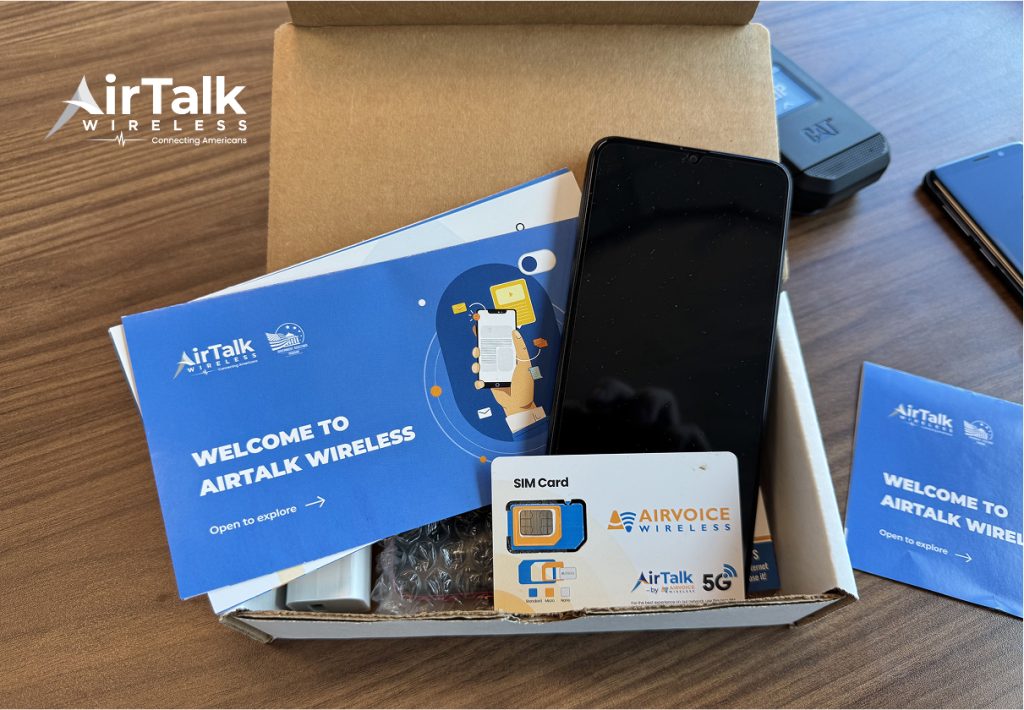
It is now merging into AirTalk Wireless, a carrier with more than 20 years in the industry, and the merger is structured with the customer in mind, resulting in more phone and tablet choices and a more consolidated support team standing behind the service
Note: Eligibility varies by state and program. Offers depend on availability and qualifications. Cintex and AirTalk Wireless operate under the federal Lifeline Program as an Eligible Telecommunications Carrier (ETC). Service is non-transferable and limited to one service per household.
>>> Read more: Is My Phone eSIM Compatible? How to Check Before You Switch
FAQ
Q1. Does transferring an eSIM cancel my plan?
No. Transferring an eSIM moves your cellular plan from the old iPhone to the new one. The plan itself stays active and your phone number remains the same. Your carrier account is not affected by the transfer.
Q2. Can I transfer an eSIM if I am switching to a different carrier?
Not through Quick Transfer. Quick Transfer only works when you are staying on the same carrier. If you are moving to a new carrier, contact the new provider and request a fresh eSIM activation for your new iPhone before or after leaving your current plan.
Q3. Will my old iPhone keep the eSIM after the transfer?
No. Once the eSIM activates on the new iPhone, it deactivates on the old one automatically. You will not be able to use the old iPhone for calls, texts, or data on that line after the transfer completes.
Q4. Can I transfer an eSIM without my old iPhone?
Not through Quick Transfer. That method requires both devices to be nearby, powered on, and unlocked. If your old iPhone is lost, broken, or inaccessible, contact your carrier directly. Most carriers can issue a new eSIM QR code for the same line so you can activate on the new device.
Q5. Does transferring an eSIM move my contacts and photos?
No. The eSIM transfer only moves the cellular profile — your phone number and carrier plan. Contacts, photos, apps, and other personal data are not included. Use iCloud Backup or the iPhone-to-iPhone migration feature separately to move your data to the new device.
Final Words
Now you know how to transfer eSIM to new iPhone using Quick Transfer and what to do when that option is not available. The process is fast when your carrier supports it. Both devices handle the switch automatically in a few minutes.
Always confirm the checklist before starting and keep both iPhones close together during the transfer. If you qualify for Lifeline, you may be able to activate a free eSIM plan on a compatible new iPhone through an approved provider.