
Whether you are troubleshooting network problems, changing carriers, or preparing to activate a new mobile plan, knowing how to reset eSIM on iPhone can save time and prevent connectivity issues.
While eSIMs are designed to be easy to manage, deleting and reinstalling the profile should usually come after simpler fixes such as restarting the phone, checking carrier settings, and confirming the line is active. This guide explains what to prepare, how to do it safely, and how to troubleshoot common issues.
1. Why Reset eSIM on iPhone?
Running into issues with an eSIM on your iPhone does not necessarily indicate a severe problem.
Glitches can occur occasionally, particularly after iOS updates, carrier changes, or installing a new plan while traveling.
Here are several reasons why you might wish to reset the eSIM on your iPhone:
- No network signal or frequent connection drops despite being in an area with strong coverage.
- Mobile data became slow or unstable after an iOS update, carrier update, or plan change.
- Mobile data isn’t working, or apps only connect when you’re using WiFi.
- Your carrier name or eSIM line no longer appears correctly in Settings -> Cellular or in the status bar.
- Problems switching between eSIM profiles or reconnecting after turning off Airplane Mode.
- The eSIM remains stuck on “Activating” and never finishes the setup process.
- Calls, text messages, or mobile data may perform poorly due to network-related issues.
- The eSIM fails to activate even after scanning a QR code or entering the carrier’s activation details.
If the eSIM still appears in Settings, try turning the line off and on or resetting network settings before deleting the eSIM profile.
2. What to Do Before Resetting eSIM on iPhone?
Before jumping into how to reset eSIM on iPhone, here are a few things to prepare to ensure a smooth process.
- Backup iPhone: A backup protects your data, settings, apps, and messages, but it does not guarantee that a deleted eSIM can be restored without carrier reactivation.
- Ensure a stable Internet connection: You will need a Wi-Fi or another internet connection to add or to reactivate your eSIM after removing it. Make sure your phone is connected to a reliable WiFi network so it does not get stuck during the procedure.
- Save your EID: In case your carrier asks for it. You can find it in Settings > General > About, and it may help carrier support identify the eSIM hardware on your iPhone.
- Find your activation code: Find your activation method. Some carriers provide a QR code, carrier app, activation link, or manual details, but some QR codes are single-use. Confirm you can reuse the code or request a new one before deleting the eSIM.
- Check your plan: Verify that your plan is active. A reset restores connections but does not renew an expired plan.

3. How to Reset eSIM on iPhone? Step-By-Step Guide
Resetting eSIM on iPhone is straightforward.
Apple says eSIM setup requires an iPhone XS, iPhone XS Max, iPhone XR, or later, like the iPhone 15, but availability still depends on your carrier, country, region, and iPhone model.
- Open Settings > Cellular or Mobile Data.
- Choose the eSIM profile you want to reset
- If you have one plan, tap Delete eSIM. If you have multiple plans, choose the plan you want to remove, then tap Delete Plan.
- Restart your iPhone by powering it off and turning it back on.
- Add the eSIM again by going to Settings > Cellular or Mobile Data, then tapping Set Up Cellular or Add eSIM.
- Activate the eSIM using the method your carrier supports, such as eSIM Carrier Activation, eSIM Quick Transfer, a QR code, a carrier app, an activation link, or manual details.
Important: Deleting an eSIM usually does not cancel your mobile plan. If you want to cancel service, you still need to contact your carrier.
4. What Happens When Resetting an eSIM or Factory Resetting an iPhone?
Now you know how to reset eSIM on iPhone. But have you ever wondered, “What happens if I delete eSIM?”
When you erase all content and settings on an iPhone, Apple lets you choose whether to keep or delete your eSIM.
So, which should you choose?
If you are erasing the iPhone to fix a software problem and plan to keep using the same line, you should usually choose to keep your eSIM.
In that case, choose Keep eSIM and Erase Data if that option appears. This keeps your eSIM profiles throughout the factory reset.
On the other hand, if you intend to sell, trade in, or give away your iPhone, you’ll probably want a fresh start.
To delete all of your data, including eSIM profiles, choose “Delete eSIMs and erase data.” If you delete the eSIM, Apple says you need to contact your carrier to reactivate the cellular plan.
>>> Read more: How To Transfer eSIM From iPhone To Android Easily? Detailed Guide 2026
5. What to Do if eSIM isn’t Working After Resetting?
Having followed all the steps on how to reset eSIM on iPhone, but still see the “No service” message? Don’t worry, these strategies can help you solve the problem.
- Check for a carrier settings update: Go to Settings > General > About. If an update is available, a prompt appears. Apple recommends this step for SIM and eSIM-related issues.
- Turn Airplane Mode on and off: Enable Airplane Mode for about 10 seconds, then disable it to prompt your iPhone to reconnect to the strongest available mobile network.
- Disable and re-enable the eSIM: Go to Settings > Cellular or Mobile Data, select your eSIM. Next, turn the line off, wait a few seconds, then turn it back on.
- Install the latest iOS update: Updating your iPhone to the newest version of iOS can improve eSIM compatibility and fix software issues that may affect network connectivity.
- Check Data Roaming for travel eSIMs: Some travel or international eSIM plans require Data Roaming to be turned on, but check the provider’s instructions first to avoid unexpected charges on other lines.
- Check for a carrier lock: Go to Settings > General > About. If your iPhone is unlocked, Apple says “No SIM restrictions” appears next to Carrier Lock. If it is locked, contact the carrier before using an eSIM from another provider.
- Confirm the plan is active: Apple recommends ensuring you have an active plan with your carrier when you encounter SIM or eSIM issues.
If you’ve tried all of them but the issue still isn’t resolved, it may be time to consider other options.
Sometimes, an older device with compatibility limitations or persistent carrier issues may require a replacement SIM card or even a newer phone.
If cost is a concern, the Lifeline program can help eligible low-income households access free or discounted wireless service through participating providers like Cintex Wireless.
To qualify for the Lifeline program, you generally need to meet the household income limit or participate in other qualifying programs.
Depending on your eligibility, state, and available inventory, these providers may also offer free SIM cards, compatible smartphones, or discounted devices, making it easier to restore reliable mobile service.
In simpler terms, this means that when you apply for the Lifeline benefit for wireless service discount, you will apply to these providers, and they may offer a free device to make the support more long-lasting.
In other words, the government or program does not hand out free devices; these offers are genuinely from the approved provider, also known as Eligible Telecommunication Carriers.
Note: Cintex is merging with AirTalk Wireless to offer a more streamlined application process. So if you are applying to Cintex, you are now open to a broader device option and an even more fulfilling experience.
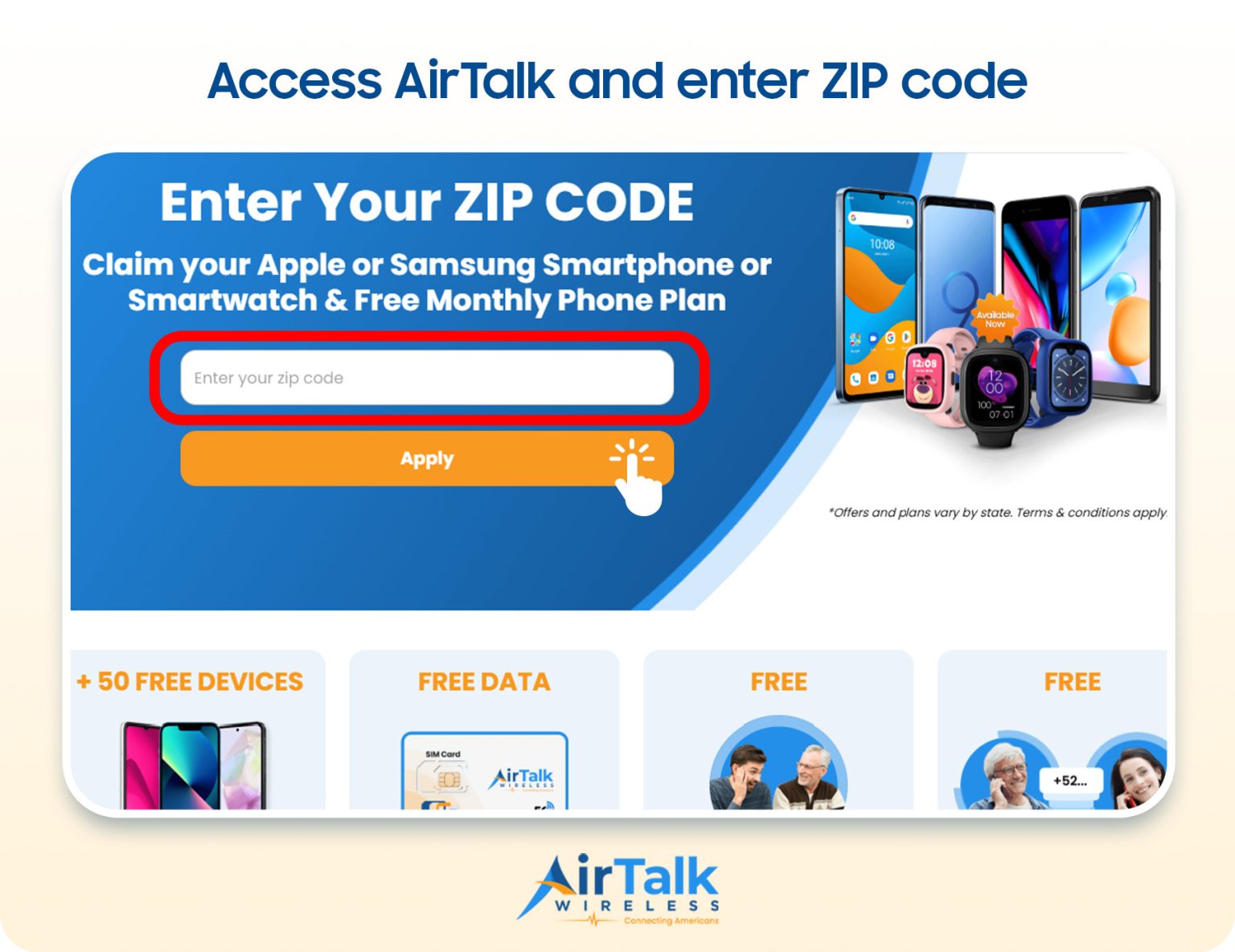
Note: Eligibility varies by state and program. Offers depend on availability and qualifications. Cintex and AirTalk Wireless operate under the federal Lifeline Program as Eligible Telecommunications Carriers (ETCs). Service is non-transferable and limited to one service per household.
Conclusion
Ultimately, knowing how to reset eSIM on iPhone can help resolve common connectivity issues, simplify carrier changes, and ensure your device stays connected.
Whether you’re removing an old eSIM profile or reinstalling your current plan, following the correct steps can make the process quick and straightforward.