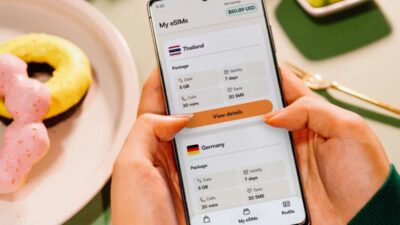
The term “eSIM number” can mean different things depending on what information you need. On an iPhone, it may refer to the phone number linked to your eSIM, or technical identifiers such as the EID and ICCID used for activation and carrier support.
This guide explains how to find eSIM number on iPhone, how to tell the difference between your phone number and technical identifiers, and where to check if the details do not appear.
1. Does eSIM Have a Number on iPhone?
In fact, the answer depends on what you mean by “eSIM number.”
Unlike a traditional SIM card, an eSIM doesn’t have a single number that identifies everything. Instead, several numbers may be associated with your eSIM, each serving a different purpose.
The most familiar is your phone number, the one people use to call or text you.
However, your iPhone also stores identifiers such as the EID (the eSIM/eUICC identifier), ICCID (Integrated Circuit Card Identifier), and IMEI (International Mobile Equipment Identity).
These values are primarily used by carriers to activate, identify, or troubleshoot your mobile service.
2. How to Find eSIM Number on iPhone?
There isn’t a single location on your iPhone that displays all eSIM information.
The steps depend on whether you’re trying to find your phone number or technical identifiers such as the EID, ICCID, or IMEI.
Locating Your eSIM Phone Number on iPhone
If you’ve ever asked, “How do I find my eSIM phone number?” Or, “Where can I see my eSIM number on my iPhone?” the way your carrier presents your account details will determine the response.
In most cases, one of the following methods will help you identify the number assigned to your eSIM.
Check Cellular or Mobile Data settings
Open Settings > Cellular (or Mobile Data). Then, select the eSIM line you want to view.
If your carrier provides the information, the phone number associated with that line may appear alongside the plan details.
Check My Number
You can also open Settings > Phone > My Number. Many carriers automatically populate this field after activation, making it one of the quickest places to verify your mobile number.
Sign in to your carrier account
If the number doesn’t appear in your iPhone settings, check your carrier’s mobile app or online account dashboard. Most providers list the active phone number together with your current mobile plan.
Call or text another phone
When the eSIM line supports voice calls or SMS, placing a quick call or sending a text message to another phone is another simple way to confirm which number is currently assigned to the eSIM.
Finding IMEI, ICCID, or EID on iPhone
Sometimes the information you need isn’t your phone number at all. During activation, device transfers, or technical support, a carrier may instead ask for your EID, ICCID, or IMEI.
If you’re wondering how to get eSIM details from iPhone, these identifiers can be found in several places.
Check iPhone Settings
Go to Settings > General > About and scroll through the device information. Depending on your iPhone model and carrier configuration, you’ll find details such as:
- EID, the identifier tied to your iPhone’s eSIM/eUICC capability.
- ICCID, which identifies an installed SIM or eSIM profile when that information is available.
- IMEI, the identifier for your iPhone’s cellular hardware. Some iPhones may show more than one IMEI for dual-SIM support.
Use the Dialer Code
Open the Phone app and dial *#06#. Your iPhone may display available device identifiers such as IMEI, MEID, and EID, depending on the model and region.
This is one of the fastest ways to retrieve these details without navigating through multiple settings menus.
Contact Your Provider
In some situations, how to get eSIM details from iPhone isn’t something your device can answer on its own.
If important information, such as your phone number, ICCID, or activation details, isn’t available in Settings, your carrier or eSIM provider can verify those details using your account information.
>>>Read more: How To Reset eSIM On iPhone Without Losing It? Easy Instructions 2026
3. Common Mistakes When Finding eSIM Number on iPhone
Finding your eSIM information is usually straightforward, but it’s easy to end up looking for the wrong detail or checking the wrong place.
Avoiding the following mistakes can save time and make troubleshooting much easier.
- Assuming that the eSIM number and the phone number are identical.
One of the most common misunderstandings is treating every identifier as the “eSIM number.” Your phone number is used for calls and texts, while the EID, ICCID, and IMEI serve different technical purposes. Before searching, determine which identifier your carrier or app is actually requesting.
- Checking only one Settings page.
Many users look under Phone > My Number and stop there if nothing appears. In reality, some information is stored under Cellular, while identifiers such as the EID and IMEI are located in General > About.
- Expecting every identifier to appear on every iPhone.
The information displayed may vary depending on your iPhone model, iOS version, carrier, and whether the eSIM has already been activated. If you can’t find a specific identifier, it doesn’t necessarily mean something is wrong with your device.
- Ignoring your carrier’s app or online account.
Some mobile providers don’t display the assigned phone number directly in iPhone Settings. When that happens, your carrier’s app or account dashboard may provide the information more clearly.
- Confusing an inactive eSIM with a missing one.
If an eSIM hasn’t been activated or has already been removed, some details may no longer be visible in your settings. Checking the activation status first can help determine whether the issue is with the device or the mobile plan.
- Overlooking carrier support when information is unavailable.
If you’ve already checked your iPhone and still can’t locate the phone number, ICCID, or activation details, contacting your carrier is often faster than continuing to search through menus. They can verify the information associated with your account and confirm whether the eSIM is active.
4. Cannot Locate eSIM Number? What to Do Next
If you’ve checked your iPhone settings but still can’t find the information you need, don’t assume there’s a problem with your device.
In many cases, the issue is related to your eSIM status, carrier settings, or the type of mobile plan you’re using.
Here are a few things worth checking before requesting additional support.
Check if the eSIM is Activated
An eSIM profile must be activated before certain information becomes available.
Open Settings > Cellular (or Mobile Data) and verify that your eSIM line is listed and shows as active.
If the profile hasn’t been activated yet, your phone number or other details may not appear.
Confirm Whether the Plan Includes Calls and Texts
Not every eSIM plan comes with a phone number. For example, many travel eSIMs offer only mobile data.
If your plan doesn’t include voice calls or SMS, you won’t see a phone number associated with that eSIM, even though the data service works normally.
Check Your Carrier App
Some carriers display account details more clearly in their mobile app or customer portal than they do in iPhone Settings.
Logging into your account may allow you to view your assigned phone number, plan information, ICCID, or activation status.
Contact Your Provider
If the information is still unavailable, your carrier or eSIM provider can verify the details linked to your account.
They can confirm whether the eSIM is active, provide your phone number if applicable, and help locate identifiers such as the ICCID or activation information needed for support.
Review Service Setup Options if the LINE Still Does Not Work
If you’ve completed the troubleshooting steps above and your eSIM still isn’t working properly, it may be worth considering a different service option.
For eligible households, the Lifeline program helps reduce the cost of wireless service through participating Eligible Telecommunications Carriers (ETCs), including Cintex Wireless.
Depending on your eligibility, you may qualify based on your household income or participation in programs such as SNAP, Medicaid, SSI, or other qualifying government assistance programs.
Beyond monthly wireless service, some participating carriers may also offer a free SIM card, eSIM activation on compatible devices, or discounted smartphones to help users stay connected.
As part of its ongoing merger with AirTalk Wireless, Cintex Wireless gives eligible applicants access to a broader selection of devices and wireless plans.
Note: Eligibility varies by state and program. Offers depend on availability and qualifications. Cintex and AirTalk Wireless operate under the federal Lifeline Program as an Eligible Telecommunications Carrier (ETC). Service is non-transferable and limited to one service per household.
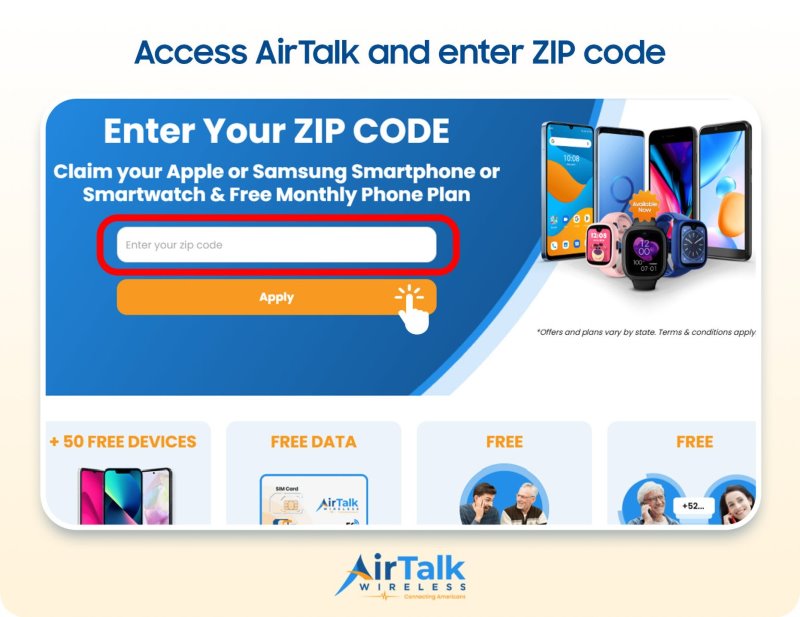
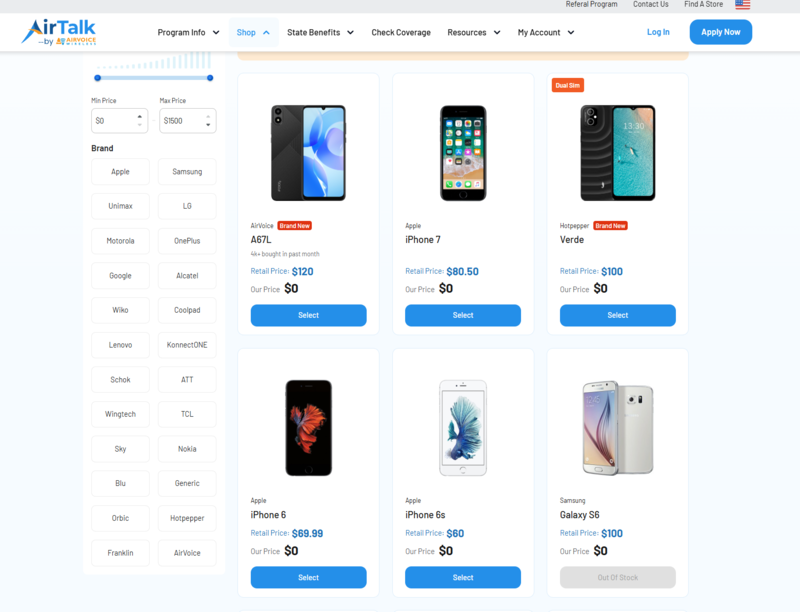
Depending on your state, eligibility, and current inventory, available devices may include models such as:
Conclusion
How to find eSIM number on iPhone depends on the type of information you’re looking for.
While your phone number is different from identifiers such as the EID or ICCID, each can be accessed through your iPhone settings, your carrier’s account, or customer support when needed.
Knowing where each detail is stored can save time when activating service, switching devices, or troubleshooting your eSIM.