Does a SIM card store photos? No, not in normal modern-phone use. Your pictures and videos are typically saved on the phone’s internal storage, a microSD card when supported, or a cloud service such as iCloud or Google Photos.
That means removing or replacing a SIM usually will not affect your photos. This guide explains what a SIM actually stores, where your media is kept, and what to check before switching SIM cards or moving to a new phone.
1. Does a SIM Card Store Photos?
In general, a SIM card does not store photos or videos.
Its primary function is to connect your phone to a carrier network and identify your mobile subscription.
Most personal content, including photos, videos, apps, documents, music, and most messages, is stored on your phone’s internal storage, on a memory card, or in cloud services such as iCloud or Google Photos.
Limited contact information or SMS data may be stored on certain SIM cards; however, they are not intended for storing significant media files.
A SIM card is also different from a microSD memory card. A microSD card can store photos, videos, and files on devices that support expandable storage, while a SIM card is mainly used for mobile-network identification and service.

2. Will You Lose Photos If You Remove Your SIM Card?
In most cases, removing your SIM card does not delete photos stored on your phone.
Your pictures usually remain in the device’s internal storage, memory card, or cloud backup unless you delete them separately.
When you remove the SIM card, you can expect the following things:
- Your photos and videos stay on the phone: Media files stored locally are not affected.
- Mobile service may stop: You may lose access to cellular calls, SMS, and mobile data until another SIM or eSIM is active.
- SIM-stored contacts may become unavailable: Any contacts saved directly on the SIM may no longer appear until the card is reinserted or the contacts are imported.
- Some apps may need Wi-Fi: Apps that require internet access can still work over Wi-Fi even without a SIM.
- Your phone number may no longer be active on that device: The number remains associated with your mobile account, but the phone cannot use that cellular line without the SIM or an active eSIM.
3. What Is Stored on a SIM Card?
Does a SIM card store photos? As mentioned earlier, a SIM card primarily stores information that identifies your mobile subscription and connects your phone to a carrier network.
This can include details such as the IMSI, ICCID, authentication data, security codes, and limited contact or SMS information on some SIMs.
>>>Read more: What Is Stored On A SIM Card? Key Information You Should Know (2026)
4. How to Check SIM Information and SIM-Stored Contacts
Now you know does a SIM card store photos. Nevertheless, if you want to check what information is stored on a SIM card, follow these steps:
On iPhone
iPhone does not provide a general screen that shows all data stored on a SIM card. If your SIM contains contacts, you can import them by going to:
Settings > Apps > Contacts > Import SIM Contacts
After importing, those contacts are saved to the account or location you choose rather than remaining accessible through a separate SIM-storage viewer.
On Android
On many Android phones, go to Settings > About phone > SIM status to view information such as the carrier or network. Menu names vary by manufacturer.
This does not show every item stored on the SIM. If you want to check SIM-stored contacts, use your Contacts app or Google Contacts settings. Google also allows device and SIM contacts to be backed up to your Google Account on supported Android phones.
5. Protect Your Photos Before Changing SIM Cards or Phones
You have successfully upgraded to a new SIM card, or you are prepared to transition to a new phone that offers even more features. Congratulations!
However, it is crucial to take a few critical steps before leaving your old device to prevent losing all your saved photos.
- Back up to iCloud or Google Photos: Upload your photos and videos to a cloud service before switching devices. This gives you an extra copy in case anything goes wrong during the transfer.
- Confirm sync: Check that your latest photos have finished syncing before removing the SIM or resetting the old phone. Open the cloud app and verify that recent images are available there.
- Transfer local files: If some photos are stored only on the device, move them to your new phone, computer, external drive, or cloud storage before switching.
- Export important contacts: Save or sync contacts to Google, iCloud, or another account so you do not lose any contacts stored locally or on the SIM.
- Do not rely on the SIM as a backup: A SIM card is not designed to store photos, videos, or most personal files. Use your phone storage, cloud backup, or another dedicated storage option instead.
>>>Read more: How To Switch SIM Cards? Important Things To Know
6. Switching SIMs? Keep Your Data Safe While Changing Service
Changing your SIM card usually will not affect photos stored on your phone. However, it is still a good idea to back up important files to iCloud, Google Photos, or another secure location before making any changes.
However, if you are replacing your SIM because you are switching mobile providers, you may also want to explore the federal Lifeline program.
This federal initiative helps eligible low-income consumers reduce the cost of qualifying phone service or internet service.
Through participating providers, known as Eligible Telecommunications Carriers, qualifying users may be able to access lower-cost or even free monthly service, with SIM card options, or promotional devices available depending on the provider, location, and current offer.
Importantly, Lifeline benefits are not transferable under federal regulations. This implies that you are unable to transfer your Lifeline service or benefit to another individual, regardless of whether they are a member of your household or family.
Eligibility is based on income or participation in qualifying programs.
The Lifeline application process is also straightforward.
For example, if you apply for Lifeline through Cintex Wireless, which is merging with AirTalk Wireless, the process is as follows:
- Step 1: Visit airtalkwireless.com and enter your ZIP code to check service availability.

- Step 2: Browse the available Lifeline plan and device offers (may vary by state and current stock).
- Step 3: Complete the personal information section and upload any documents required by your state. You can generally be eligible for Lifeline based on income or participation in a qualifying program.
- Step 4: Submit the application and wait for approval.
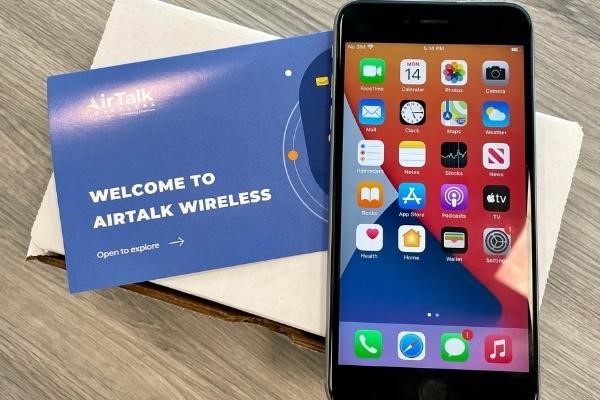
IMPORTANT: The government does not subsidize devices. Lifeline programs cover basic service costs only. Free or discounted devices, upgrade plans, or top-ups are exclusive benefits provided by Cintex and AirTalk Wireless as part of the promotional offers. Terms and conditions apply. Limited-time promotion—offers vary by state, stock availability, and eligibility.
Conclusion
Your SIM card is mainly used for mobile-network identification and service, not for storing personal media. Photos, videos, apps, and most files stay on the device, a memory card, or in cloud storage.
So, does a SIM card store photos? In most cases, no. Before changing phones or SIMs, focus on backing up the storage locations that actually hold your pictures rather than relying on the SIM card itself.