Does this phone have a SIM card? The answer depends on the exact model and region. Some phones use a removable physical SIM, some rely entirely on eSIM, and many support both options.
That difference matters when you switch carriers, move your number, or see a “No SIM” message. This guide shows you how to check the SIM tray, phone settings, and manufacturer specifications so you can quickly identify which setup your device uses.
1. Does This Phone Have a SIM Card? Common Types of SIM Card
Not every phone has a SIM card.
Some models employ a physical SIM that can be removed, while others support digital eSIM. Additionally, some models support both. A device that lacks cellular capabilities may employ neither.
For example, many iPhone 13 models and later support eSIM, while physical SIM availability depends on the model and region. iPhone 14 models and later sold in the United States are eSIM-only, whereas many versions sold in other regions still include a physical SIM tray.
Similarly, various Android devices, ranging from budget to higher-end models, continue to support physical SIM cards, either independently or in conjunction with eSIM (dual SIM configurations).

If you are wondering whether a physical or digital SIM card is better, look at this comparison table:
| Features | eSIM | Physical SIM card |
| Availability | Often available digitally without shipping, depending on carrier support | Requires a physical card, usually through delivery, pickup, or a carrier store |
| Installation | Digital | Need a physical card |
| Risk of Loss | No removable card to lose or misplace | Can be lost, damaged, or misplaced |
| Multiple Profiles | Many compatible phones can store multiple eSIM profiles, though active-line limits vary | Usually limited by the number of physical SIM slots in the device |
| Travel Convenience | Convenient | Moderate |
2. How to Know Does This Phone Have a SIM Card?
If you want to know whether your phone has a SIM card or an eSIM, simply look for a SIM tray, check the device settings, and check the phone specifications.
Look for a SIM Tray
The easiest way to check is to look along the sides, top, or bottom edge of the phone for a small removable tray with a tiny eject hole.
If you find one, the device likely supports a physical SIM card. If there is no visible tray, the phone may use eSIM only, so check the device settings or specifications to confirm.
Check the Cellular or SIM Settings
You may tell does this phone have a SIM card by following these steps to verify the settings in your phone:
On iPhone:
- Go to Settings > General > About and scroll to the SIM or eSIM information. If an eSIM is active, Apple may show an eSIM section with carrier details. You can also open Settings > Cellular to see your active mobile lines and whether an option such as Add eSIM is available.
On Android:
- On Google Pixel, go to Settings > Network & internet > SIMs. If you see Add SIM or Set up an eSIM, the phone supports eSIM.
- On Samsung and other Android devices, the menu may appear under Connections > SIM manager or a similar path, so menu names vary by manufacturer.
Check the Phone Specifications
Another method is to search for your exact phone model on the manufacturer’s official website and review the SIM, Cellular, or Connectivity specifications.
This should tell you whether the device supports a physical SIM card, eSIM, dual SIM, or an eSIM-only setup.
3. Your Phone Says No SIM Card? Easy Troubleshooting Tips
A “No SIM” or “Invalid SIM” message usually means the phone cannot properly use the current SIM or mobile line, which may involve the physical SIM, eSIM, carrier lock, activation, or account settings.
Common causes include an incorrectly inserted SIM, dirt or damage on the card, a temporary software glitch, carrier issues, or a faulty SIM tray.
If this is your case, try the following troubleshooting methods:
- Restart your phone: A simple restart can refresh the network connection and clear temporary SIM detection errors.
- Remove and reinsert the SIM: Turn off the phone, take out the SIM card, and make sure it sits flat and correctly aligned in the tray.
- Check for dirt or damage: Gently inspect the SIM card and tray for dust, scratches, cracks, or bent parts that could affect the connection.
- Turn Airplane Mode on and off: This forces the phone to reconnect to the cellular network and may resolve a temporary service issue.
- Check for software or carrier updates: Installing available updates can fix compatibility or network-related problems.
- Test the physical SIM in another compatible phone: If it works there, the issue may be with the original phone or tray. If it still fails, the SIM may be damaged, inactive, or need carrier support.
>>>Read more: How To Clean SIM Card? Don’t Let Your SIM Card Go Bad!
4. What to Do If Your Phone Doesn’t Have a SIM Card?
If your phone supports a physical SIM, you can get one from a compatible carrier. If the device is eSIM-only, you’ll need to activate service digitally through a carrier that supports eSIM.
However, if you have limited income, don’t miss out on the federal Lifeline program.
Lifeline helps eligible low-income consumers lower the cost of phone or internet service by offering up to $9.25 per month for internet service and up to $34.25 for those in tribal areas.
Eligibility can be based on income or participation in programs such as Medicaid, SNAP, etc.
Notably, Eligible Telecommunication Carriers may also offer additional benefits. For example, Cintex Wireless provides a free phone with a SIM card, along with free talk, text, and data for eligible Lifeline customers.
The company is merging with AirTalk Wireless to give applicants a more seamless application process and device offers.
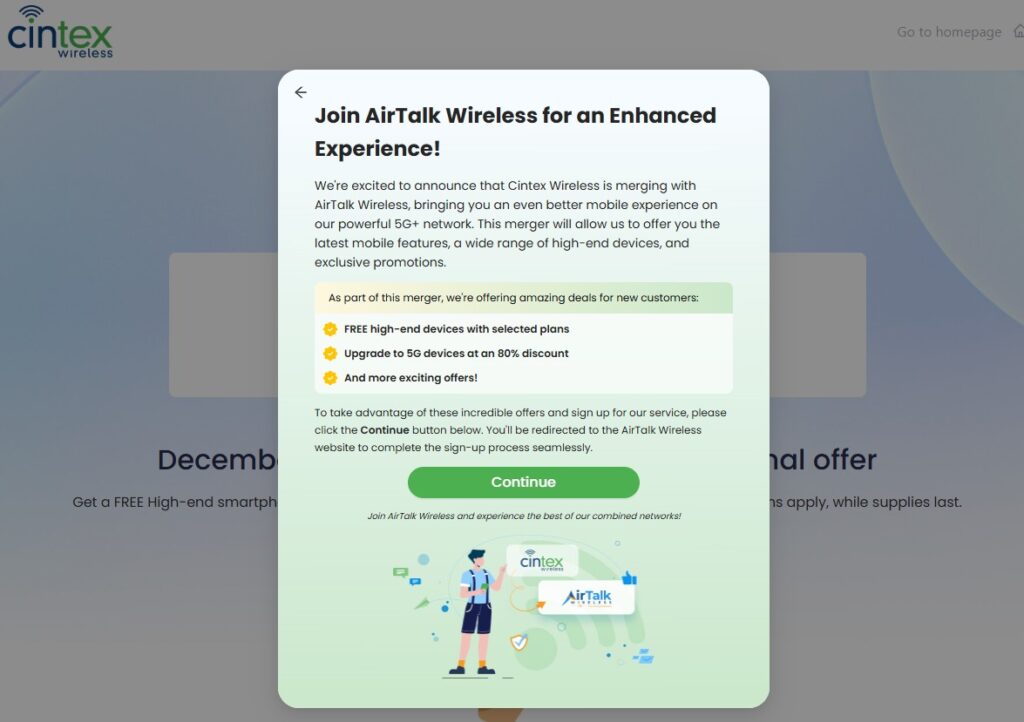
IMPORTANT: The government does not subsidize devices. Lifeline programs cover basic service costs only. Free or discounted devices, upgrade plans, or top-ups are exclusive benefits provided by Cintex and AirTalk Wireless as part of the promotional offers. Terms and conditions apply. Limited-time promotion—offers vary by state, stock availability, and eligibility.
5. FAQs
Does every phone have a SIM card?
Not every phone has a physical SIM card. Some use eSIM instead, while many models support both physical SIM and eSIM.
How can I tell if my phone uses eSIM?
Simply check your phone’s cellular or mobile network settings for an option such as Add eSIM, Add Cellular Plan, or Download SIM. You can also check the specifications for your exact phone model on the manufacturer’s website.
Does “No SIM” mean my phone has no SIM card?
Not necessarily. It can mean the phone cannot use the current physical SIM or mobile line because of insertion, damage, activation, carrier-lock, or eSIM/account issues.
Can a phone work without a SIM card?
Without a SIM or active eSIM, you can still use Wi-Fi, apps, offline files, and many other phone features. Nevertheless, regular cellular calls, SMS, and mobile data generally require active mobile service.
Can I add a SIM card to a phone without a SIM tray?
You cannot add a physical SIM card if the phone has no SIM tray or physical SIM slot. However, if the device supports eSIM, you may be able to activate mobile service digitally instead.
Conclusion
SIM setups now vary widely between phones, so a missing tray does not automatically mean the device cannot use cellular service. It may simply rely on eSIM instead of a removable card.
For does this phone have a SIM card, the most reliable answer comes from checking the physical tray, cellular settings, and exact model specifications. Once you know whether the phone supports physical SIM, eSIM, or both, moving or activating service becomes much easier.