If you’re wondering how do I know if I have an eSIM, you could be referring to two different things: whether your phone supports eSIM technology or whether an eSIM has already been installed and activated on your device.
Don’t worry, as this guide covers both. It will show you how to check your phone’s eSIM compatibility, identify an existing eSIM profile, and understand what to do next if you don’t have one yet.
1. How Does eSIM Work?
The eSIM card is a digital profile “embedded” within your device. It enables you to download and manage carrier profiles digitally, rather than removing a physical SIM card when switching networks or providers.
This is how it works:
Your carrier provides an eSIM profile through methods such as carrier activation, a QR code, an app, an activation link, or a direct device transfer.
Once the profile is downloaded and activated, the eSIM works similarly to a regular SIM card by identifying your account and connecting the device to the carrier’s network for calls, texts, and mobile data included in your plan.
Some eSIM-compatible phones still include a physical SIM slot, while others use eSIM exclusively. The available configuration depends on the device model and purchase region.
2. How do I Know If I Have an eSIM?
As mentioned earlier, the question “how do I know if I have an eSIM?” may be referring to two different things.
The first is whether your phone is eSIM-compatible, meaning it has the built-in hardware needed to use an eSIM.
The second is whether an eSIM profile is already installed and active on the device. A phone can support eSIM without having one set up, just as a compatible phone can still rely solely on a physical SIM card.
Knowing the difference helps you determine whether you simply need to activate an eSIM or whether you’ll need a compatible device first.
3. Check If an eSIM Is Already Installed
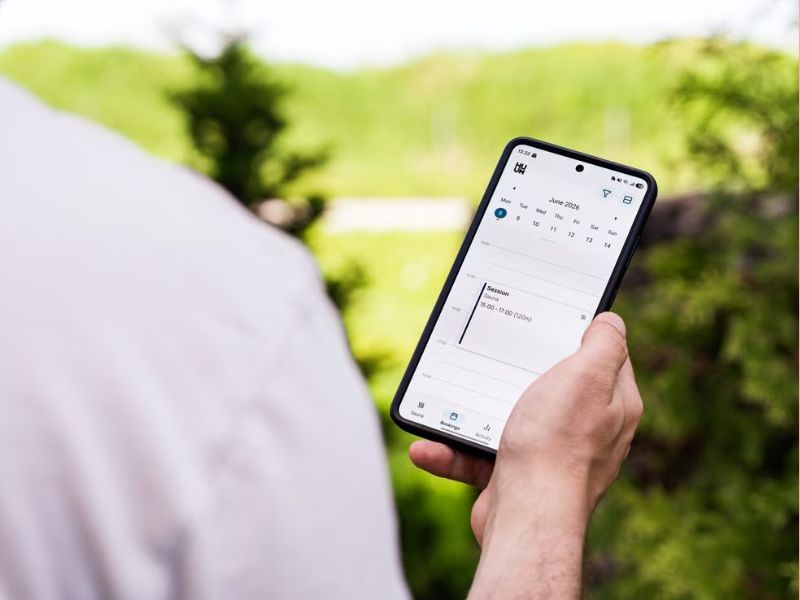
If you are new to using eSIM or have recently set up a profile, you may want to confirm both that it is installed and that it is connected to your carrier.
On iPhone
- Open Settings > Cellular (or Mobile Data).
- Check whether the expected mobile plan appears under SIMs. Tap the plan and make sure Turn On This Line is enabled.
- If the Cellular screen shows Delete eSIM, or the selected plan shows Delete Plan, an eSIM profile is stored on the iPhone. Do not tap either option unless you intend to remove it.
- Keep in mind that seeing Turn Off This Line only confirms that the line is enabled. To check whether activation is complete, select the eSIM for cellular data, turn off Wi-Fi, and test the connection. If your plan includes voice and messaging, also make a call and send a text.
On Android
- Open Settings > Network & Internet > SIMs on Google Pixel, or Settings > Connections > SIM Manager on Samsung Galaxy. Menu names may differ on other devices.
- Look for a profile identified as an eSIM or downloaded SIM, then make sure it is enabled.
- To confirm that the line is working, select it as the preferred SIM for mobile data, turn off Wi-Fi, and open a website. If another SIM is active, temporarily disable it so you know which line is providing the connection.
Look for Active Lines or eSIM Profiles
Once your eSIM is activated and configured, your phone’s status bar should show cellular network signal bars or indicators (such as 4G, 5G, and LTE), just as it would with a physical SIM.
If you have Dual SIM enabled (eSIM plus physical SIM, or two eSIMs), your status bar may display two signal strength indications. The one matching your recently activated eSIM should display a signal.
Check If Your Phone Supports eSIM
How do I know if I have an eSIM? If you refer to whether your device is eSIM-compatible, here is how to verify:
Dial a Code
On many phones, dialing *#06# displays device identification numbers.
If an EID appears, the device contains an eUICC and supports eSIM technology. EID means eUICC Identifier, not Embedded Identity Document.
However, some phones do not display the EID through this code. If no EID appears, check the device settings or official specifications before concluding that the phone lacks eSIM support.
Check Device Settings
You can also verify eSIM support through your phone’s settings.
On iPhone, go to Settings > General > About and look for an EID. You can also check Settings > Cellular for Add eSIM or Set Up Cellular.
On Google Pixel, go to Settings > Network & internet > SIMs > Add SIM and look for Set up an eSIM.
On Samsung Galaxy, go to Settings > Connections > SIM Manager and look for Add eSIM.
The absence of an Add eSIM option is not always conclusive. Regional firmware, carrier restrictions, device configuration, or software can affect which options appear.
Check eSIM-Compatible Phone List
If you’re still unsure, search for your exact phone model on the manufacturer’s website or compare it with an up-to-date eSIM compatibility list.
This is especially useful because eSIM compatibility can vary by device model, regional version, and carrier.
5. Why Can’t I Use eSIM on My Phone?
Compatibility alone isn’t always sufficient. Two more elements determine whether you may enjoy eSIM technology.
Carrier Lock
A carrier-locked phone will not accept a third-party eSIM card, even if the hardware supports it.
On an iPhone, go to Settings > General > About, then look for Carrier Lock. If it shows “No SIM restrictions,” it means your phone is unlocked and can accept any eSIM. If it is locked, contact your carrier to unlock it.
Android does not have one universal menu that reliably confirms carrier-lock status. Searching for available network operators only shows networks detected nearby and does not prove that the phone can activate service with them.
Instead, check the device’s purchase or account details, contact the original carrier, or test activation with a compatible SIM or eSIM from another provider.
Region Variation
The same phone family may have different SIM configurations depending on where the device was purchased.
In mainland China, Apple currently supports eSIM on iPhone Air and iPhone 17e. Activating a local eSIM requires a supported model and a participating carrier.
Hong Kong and Macao also support eSIM on selected models, including several newer iPhones and certain earlier models. Other regional versions may instead provide two physical nano-SIM slots.
To validate your unit, go to Settings > General > About, and check the Model Number. Make sure it does not match one of the China, Hong Kong, or Macau model numbers mentioned on Apple‘s website.
Similar regional and carrier differences may apply to Android phones, so verify the exact model number on the manufacturer’s website.
6. What Should I Do If My Phone Does Not Support eSIM?
Now you understand “How do I know if I have an eSIM?”
eSIM technology offers many benefits, but if your device doesn’t support eSIM, you still have practical options to stay connected.
Depending on your device and future plans, you can continue using a physical SIM card or consider upgrading to a newer smartphone.
Use a Traditional SIM Card
Most carriers continue to offer physical nano SIM cards that provide the same essential services, including calls, text messages, and mobile data.
If your phone has a SIM card slot, this is the easiest solution and doesn’t require replacing your device.
>>>Read more: Pay As You Go eSIM: Flexible Service Without Contracts
Upgrade to a New Device if Necessary
Want to take advantage of eSIM features such as digital activation, Dual SIM functionality, and easier carrier switching? Then consider upgrading to an eSIM-compatible smartphone.
For those facing financial difficulties, the Lifeline program can be a lifesaver.
This is a federal assistance program that helps underserved individuals acquire connectivity without straining their financial situation further. Particularly, the program offers a monthly discount on phone service or internet service.
This federal initiative works with Eligible Telecommunications Carriers like Cintex Wireless to offer the support. And in many cases, these carriers are more likely to offer free or discounted wireless service and an eSIM-compatible smartphone.
You generally qualify if your household income meets the program requirements or if you receive qualifying assistance, such as SNAP, SSI, Medicaid, or other approved government programs.
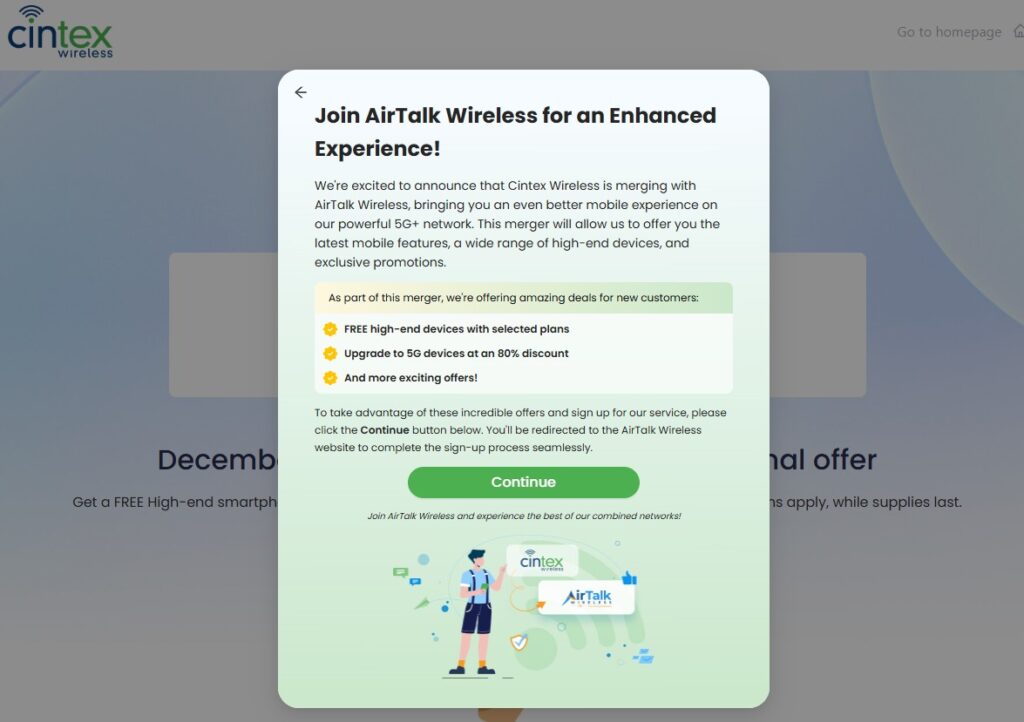
Please note that Cintex Wireless is merging with AirTalk Wireless.
If you apply through this carrier, you can acquire one of the following eSIM-compatible phones along with additional benefits (vary by state):
- Samsung Galaxy S21 5G
- Samsung Galaxy S22 5G
- Samsung Galaxy A23 5G
- iPhone Xs
- iPhone 11
- iPhone 11 Pro Max
- iPhone 12
Note: Eligibility varies by state and program. Offers depend on availability and qualifications. Cintex and AirTalk Wireless operate under the federal Lifeline Program as an Eligible Telecommunications Carrier (ETC). Service is non-transferable and limited to one service per household.
Conclusion
Understanding how do I know if I have an eSIM is not just about finding one setting on your phone. You first need to separate device compatibility from actual activation, since a phone can support eSIM without having an active profile installed.
A quick check of your SIM settings, EID, and mobile connection can usually give you a clear answer. Once you know what your device supports, you can decide whether to activate a new eSIM, manage an existing line, or continue using a physical SIM with confidence.