Most people don’t think about what’s stored on a SIM card until they switch phones or troubleshoot a problem. Then questions start popping up: Are my contacts on the SIM? Will I lose anything if I remove it?
If you’re wondering how to see what is stored on SIM card, this guide explains exactly what you can check and where to find it.
1. What Information Is Actually Saved on a SIM Card?
A SIM card stores much less information than most people expect. Knowing what belongs on the SIM versus your phone makes it easier to understand what you’ll see.
- Mobile subscription information used by the network
When learning how to see what is stored on SIM card, it’s helpful to know that a SIM contains identifiers and authentication-related information that help the carrier recognize your mobile subscription.
Some details, such as the ICCID, may be visible in device settings, while other SIM data is not intended for normal user access.
- Contacts saved directly to the SIM
Some Android phones let you save contacts directly to the SIM card. These usually include basic information, such as a name and phone number, with much less detail than contacts stored in Google, iCloud, or the phone itself. If you’re asking, Is anything stored on a SIM card?, stored contacts are one of the few pieces of personal data you may actually find.
- Data that stays on your phone instead
How to see what is stored on SIM card becomes clearer once you know that photos, apps, documents, and most text messages aren’t saved on the SIM.
2. What SIM Information Can You View in Phone Settings?
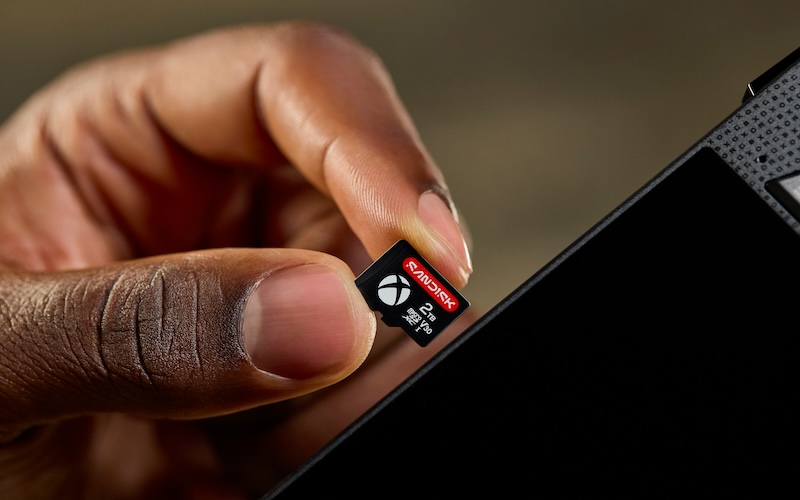
To understand how to see what is stored on SIM card, phone settings can show useful information about the SIM and mobile line, but they do not provide a complete view of everything stored on the card.
Contacts, for example, are usually checked through the Contacts app rather than the SIM settings menu.
- Carrier, network, and SIM status
See your carrier name, current network connection, signal status, and whether the SIM is active or detected by the phone.
Depending on the device, Settings may show the carrier, mobile line, SIM/eSIM status, network information, and whether the line is detected or active.
- Phone number and SIM identifier
Depending on your device and carrier, you may find your assigned phone number and the SIM’s ICCID (SIM ID) for identification or activation purposes.
- Active physical SIM or eSIM information
To better understand how to see what is stored on SIM card, check the SIM settings on dual SIM or eSIM-compatible phones, where both lines are listed separately.
- Information Settings may not reveal directly:
Your phone generally will not display the current SIM PIN or PUK code for you to read. SIM PIN controls may be available in Settings, while a PUK code usually needs to be obtained from your carrier.
- On iPhone, SIM access is more limited.
iOS does not let you browse files or text messages stored on a SIM card. If an older physical SIM contains contacts, iPhone can import them through Settings > Apps > Contacts > Import SIM Contacts, but iPhone itself does not save contacts back to the SIM.
>>> Read more: Free Government Phone SIM Card: Unlock Zero-cost Services!
3. How to Check What Your SIM Card Contains
The easiest way to learn how to see what is stored on SIM card is by using your phone’s built-in tools.
- Open the Contacts app and choose the SIM contact list
Many Android phones let you view contacts stored on the SIM separately. On
Android phones using Google Contacts, open Contacts > Organise > Manage SIM to see contacts stored on the SIM and choose which ones to import.
Other Android manufacturers may use menus such as Manage Contacts or Import/Export.
- Review SIM information in your phone settings
To check SIM details, open Settings > About Phone or Network & Internet > SIMs, where you can see your carrier information and SIM status.
- Use a SIM management option if your device supports it
Samsung users exploring how to see what is stored on SIM card can check or move SIM contacts by opening Contacts > Manage contacts > Import or export contacts.
Samsung’s separate SIM Manager is mainly for managing cellular lines and eSIMs, not browsing stored contacts
- Compare SIM contacts with phone or cloud contacts
If you’re unsure how to check which contacts are saved on SIM, compare the SIM contact list with your phone or Google account contacts. This makes it easy to see which numbers are stored in each location.
4. How to Identify Which Contacts Are Saved on the SIM
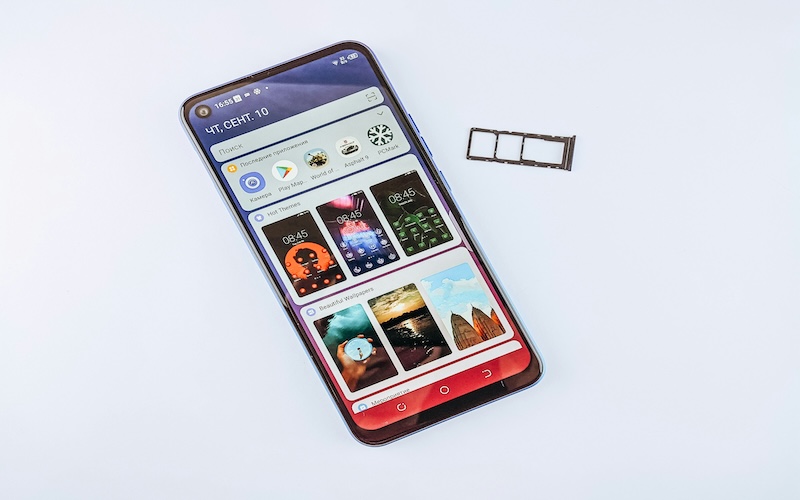
A useful step in how to see what is stored on SIM card is checking the storage location of your contacts before making changes.
Filter contacts by storage location
Open your Contacts app and look for a Filter or Display Contacts option. Depending on your Contacts app, you may be able to filter the list by SIM, device, Google Account, or another synced account.
Look for import and export options
Another quick way to how to see what is stored on SIM card is through the Import/Export or Manage SIM menu, depending on your phone.
Some manufacturers, including Samsung on supported Galaxy models, also provide Export to SIM, but this feature is not universal across Android phones.
Tap on an individual contact and check its account or storage location. You may see labels such as:
- SIM
- Phone
- Samsung Account
This answers another common question: How to check which contacts are saved on SIM? Simply reviewing the contact’s storage location tells you where it’s saved.
>>> Read more: SIM Card Free: A Great Option To Enjoy Connection Freedom
5. Why You May Not See Any Data on the SIM Card
If you’re following how to see what is stored on SIM card, keep in mind that an empty SIM contact list doesn’t necessarily mean the SIM has failed.
- Your contacts are stored in a cloud account: Many Android and iPhone users automatically save contacts to Google or iCloud instead of the SIM.
- Your phone doesn’t support viewing SIM contacts: On iPhone, Apple does not provide a separate SIM-contact list for browsing. If the physical SIM contains contacts, you can import them through Settings > Apps > Contacts > Import SIM Contacts, then view them in Contacts.
- The SIM has never been used to save contacts: Many people have always stored contacts on their phone, so the SIM remains empty.
- Carrier or device settings limit what you can view: Your phone may expose only certain SIM features. For example, it may show subscription details in Settings while handling SIM contacts separately through the Contacts app.
- If you use eSIM, there is even less to browse. An eSIM stores the digital subscription profile needed to connect your phone to the carrier, not personal data such as contacts, photos, files, or messages.
6. Changing SIM Cards? Back Up Your Contacts Before Activating New Service
Before replacing or removing a SIM, first check whether it contains contacts you still need. If it does, import or sync them to your phone, Google Account, or iCloud, so your important numbers do not depend on the old card.
Once your contacts are backed up, the next question is usually what happens to your mobile service. If you are changing SIM cards because you are switching providers or trying to reduce your monthly phone cost, the Lifeline program may be worth checking.
Lifeline is a federal assistance program that helps eligible low-income consumers lower the cost of qualifying phone service or internet service. Eligibility can be based on household income or participation in programs such as Medicaid, SNAP, SSI, or certain Tribal assistance programs.
If you qualify for Lifeline, the next step is to choose an approved Eligible Telecommunications Carrier (ETC) that offers service in your area. ETCs are the providers authorized to deliver Lifeline-supported service to eligible consumers, and in many cases, they might offer more than just service.
Cintex Wireless is one of those Lifeline providers and has served eligible customers through the program for years.
As Cintex merges with AirTalk Wireless, applicants and existing participants can access a more unified enrollment and service experience through AirTalk.
For participants, that merger can make the process more convenient by bringing plan selection, SIM or eSIM options, device availability, and account support into one broader service platform.
IMPORTANT: The government does not subsidize devices. Lifeline programs cover basic service costs only. Free or discounted devices, upgrade plans, or top-ups are exclusive benefits provided by Cintex and AirTalk Wireless as part of the promotional offers. Terms and conditions apply. Limited-time promotion—offers vary by state, stock availability, and eligibility.
7. FAQs
Can I see text messages stored on a SIM card?
Usually no. Most modern smartphones store text messages in the phone’s internal storage rather than on the SIM card. Older phones may save a small number of SMS messages, but this is uncommon today.
Does removing a SIM card delete its stored contacts?
No. Removing the SIM does not erase contacts stored on it. They remain on the card until they are deleted or the card becomes damaged or unreadable.
Can I copy SIM contacts to my phone?
Yes. Google Contacts and many manufacturer Contacts apps can import SIM contacts into a Google Account or device storage.
Conclusion
Learning how to see what is stored on SIM card helps you understand where your contacts and subscriber information are actually saved before changing phones or mobile service.
Once you know what’s on the SIM and what stays on your device or in the cloud, you can back up your data with confidence and make switching to a new SIM much less stressful.