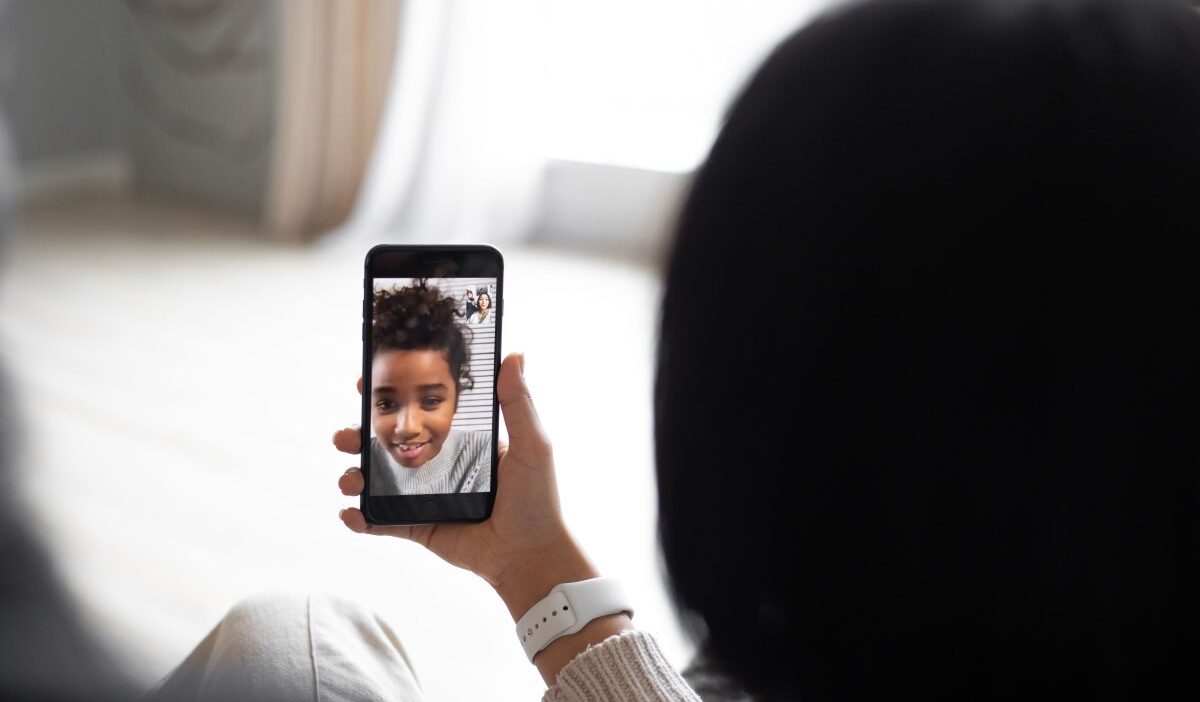
How to video call on Android can feel confusing when the video button is missing from your Phone app, or you’re unsure which app your friend uses. Maybe you simply want to see a loved one’s face instead of hearing their voice, but don’t know where to start.
Fortunately, you don’t need matching phones to connect. Whether you’re using Samsung, Google Pixel, or another Android device, a few simple options can get you face-to-face without complicated setup.
1. How to Video Call on Android: 3 Ways to Get Started
Android gives you several ways to make video calls. The simplest choice depends on your phone, carrier, and which apps the other person uses.
Make a Video Call Directly From Your Phone App
Some Android phones let you start video calls directly from the Phone app.
Here’s how:
- Open the Phone app.
- Select the person you want to call from Contacts.
- Tap the Video call icon, if available.
- Follow any prompts and wait for the recipient to answer.
Depending on your device, the video button may use your carrier’s video-calling service or launch Google Meet.
On certain Samsung Galaxy phones, you can choose the preferred video-calling method for individual contacts.
Carrier-based video calling requires compatible devices and network support. If the option is missing or the call fails, try an internet-based app instead.
Use Google Meet to Make a Video Call
Google Meet is a convenient option if you want to learn how to video call on Android without relying on carrier-provided video calling.
It works across Android and iPhone through an internet connection.
To start:
- Download or update Google Meet from the Play Store.
- Open the app and sign in with your Google account.
- Tap New or Search contacts.
- Find and select the person you want to call.
- Tap Call.
For direct calls, the recipient must be able to receive Meet calls.
If they haven’t completed setup or can’t receive your call, Meet may offer Create and share a link instead. Send the link so they can join through the supported meeting experience.
During the call, you can mute your microphone, switch cameras, or turn off your video.
Using Google Messages? Open a conversation and tap the video icon, if available. Depending on your devices and account setup, the call may use carrier video calling or Google Meet.
Try Other Video Calling Apps
Google Meet isn’t your only option. These apps also support Android video calls:
- WhatsApp: Open an individual chat and tap the video camera icon. Both participants need WhatsApp.
- Facebook Messenger: Open a conversation and tap the video icon. Messenger also supports group video calls.
- Zoom: Open the Zoom Workplace app, sign in, and select New Meeting to host a call. Share the meeting link with others. Participants can generally join without a Zoom account unless the host requires authentication.
Some Zoom meetings also allow browser joining, but this depends on the host’s settings.
For everyday conversations, choose whichever app your friends or family already use.

2. Can Android and iPhone Users Video Call Each Other?
Yes! Android and iPhone users can video call each other through cross-platform services such as Google Meet, WhatsApp, Facebook Messenger, and Zoom.
You don’t need the same phone brand to have a face-to-face conversation. You just need a compatible app or service that both participants can access.
What about FaceTime?
Although FaceTime is Apple’s video-calling service, Android users can join a FaceTime call through a shared link. However, Android doesn’t have a native FaceTime app, so you cannot install it or start a FaceTime call directly from your phone.
Here’s how to join one:
- Ask your iPhone, iPad, or Mac contact to create a FaceTime link and share it with you.
- Open the link on your Android phone using a supported browser, such as Google Chrome or Microsoft Edge.
- Enter your name and tap Continue.
- Allow the browser to access your camera and microphone if prompted.
- Tap Join and wait for the host to let you into the call.
Once the host approves your request, you can participate in the conversation directly from your Android device.
Note: Android users can join FaceTime through a shared link, but they cannot start a FaceTime call themselves. For regular Android-to-iPhone calls, Google Meet or another cross-platform app may be more convenient.

>>> Also read: How To Record A Phone Call On Android: Google Vs. Samsung
3. Why Can’t You Make a Video Call on Your Android Phone?
Having trouble making a video call? Even after learning how to video call on Android, you may encounter issues with your phone, carrier, app settings, or internet connection.
Here are some common reasons and practical ways to fix them:
| Possible reason | What you can do |
| Your Phone app or carrier doesn’t support video calling. | Check carrier compatibility or use Google Meet or another video-calling app. |
| The recipient’s phone or carrier isn’t compatible. | Try a cross-platform app that both participants can access. |
| Your video-calling app is outdated or not properly set up. | Update the app, sign in, and complete its initial setup. |
| The app doesn’t have camera or microphone access. | Open Android Settings, find the app’s permissions, and allow camera and microphone access. |
| Your internet connection is weak or unavailable. | Switch to a stronger Wi-Fi network or check your mobile data connection. |
If you’re still having problems, restart your phone and try again. You can also test your camera and microphone using another app to see whether the issue is specific to one service.
Remember that native video calling availability varies by Android model and mobile carrier. Switching to an internet-based app is often the easiest workaround when the built-in feature isn’t available.
4. Do Android Video Calls Use Wi-Fi or Mobile Data?
Android video calls can use Wi-Fi or mobile data, depending on the app and calling method.
Apps such as Google Meet, WhatsApp, Messenger, and Zoom use an internet connection to transmit audio and video.
When you’re connected to Wi-Fi, these apps generally use that connection. However, some services, including Google Meet, may use a small amount of mobile data to maintain connectivity if Wi-Fi becomes unstable.
If you want to avoid cellular data usage entirely, disable mobile data before starting your call.
Carrier-provided video calls may follow different billing rules, so check with your wireless provider.

Video calls typically use more data than voice calls because they’re transmitting live video. Actual usage depends on the app, video quality, and call duration.
To avoid unexpected data usage:
- Connect to a stable Wi-Fi network whenever possible.
- Turn off your camera when you only need to talk.
- Avoid long video calls over mobile data if your plan has a limited allowance.
- Check your app’s data-saving settings, if available.
These small adjustments can help you enjoy video calls without using more data than necessary.
>>> Also read: How To Call Voicemail: 3 Ways (Even Without Your Phone)
5. Need a Video-Ready Phone? Explore Affordable Options
A good video call experience depends on more than the app. Your phone also needs a working front camera, a reliable microphone, and enough processing power to handle video conversations smoothly.
However, buying a new smartphone and paying for monthly wireless service can put pressure on a tight budget. That’s where the federal Lifeline program may help.
Lifeline is a government assistance program that reduces the cost of phone service or internet service for eligible consumers. Some Lifeline providers go beyond monthly service benefits by offering free or discounted smartphones, too.
To access these benefits, you must qualify through a participating assistance program or meet the income requirements.
Choosing a reliable provider is the next important step.
Cintex Wireless is one provider to consider. It has now merged with AirTalk Wireless, a provider with years of experience in the industry.
AirTalk Wireless offers valuable plan benefits, such as unlimited talk and text, monthly data allowances for browsing and video calls, and Wi-Fi Calling.
Better yet, AirTalk offers a diverse smartphone selection, including both Android and iPhone models you can use for video calls, such as:
Note: Offers and availability vary by location and inventory.
Some may be available for free, while others come at significantly lower prices than their regular retail value, helping you save big on your next smartphone upgrade!
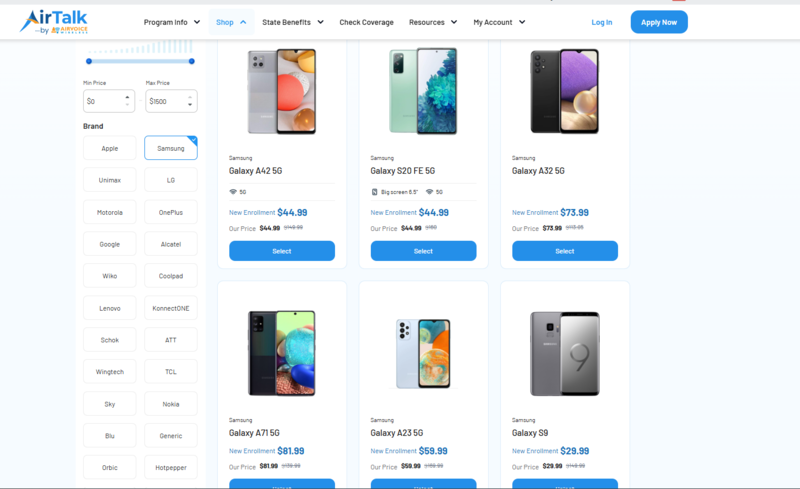
Ready for a better video-calling experience? Explore AirTalk’s smartphone offers and find an option that fits your needs today!
DISCLAIMER: The government does not subsidize devices. Lifeline programs cover basic service costs only. Free or discounted devices, upgrade plans, or top-ups are exclusive benefits provided by AirTalk Wireless and Cintex Wireless as part of the promotional offers. Terms and conditions apply. Limited-time promotion—offers vary by state, stock availability, and eligibility.
Conclusion
Video calls make it easier to stay close to the people who matter, even when you can’t meet in person.
Once you know how to video call on Android, take a moment to check your camera, microphone, and internet connection before calling. A little preparation can save you from awkward interruptions and help make every conversation feel more natural.