
How to call restricted might be something you’ve wondered about after receiving a call labeled “Private Number” or “No Caller ID.” Maybe you’d like that same privacy when contacting someone unfamiliar, without sharing your personal number.
Fortunately, both iPhone and Android offer ways to hide Caller ID, although your carrier has the final say. Before making a restricted call, it’s worth understanding what these labels mean and when the feature actually works.
1. Restricted Calls Explained: Caller ID and Calling Errors
A restricted call and a calling restriction aren’t the same thing. One concerns whether your phone number is visible to the recipient, while the other involves limitations that prevent certain calls from connecting.
What Is a Restricted Call?
A restricted call typically means the caller’s phone number is hidden from the recipient’s standard Caller ID display. Depending on the phone and carrier, an incoming call may appear as:
- Restricted: The caller’s number has been withheld.
- Private Number: The caller’s number isn’t displayed, often because Caller ID blocking is enabled.
- No Caller ID: The incoming number isn’t available to display, which may result from intentional blocking or other network-related factors.
People sometimes hide their numbers when contacting unfamiliar businesses or making sensitive inquiries.
However, Caller ID blocking doesn’t make a call completely anonymous. Carriers can still identify originating calls, and certain destinations may receive caller information despite the restriction.

What Does Calling Restrictions Mean?
Calling restrictions are limitations that prevent certain incoming or outgoing calls from connecting.
If you hear an automated message about calling restrictions, possible explanations include:
- Account restrictions: Your plan or account settings block certain calls.
- Destination restrictions: International, premium-rate, or other numbers may be unavailable.
- Carrier or network issues: Your carrier may limit calls based on coverage, roaming, or service conditions.
Restrictions can also apply to the number you’re trying to reach.
Hiding your Caller ID won’t bypass these limitations. If a call fails, check whether other numbers work before contacting your carrier.
2. How to Call Restricted on iPhone?
Your iPhone has a built-in setting that lets you hide your phone number on outgoing calls. You can apply this setting to all supported calls or use a dialing code when you only want to hide your number once.
To hide your Caller ID on all outgoing calls:
- Open Settings on your iPhone
- Tap Apps, then select Phone
- Choose Show My Caller ID
- Turn the switch off
Once disabled, your phone number should no longer appear on the recipient’s regular Caller ID display for supported calls.
To hide your number for one call only:
On supported U.S. networks, dial *67 immediately before the full phone number, then press Call.
For example, dial *67 212-555-0147.
Some carriers use a different code, such as #31#, so confirm the correct method with your provider.
Note: If Show My Caller ID is missing or grayed out on your iPhone, your carrier may not allow you to change this setting.
Caller ID blocking also doesn’t work for every destination, including 911 and certain toll-free numbers.

>>> Also read: Can You Make Phone Calls on an iPad? Easy Ways
3. How to Call Restricted on Android?
Android phones offer similar Caller ID controls, although the exact menu names depend on your device, software version, and wireless carrier.
To hide your Caller ID on all outgoing calls:
On many Android devices, follow this general path:
- Open the Phone app
- Tap the three-dot menu and select Settings
- Look for Caller ID, Calling Accounts, or Additional Settings
- Select your SIM or calling account if prompted
- Find the Caller ID option and choose Hide Number or the equivalent setting
On Samsung Galaxy phones, go to Phone > Three-dot menu > Settings > Supplementary services > Show your caller ID, then choose Never or Hide number, depending on your model and software version.
This prevents your number from appearing on supported outgoing calls. If you cannot find the option, check with your carrier rather than assuming your phone is missing the feature.
To hide your number for one call only:
Similar to iPhone, Android lets you hide your Caller ID for a single call using a carrier-supported dialing code such as *67. Enter the code before the recipient’s phone number, then tap the call button.
Again, the available code depends on your carrier and network, so check with your wireless provider before using it.
4. What to Do If You Can’t Make a Restricted Call?
Even after changing your Caller ID settings, a restricted call may fail or display your number unexpectedly. These problems do not always indicate that your phone is broken.
Try these solutions:
- Check your carrier’s Caller ID policy: Some providers do not allow customers to hide their numbers through device settings. Contact customer support to confirm whether the feature is available on your plan.
- Verify the dialing code: Make sure you enter the correct code before the full phone number. For US mobile calls, try *67 if your carrier supports it.
- Check your account status: Outstanding balances, suspended service, or parental and account-level restrictions may prevent certain calls from connecting.
- Try another destination: Some numbers, including emergency and toll-free numbers, do not support Caller ID blocking. Your number may still be displayed when calling them.
- Restart your phone: A quick restart can help resolve temporary network or calling glitches. You can also check whether your device has a stable cellular connection.
- Check whether the recipient blocks private calls: Some phones and carriers can reject calls from hidden or unidentified numbers. If regular calls connect but restricted calls don’t, the recipient’s call-blocking settings may be responsible.
If the problem continues, contact your carrier and explain the exact error message. This is especially helpful when you hear a recording about calling restrictions rather than simply seeing your number displayed.

>>> Also read: Why Does My Call Keep Failing? 7 Common Causes & How To Fix It
5. Making More Calls? Check Your Wireless Service Options
Hiding your Caller ID can help protect your privacy, but you also need affordable wireless service to stay in touch with the people who matter. If monthly phone bills are eating into your budget, the federal Lifeline program may help.
Lifeline provides eligible consumers with a monthly discount on qualifying phone services or internet services through participating providers. You may qualify in either of these ways:
- You or a household member participates in Medicaid, SNAP, SSI, or Federal Public Housing Assistance (FPHA).
- Your gross household income is at or below 135% of the Federal Poverty Guidelines.
Once you find out that you qualify, the next step is choosing a reliable Lifeline provider to claim your benefits.
One provider worth considering is Cintex Wireless, an Eligible Telecommunications Carrier (ETC) that has spent years helping eligible consumers stay connected through Lifeline-supported wireless services.
Cintex Wireless has merged into AirTalk Wireless, bringing its service offerings and application experience together under one provider.
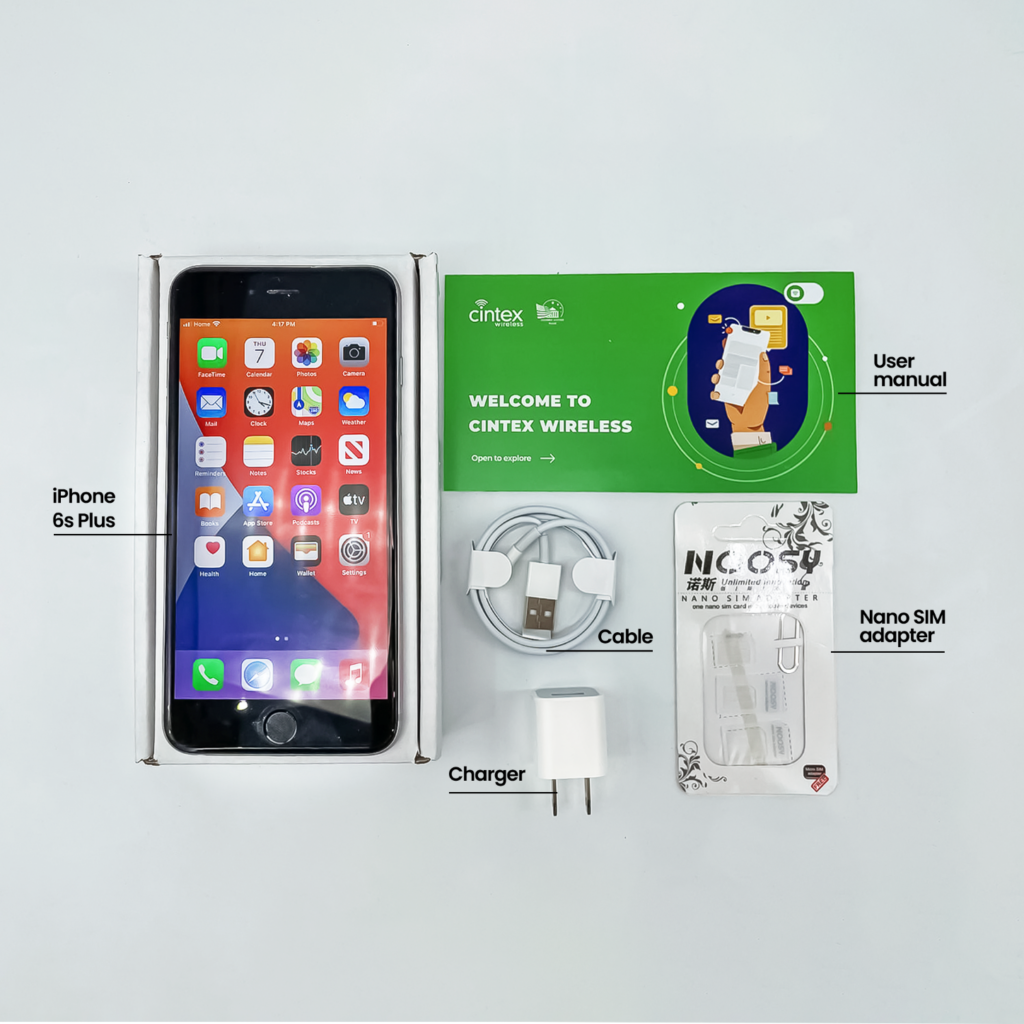
Now, through AirTalk Wireless, eligible customers can explore available plans with benefits such as:
- Unlimited talk and text: Make everyday calls and send messages without worrying about paying for each one.
- Monthly data allowances: Browse the web, check emails, and stay connected without paying for a separate full-price data plan.
- Caller ID and more calling features: Enjoy Caller ID along with other handy features like Call Waiting, 3-Way Calling, and Voicemail.
- Free international calling: Reach family and friends in more than 200 countries and territories without extra international calling charges.
- SIM and eSIM options: Get connected with a free SIM kit or compatible eSIM.
Even better, choosing Cintex Wireless and AirTalk Wireless may give you access to free or discounted smartphones! These are provider-specific offers, not benefits guaranteed by the federal Lifeline program.
Note: Available devices depend on your location, eligibility, inventory, and current promotions.
DISCLAIMER: The government does not subsidize devices. Lifeline programs cover basic service costs only. Free or discounted devices, upgrade plans, or top-ups are exclusive benefits provided by AirTalk Wireless and Cintex Wireless as part of the promotional offers. Terms and conditions apply. Limited-time promotion—offers vary by state, stock availability, and eligibility.
6. FAQs
Does *67 Still Call Restricted?
Yes. *67 still works for supported US carriers. Dial it before the recipient’s number to hide your Caller ID for that call. However, it does not work for every type of destination, such as 911 and certain toll-free numbers.
How to Call a Restricted Number Back?
You generally cannot call back a restricted number directly because its phone number is not displayed in your call history. Your best option is to wait for the caller to contact you again or check whether they left a voicemail.
Can Someone Still Identify a Restricted Caller?
Yes. Caller ID blocking hides your number from the recipient’s standard display, not from your wireless carrier. Authorized parties may also obtain caller information through appropriate legal processes.
Does Hiding Caller ID Also Hide Your Number When Sending Text Messages?
No. Caller ID blocking applies to outgoing voice calls, not regular SMS or MMS messages. Your phone number may still appear when you send a text.
Conclusion
Knowing how to call restricted can be useful when you want more control over your personal information. However, remember that a hidden number may make recipients less likely to answer, especially when they do not recognize the caller.
Use this feature thoughtfully, and consider whether sharing your number might be the better choice when contacting someone you need to reach.
And if monthly phone bills have been weighing on your budget, don’t forget to check out the Lifeline benefits available through Cintex Wireless and AirTalk Wireless!