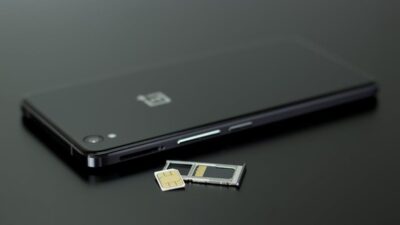
SIM status can help you figure out whether your phone sees your SIM or eSIM and whether the line is connecting properly to a mobile network. That is useful when “No SIM,” “No Service,” or “SOS Only” suddenly appears where your signal bars used to be.
The important part is knowing what each clue actually tells you. A phone can recognize the SIM but still have no service, while an account can be active even when the device cannot detect the card. Start with the phone, then move online if the problem seems to sit on the account side.
1. What Does SIM Status Mean?
SIM status is a broad term for information your phone shows about an installed physical SIM or eSIM and its mobile-network connection.
Depending on the device, you may see details such as:
- SIM or eSIM line
- Network name
- ICCID or other SIM information
- Signal strength
- Service state
- Mobile network type
- Whether a cellular line is enabled
These clues help narrow the problem, but they do not all mean the same thing.
For example:
- No SIM usually means the device does not currently recognize an active physical SIM or eSIM line.
- No Service means the phone is not connected to a cellular network, but the reason could involve coverage, the account, settings, or the SIM itself.
- SOS Only can mean normal cellular service is unavailable while emergency calling may still work through another available network.
Think of SIM status as a dashboard light. It points you toward the problem, but it does not always tell you exactly what is under the hood.

2. How to Check SIM Status on Your Phone
Your phone is the best first stop because it can tell you whether the SIM or eSIM is visible before you start digging through account pages.
SIM status on iPhone
On iPhone, there is no single screen literally called “SIM Status.”
Start with:
Settings > Cellular
Select the line you want to check and confirm that it is turned on. Apple specifically recommends reviewing the cellular line when troubleshooting No Service or SOS issues.
You can also open:
Settings > General > About
There you may find details such as your network information and ICCID. If you receive No SIM or Invalid SIM, Apple recommends confirming that the plan is active, checking carrier-lock status, restarting the device, checking for carrier-settings updates, and reinserting the physical SIM if applicable.
What about the SIM status on Android
Android menus differ between manufacturers and software versions.
On current Pixel software, for example, you can go to:
Settings > Network & internet > SIMs
From there, you can check whether the SIM is enabled and review mobile-network settings. If a SIM appears inactive, it may need to be turned back on.
Other Android phones may place similar information under SIM Manager, Connections, About phone, or Status information.
Check Whether Your Phone Detects the SIM
Do not judge detection by signal bars alone.
| Clue | What It Usually Suggests |
| SIM/eSIM line appears in Settings | Phone recognizes a line/profile |
| “No SIM” | SIM/profile may be missing, inactive, unsupported, or not detected |
| “No Service” | SIM may be detected, but cellular connection is unavailable |
| “SOS Only” | Normal service unavailable; emergency calling may still be possible |
| Carrier/network appears | Phone sees network information, but account status may still need checking |
If a physical SIM is not recognized after being reseated, inspect it for damage and contact your wireless provider if replacement may be necessary. Google also notes that some newer phones do not support certain older SIM cards.
>>> Read more: How to Get Free Government Phone Service With eSIM
3. SIM Card Status Checking Online
Sometimes your phone looks normal, but you still cannot make calls or use mobile data. In that case, checking your account online can provide additional answers.
Check your carrier account
If you want to check SIM card status online free, sign in to your provider’s official website or mobile app.
Depending on the provider, your account may show:
- Whether your wireless line is active
- Current plan information
- Recent usage
- Device or SIM associated with the line
- Whether the account needs attention
This helps answer a different question from the phone’s SIM status screen. Your device tells you whether it recognizes the SIM, while your online account can tell you whether the service behind that SIM is active.
Check your application or activation status
If you recently signed up for service, ordered a new SIM, or changed your setup, activation may not be complete yet.
When learning how to check SIM card status online, look for an official application, order, or activation-status page from your provider. It may show whether:
- Your application is still being reviewed
- Additional information is required
- Your SIM has been shipped
- Activation is ready or still pending
Keep these stages separate. An approved application does not automatically mean the SIM is already active, just as receiving the SIM does not mean activation has finished.
If the account looks correct but the phone still shows No Service or No SIM, the problem likely sits elsewhere, which brings us to the next step: figuring out what those status messages actually mean.

4. Why Your SIM Status Shows No Service or No SIM
Once you know whether the phone detects the line and whether the account is active, troubleshooting becomes less like throwing darts in the dark.
Possible causes include:
- Physical SIM not seated correctly
- Damaged or unsupported SIM
- eSIM line turned off
- Wireless account not active or in good standing
- Cellular outage or weak coverage
- Device locked to an incompatible network
- Activation not completed
- Device or SIM hardware issue
For No Service, Apple recommends trying Airplane Mode, restarting the device, and confirming that the account and local network are working before assuming hardware failure.
For No SIM, the troubleshooting path is different because the phone may not be recognizing the physical SIM or eSIM at all.
That is why the message itself matters. “No Service” and “No SIM” may look like close cousins, but they point down different troubleshooting roads.
>>> Read more: How to Get Free eSIM Service Government iPhone (Step-by-Step Guide)
5. When Checking SIM Status Leads to a New SIM or Service
A single SIM status error does not mean you need a new phone or wireless service.
But if “No SIM,” “No Service,” or activation problems keep coming back even after you have checked the SIM, settings, and account, it may be worth looking beyond another quick fix.
Sometimes the problem is an older SIM. In other cases, the device may no longer fit your current network setup, or your wireless service may simply no longer meet your needs.
If cost is one reason you have been putting off a change, the federal Lifeline program may give eligible households another route.
Lifeline is a federal benefit that helps lower the cost of qualifying phone or internet service. Eligibility may be based on household income or participation in programs.
The benefit itself does not operate the wireless service or hand out any free devices. That comes through an Eligible Telecommunications Carrier such as Cintex Wireless.
Cintex combines Lifeline-supported service with practical options that can make replacing an unreliable setup easier.
Depending on eligibility, location, and availability, customers may have access to monthly mobile data, talk and text, a physical SIM or compatible eSIM, and separate free or discounted device offers when available.
If that sounds more useful than repeatedly fighting the same SIM problem, getting started follows a simple path:
- Enter your ZIP code to check available Lifeline-supported service in your area.
- Choose an available plan, then select your device option, whether that means keeping a compatible phone or choosing an available new device.
- Complete the eligibility application and provide income or qualifying-program documents if requested.
- Submit and wait for approval, once approved, follow the shipping and activation instructions for your SIM, eSIM, and selected device setup.
Cintex is also merging into AirTalk Wireless. For eligible customers, that transition can mean a smoother application and fulfillment experience, along with a broader and more frequently changing selection of available devices.
So if your SIM status keeps sending you back to square one, the answer may not always be another restart or another round of troubleshooting. Sometimes a cleaner service and device setup is the more practical way forward.
IMPORTANT: The government does not subsidize devices. Lifeline programs cover basic service costs only. Free or discounted devices, upgrade plans, or top-ups are exclusive benefits provided by Cintex and AirTalk Wireless as part of the promotional offers. Terms and conditions apply. Limited-time promotion—offers vary by state, stock availability, and eligibility.
6. FAQs
How Do I Know If My SIM Is Still Active?
The most reliable check is whether your wireless account shows the line as active and the phone can connect to service. Seeing a SIM or network name in Settings alone does not prove the account is active.
Can a SIM Stop Working Suddenly?
Yes. A SIM may stop working because of physical damage, an account issue, unsupported hardware, activation problems, or a network issue. Check the phone and account separately to narrow down the cause.
How Long Does SIM Activation Take?
There is no universal activation time. It depends on the wireless provider, SIM or eSIM setup, account verification, and whether a phone-number transfer is involved.
Conclusion
Checking SIM status is a bit like following breadcrumbs: first see whether the phone recognizes the line, then check whether it can reach the network, and finally confirm that the service behind it is active.
Once you separate those three pieces, messages such as No SIM and No Service stop looking like the same dead end and start pointing you toward the right fix.