No SIM available on iPhone 13 can be troublesome. It prevents you from making calls, sending texts, or using mobile data.
In fact, this error can appear for several reasons, ranging from a loose or damaged SIM card to software glitches or carrier-related issues. But luckily, you can resolve this issue with a few simple troubleshooting steps.
1. What Does No SIM Available Mean on iPhone?
“No SIM available” indicates that your iPhone cannot detect or connect to a valid SIM card or eSIM profile.
But why is my phone saying no SIM when my SIM is in? In this case, your cell phone may be unable to read the SIM card.
Unfortunately, this issue prevents access to the mobile network and cellular data.
As the SIM card allows your iPhone to identify itself to your mobile carrier and access the cellular network, this message is sent when your phone is unable to communicate with the physical card’s gold chip.
Without a functional SIM, you cannot use basic cellular features such as voice calls and SMS.
2. What Causes No SIM Available on iPhone 13?
Generally, your iPhone must first connect to a physical SIM card or an eSIM profile before communicating that line to your carrier account and current network.
If any element of the chain fails, you may see the message No SIM available on iPhone 13.
Here are a few common causes:
- Improperly inserted SIM card: A loose, misaligned, or incorrectly reinserted SIM card can prevent your iPhone from detecting the network.
- Damaged or dirty SIM card: Scratches, wear, dust, or moisture on the SIM card’s metal contacts may interfere with the connection.
- Software or network glitches: Temporary iOS bugs, carrier issues, or network errors can cause your iPhone to stop recognizing the SIM card.

3. How to Fix No SIM Available On iPhone 13?
Receiving the “No SIM available” message and wondering how do I get my SIM card to work in my iPhone 13?
Below are effective methods to fix this frustrating issue.
Quick Fixes
Before making any major changes, start with a few basic troubleshooting steps. These simple fixes can often resolve the no SIM available on iPhone 13 error within minutes.
- Restart Your iPhone
A restart may fix temporary system faults and refresh network connections. This simple procedure frequently resolves small issues instantly.
- Press and hold the side button with the volume button.
- Slide to power off.
- Wait a few seconds and then turn it back on.
- Toggle Airplane Mode
Toggling Airplane mode causes your iPhone to disconnect from and reconnect to the cellular network. Doing so can refresh network registration and resolve brief carrier connectivity issues that appear to be SIM faults.
- Swipe down from the screen’s upper right corner to access the Control Center.
- Find and click on the “Airplane Mode” icon in the Control Center.
- After a few seconds of activation, you may disable it in the same way.
- Reinsert SIM
Even if your physical SIM card appears to be in good condition, it is worth a go to reinsert it.
A proper re-seat allows the phone to recognize the card again, which is especially beneficial when you receive the notice of no SIM available on iPhone 13.
Network Fixes
Problems with your cellular plan or network connection may prevent your iPhone from properly recognizing the SIM card.
If the issue persists, it’s worth checking your carrier and network settings.
- Check Carrier Settings
Outdated carrier settings can sometimes cause connectivity issues and prevent your iPhone from properly recognizing the SIM card.
To check for a carrier settings update:
- Go to Settings > General > About and wait a few seconds.
- If an update is available, you’ll see a prompt to install it.
- Verify Active Cell Plan
If your cellular plan is inactive or there is an issue with your account, your iPhone may display a no SIM available message.
To check your plan status, go to Settings > Cellular and confirm that your cellular line is turned on and listed as active.
If you recently changed carriers, transferred your number, or activated a new SIM or eSIM, contact your carrier to verify that your service has been properly activated and linked to your device.
- Check Coverage
Weak signals might resemble SIM issues. If your network bars drop, flicker, or disappear in specific areas, the problem might be inadequate coverage rather than SIM damage.
This is why some people confuse local signal instability with no SIM available on iPhone 13.
Advanced Fixes
When basic and network-related solutions don’t work, more advanced troubleshooting may be necessary.
The following methods can help identify deeper software issues or determine whether the SIM card itself is the source of the problem.
7. Check for iOS Updates
Software bugs can sometimes interfere with SIM detection and carrier communication. Installing the latest version of iOS may resolve known issues affecting cellular connectivity.
To check for updates:
- Go to Settings > General > Software Update.
- If an update is available, tap Download and Install.
- Restart your iPhone after the update completes.
8. Reset Network Settings
Resetting the network settings will restore cellular, Wi-Fi, Bluetooth, and VPN settings to their default configuration without deleting your personal data.
To do this, go to Settings > General > Transfer or Reset iPhone > Reset > Reset Network Settings.
Once the reset is complete, reconnect to your networks and check whether the no SIM available error has been resolved.
9. Test Another SIM
If your current SIM card is no longer functional or damaged, you may replace it with a new one from your mobile carrier.
In addition, you should check with your carrier to see what SIM card replacement options are available.
10. Factory Reset
Factory reset should be considered a last resort after all other troubleshooting steps have failed.
However, it should only be performed if simpler approaches fail, as it will erase your data. If you decide to continue, make a backup of your iPhone beforehand.
- Go to Settings > General.
- Select Transfer or Reset iPhone > Erase All Content and Settings, then follow the on-screen instructions.
- Set up your device again and check whether the no SIM available error persists.
4. What If Your iPhone 13 Is Still Not Working?
If your iPhone 13 still displays the no SIM available error after trying all the fixes above, it may be time to explore alternative solutions.
Try eSIM
One option is to switch to an eSIM, a digital SIM built into your device that eliminates the need for a physical SIM card.
Since the iPhone 13 supports eSIM technology, you can contact your carrier to see if you’re eligible to activate an eSIM plan.
>>>Read more: eSIM Vs Nano SIM: Which One Is Better In 2026
Get a Free SIM Card and Smartphone
If the issue of no SIM available on iPhone 13 is related to hardware damage or you’re considering replacing your device, the Lifeline program may help.
Through Eligible Telecommunication Carriers (ETCs) such as Cintex Wireless, eligible users may qualify for free SIM cards, wireless service, and discounted or free smartphones.
More importantly, Cintex is merging with AirTalk Wireless, which offers a discounted or free iPhone 13 to qualified applicants (may vary by state).
To qualify, you generally have to meet one of the requirements: meeting the household’s income limit or participating in other qualifying programs like SSI, SNAP, etc.
But do note that the eligibility varies by state and program. Service is non-transferable and limited to one service per household.
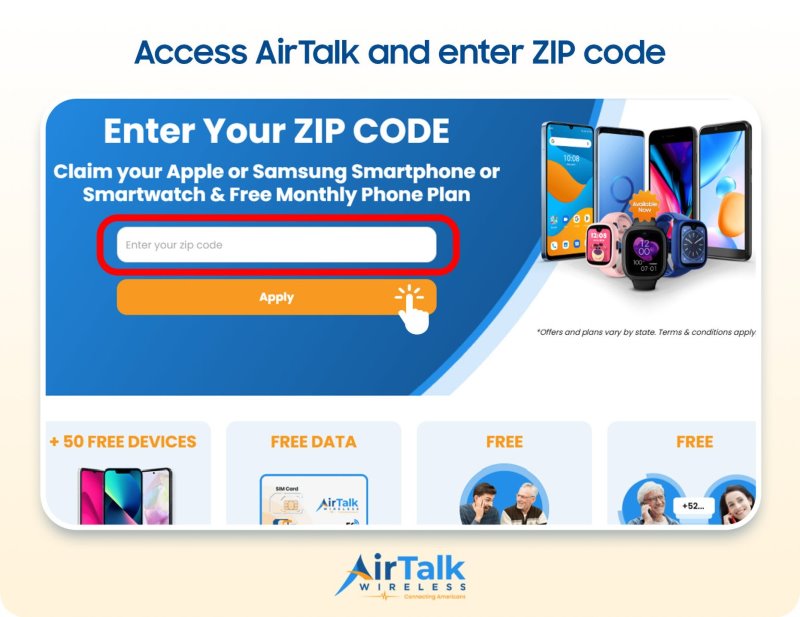
Staying connected doesn’t have to be expensive. Eligible users may qualify for wireless service and smartphone offers through trusted ETCS like AirTalk and Cintex, making it easier to enjoy reliable mobile connectivity at little to no monthly cost.
DISCLAIMER: The government does not cover device costs, only basic service through Lifeline. Any free or discounted devices, upgrades, or top-ups are limited-time Cintex Wireless offers and may vary by state, eligibility, and availability. Terms and conditions apply.
Conclusion
The no SIM available on iPhone 13 alert means your phone is unable to recognize or connect with the SIM card. This does not necessarily imply that the SIM is defective. In many situations, the problem stems from minor physical or software flaws. If this occurs, use the aforementioned troubleshooting tips or contact your carrier directly for assistance.