How to lock SIM Card on Android? If someone removes your SIM card and inserts it into another phone, the SIM PIN will immediately prevent them from using your phone number. This guide walks you through the exact steps for any Android device, what the PIN protects, and what to do if something goes wrong.
1. What Is SIM Card Lock on Android?
SIM card lock on Android is a built-in security feature that requires a PIN every time your phone restarts or when the SIM is transferred to another device. It prevents anyone from using your phone number to make calls, send texts, or access mobile data without your permission.
It’s important to understand the difference between a SIM lock and a screen lock. A screen lock protects the apps and data stored on your device. A SIM lock protects your access to your mobile network. You need both for comprehensive phone security.

2. Why You Should Lock Your SIM Card
Is it a good idea to lock your SIM card? For most people, yes, especially if your phone holds sensitive accounts linked to your number.
Here are the main reasons to enable SIM lock:
- SIM swap fraud protection: If a thief gets your SIM card and puts it in a new phone, the SIM lock prevents them from using your number to receive SMS verification codes and take over your accounts
- Stolen phone protection: Even if someone removes the SIM from your device, they cannot use it in another phone without your PIN
- OTP and two-factor authentication security: Many banking and email apps send verification codes to your phone number, and a locked SIM keeps those codes out of reach
Note:
SIM lock does not protect data stored on your phone. Use a strong screen lock along with your SIM PIN for complete protection.
Before enabling SIM lock, make sure you know your current SIM PIN or know how to obtain the PUK code from your carrier.
3. How to Lock SIM Card on Android
How you access SIM lock settings depends on your phone’s manufacturer. The steps below cover the two most common paths.
| Step | Samsung (One UI) | Google Pixel (Stock Android) |
| 1 | Open Settings | Open Settings |
| 2 | Tap Security and Privacy | Tap Security and Privacy |
| 3 | Tap More Security Settings | Tap More Security Settings |
| 4 | Tap SIM Card Security | Tap SIM Card Lock |
| 5 | Toggle Lock SIM Card on | Toggle Lock SIM on |
| 6 | Enter your current SIM PIN | Enter your current SIM PIN |
Other Android manufacturers: Menu names vary slightly across brands like OnePlus, Motorola, and Xiaomi. If you cannot find the SIM card lock using the path above, open the Settings app, tap the search bar, and type “SIM lock” to locate the option directly.
Note: Menu names vary by Android version and manufacturer. If you cannot locate the option, search Settings for “SIM lock” or “SIM card lock.”
Dual SIM note: If your phone uses two SIM cards, the lock setting appears separately for each one. Repeat the steps for both SIM slots if you want both protected.
Default SIM PIN: Many carriers assign a default SIM PIN when the SIM is issued. Check your SIM card packaging or contact your carrier if neither code works. Do not guess repeatedly; three wrong attempts will lock the SIM and require a PUK code to unblock it.
>>> Read more: How to Unlock iPhone: Easy Step-by-Step Guide for Every Lock Type
4. How to Change Your SIM PIN After Enabling the Lock
After enabling SIM lock, change the default PIN immediately. Default codes like 1234 and 0000 are publicly known and offer little real protection.
The steps are the same on both Samsung and Pixel devices:
- Return to the same SIM card lock menu in Settings
- Tap Change SIM PIN (or Change SIM Card PIN on Samsung)
- Enter your current PIN when prompted
- Type your new PIN, choose a 4 to 8-digit code you have not used elsewhere
- Confirm the new PIN and tap OK
Avoid using your birth year, phone number digits, or repeating numbers. Your new PIN should be something only you know.
5. What to Do If You Get Locked Out
Entering the wrong SIM PIN three times locks your SIM and asks for a PUK code. Do not keep guessing at this point.
A PUK (PIN Unlock Key) is an 8-digit code assigned to your SIM card by your carrier. It is not the same as your SIM PIN and cannot be changed.
Here is how to get it:
- Check the original plastic packaging your SIM card came in; the PUK is usually printed there
- Log in to your carrier’s app or online account; most carriers display the PUK in your account settings
- Call your carrier’s customer service line if you cannot find the code elsewhere
Note: Entering the wrong PUK code 10 times will permanently deactivate your SIM card. You will need to request a replacement SIM from your carrier. Do not attempt to guess the PUK code.
>>> Read more: Free SIM Card With Free Service Government iPhone: How to Apply
6. What Happens When Your SIM Card Cannot Be Fixed?
Even with careful PIN management, some SIM cards reach a point of complete failure. When that happens, no setting on your phone can restore the card.
Common causes of permanent SIM failure include:
- PUK code entered incorrectly 10 times — the SIM is permanently blocked
- Physical damage to the SIM card from water, heat, or bending
- Carrier deactivation due to account issues or an inactive account
- The phone continues to display “No SIM” after testing the SIM in another compatible device and confirming carrier service is active.
At this point, the SIM needs to be replaced. Settings adjustments will not help.
Instead of purchasing a replacement SIM separately, a more practical option is available for eligible US residents.
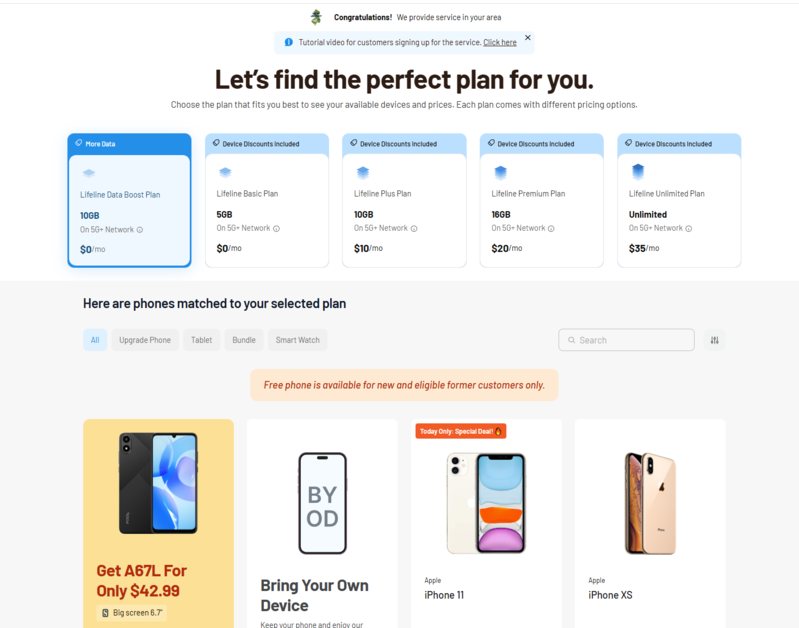
The federal Lifeline program helps low-income households access phone service at reduced or no cost each month. Lifeline does not directly provide SIM cards, but approved carriers may include a SIM or eSIM as part of their service plans.
One of the approved Eligible Telecommunications Carriers is Cintex Wireless. You may qualify if your household income is at or below 135% of the Federal Poverty Guidelines, or if you are enrolled in Medicaid, SNAP, SSI, Section 8, or Veterans Pension.
Eligible users may receive a free 5G smartphone with unlimited talk and text, a monthly data allowance, and $0 monthly service cost.
Note: Eligibility varies by state and program. Offers depend on availability and qualifications. Cintex Wireless operates under the federal Lifeline Program as an Eligible Telecommunications Carrier (ETC). Service is non-transferable and limited to one service per household.
UPDATE: Cintex Wireless and AirTalk Wireless have officially merged. This partnership brings customers a stronger network, faster application processing times, and significantly larger monthly rewards.
7. Frequently Asked Questions
Q1. How do I put a passcode on my SIM card?
To put a passcode on your SIM card on Android, go to Settings, tap Security and Privacy, then More Security Settings, and select SIM Card Lock. Toggle the lock on and enter your carrier’s default PIN — usually 1234 or 0000. After enabling it, tap Change SIM PIN to replace the default with a unique code only you know.
Q2. Does SIM lock slow down my phone or affect calls?
No. SIM lock does not affect call quality, data speed, or any phone function during normal use. The PIN is only requested when the phone restarts or when the SIM is inserted into a different device. Once entered, the phone operates without interruption until the next restart.
Q3. Can I remove the SIM lock later if I change my mind?
Yes. Return to the same SIM card lock menu in Settings and toggle the lock off. You will need to enter your current SIM PIN to confirm the change. The lock is removed immediately, and the SIM will no longer require a PIN on restart.
Final Words
How to lock the SIM Card on Android is one of the simplest security steps you can take to protect your phone number. It takes under two minutes to set up and runs quietly in the background without affecting normal use. Keep your PUK code somewhere safe before you need it.
If you qualify for government assistance, an approved Lifeline provider may offer a free smartphone and $0 monthly service to help you stay connected securely.