
How to activate eSIM depends on your device, carrier, and the setup method provided with your mobile plan. The process is usually quick, but it can feel confusing when you are dealing with QR codes, carrier apps, activation links, or a phone that gets stuck during setup.
Before you start, it helps to know which method fits your device and what to check if the eSIM does not connect right away. Use the steps below to activate your eSIM with fewer errors and less waiting.
1. What is eSIM and How Does It Work?
An embedded subscriber identity module (eSIM) is a built-in digital SIM that lets your device download a carrier profile instead of using a removable SIM card.
Furthermore, many eSIM-compatible phones can store multiple carrier profiles, though the number of active lines you can use at the same time depends on the device and carrier.
Smartphones, tablets, smartwatches, and some connected vehicles now support eSIM technology.
They’re ideal for easily switching between phone numbers and obtaining mobile data while traveling.
2. How to Activate eSIM?
Before exploring how to activate eSIM on Android and iPhone, make sure your device supports eSIM and that your carrier supports eSIM activation on that device.
If you plan to use an eSIM from a different carrier, confirm that the phone is unlocked or has no SIM restrictions.
Moreover, you should have a stable WiFi connection or hotspot available to download and install your eSIM.
eSIM Activation on iPhone
Apple offers several ways to activate an eSIM on an iPhone, so the exact method depends on your carrier and the information they provide.
You can complete activation in just a few minutes using one of the following options.
Method 1: Use eSIM Carrier Activation
Some carriers automatically assign an eSIM to your iPhone when you purchase a new device or request a digital SIM. Follow these steps:
- Turn on your iPhone and follow the on-screen setup instructions if your carrier has already assigned an eSIM.
- If you receive a Cellular Plan Ready to Be Installed notification, tap it to begin.
- Select Continue and complete the activation process.
- Test your connection by making a call or using mobile data. If the eSIM replaces your physical SIM, remove the SIM card only after the new eSIM is active or if your carrier instructs you to do so.
Method 2: Use a QR Code
Using a QR code is one of the most common ways regarding how to activate eSIM.
If your carrier provides one, open the Camera app and scan the code, or go to Settings > Cellular > Add eSIM > Use QR Code.
Your iPhone will automatically detect your cellular plan and guide you through the remaining setup steps. Some carriers may also ask you to enter a confirmation code before the activation is complete.
Method 3: Use a Carrier Link or App
Some mobile providers let you install an eSIM through an activation link, a QR code in a browser or email, or their official mobile app.
Simply tap the activation link or sign in to your carrier’s app and follow the prompts to download and install the eSIM profile.
This method can be convenient when your carrier supports app-based activation or number transfer.
Method 4: Activate Manually
If your carrier provides activation details instead of a QR code, here is how to activate manually:
- Go to Settings > Cellular or Mobile Data > Add eSIM.
- Choose Use QR Code if prompted.
- Tap Enter Details Manually.
- Enter the SM-DP+ address and activation code provided by your carrier.
- Follow the remaining prompts to finish the installation.

eSIM Activation on Android Phone
Many eSIM-compatible Android phones let you install an eSIM through device settings using a QR code or activation details from your carrier, but the exact path varies by brand and Android version.
General Android (Google Pixel)
- Open Settings > Network & internet > SIMs > Add SIM.
- Tap Set up an eSIM and follow the on-screen instructions.
- Scan the QR code or follow your carrier’s activation instructions.
- Complete the setup and wait for the eSIM to connect to the network.
Samsung eSIM Activation
Samsung phones with eSIM support can be activated directly through the SIM Manager.
Note: Samsung eSIM availability depends on the phone model, region, and carrier, so check support before starting.
- Go to Settings > Connections > SIM Manager.
- Tap Add eSIM.
- Choose Scan QR code, Search for eSIMs, or Enter activation code, depending on your model and carrier.
- Follow the on-screen instructions to finish the setup.
>>>Read more: How Long Does It Take To Activate eSIM? Tips For Quick Connection
3. Common Errors in eSIM Activation
Many factors can cause eSIM activation to fail. Even if you know how to activate eSIM, the QR code is valid, and your device supports eSIM, the activation request may fail at several stages.
Here are some common issues, what they mean, and how to troubleshoot.
- eSIM Cannot Be Added: This error usually appears when the QR code is invalid or has already been used. Many eSIM QR codes, especially travel eSIM codes, are single-use and can only be installed once. Before requesting a new code, check whether the eSIM profile already appears in your phone’s SIM or Cellular settings. If not, contact your carrier or eSIM provider for assistance.
- Carrier-Locked: This error usually means the phone cannot use an eSIM from a different provider. In that case, on your iPhone, check your device’s Carrier Lock status to see whether it shows No SIM Restrictions. If your phone is locked, you’ll need to request an official unlock from your carrier before activating another eSIM.
- eSIM is Stuck at Activating: If an eSIM is stuck activating, first turn Airplane Mode on and off, restart the phone, and check whether the line appears in Cellular or SIM settings. For many travel eSIMs, the plan may only start working after your device connects to a supported network at the destination, so check coverage and enable Data Roaming if the provider requires it.
- “No Number” Error: Seeing this message after installing an eSIM is normal for many data-only plans. If mobile data works and the eSIM appears in your device settings, it has usually been installed successfully.
4. eSIM Still Not Working? Check New Service Options from Cintex Wireless
If you’ve tried troubleshooting your eSIM but still can’t get connected, it may be time to explore another option.
The Lifeline program is a federal assistance program that helps eligible low-income households stay connected by offering free or discounted wireless service through partner providers such as Cintex Wireless.
These providers can take it further by offering a free device with an eSIM when you are eligible for the program.
You can generally qualify if your household meets the income limit or through participation in qualifying programs.
Depending on your eligibility, benefits may include free monthly talk and text and, in some areas, a free SIM card or a discounted smartphone.
As Cintex Wireless continues merging with AirTalk Wireless, eligible applicants can also access a wider selection of wireless plans and device offers, including:
- iPhone 8 Plus
- iPhone 11
- iPhone 11 Pro Max
- iPhone 12
- iPhone 13
- Samsung Galaxy S21 5G
- Samsung Galaxy A12
- Samsung Galaxy A42 5G
Note: Eligibility varies by state and program. Offers depend on availability and qualifications. Cintex Wireless and AirTalk Wireless operate under the federal Lifeline Program as an Eligible Telecommunications Carrier (ETC). Service is non-transferable and limited to one service per household.
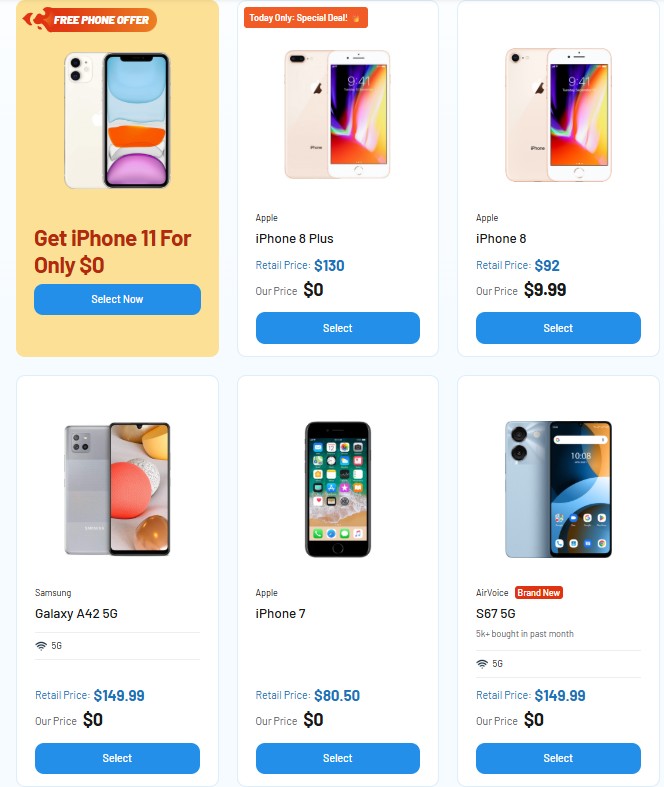
Available smartphones vary by state and inventory. This gives customers more choices when selecting a device that fits their needs while enjoying affordable Lifeline-supported service.
However, do note that the Lifeline service is non-transferable and limited to one service per household.
Conclusion
Once you know how to activate eSIM, switching to a digital mobile service feels much less complicated.
The key is to follow the method your carrier supports, keep a stable internet connection during setup, and check your device settings if activation does not finish right away.
A few small checks before starting can save you from failed scans, stuck activation screens, or service delays when you need your phone working.