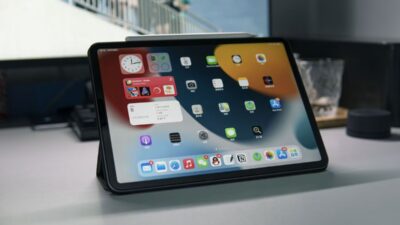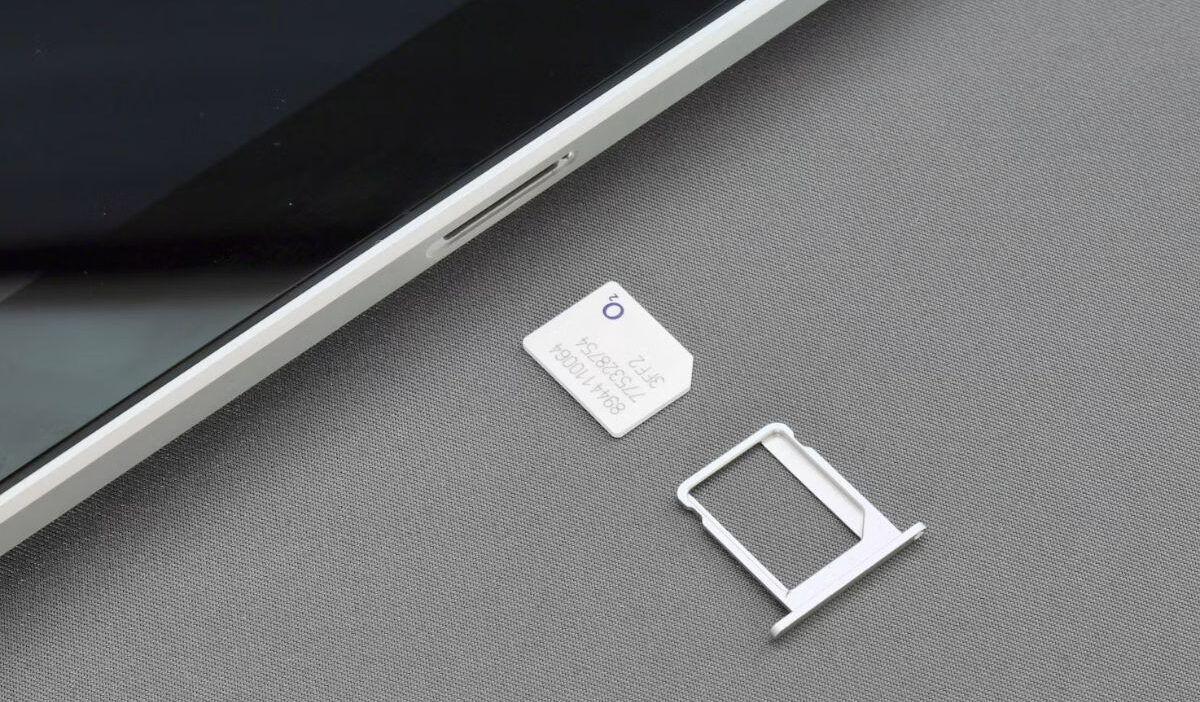
You take your iPad to a coffee shop, airport, or hotel, only to realize there’s no Wi-Fi when you need it most. That’s when you start wondering whether your iPad can connect to mobile data like a smartphone.
If you’re trying to understand how an iPad SIM card works, whether your device supports one, or which option makes the most sense, this guide walks you through everything you need to know.
1. Do All iPads Have a SIM Card?
No. If you’re wondering, do iPads have SIM cards, the answer depends on the model. Only Wi-Fi + Cellular iPads support mobile data through a physical SIM, eSIM, or both.
Do iPads have SIM cards? Apple sells most iPads in two versions:
- Wi-Fi only – Connects to the internet through Wi-Fi networks.
- Wi-Fi + Cellular – Connects through both Wi-Fi and a mobile carrier.
If you own a Wi-Fi-only iPad, inserting an iPad SIM card isn’t possible because the necessary cellular hardware isn’t built into the device.
On the other hand, Cellular models include either:
- A physical SIM tray
- eSIM support
- Or both, depending on the generation
Keep in mind that a Wi-Fi + Cellular iPad does not work exactly like a smartphone. Its carrier connection is designed for mobile data rather than traditional cellular phone service.
You can still make FaceTime calls, use iMessage, and access internet-based communication apps over cellular data. Calls and standard text messages from an iPhone number may also be relayed to the iPad when the required Apple features are set up.
2. How to Tell If Your iPad Is Wi-Fi + Cellular
Not sure which model you have? Here are several ways to check before buying an iPad SIM card.
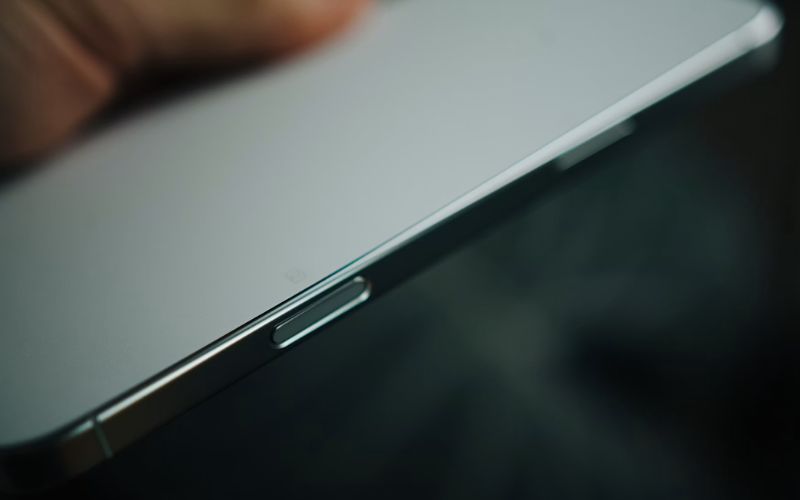
Check for a SIM Tray
The quickest method is looking around the edge of your iPad. If you see a SIM tray with a small pinhole, your device likely supports cellular service.
Check Settings for Cellular Data
Open: Settings > Cellular Data (or Mobile Data)
If you see Cellular Data or Mobile Data settings, your iPad is a Wi-Fi + Cellular model. If the menu doesn’t appear, the device is most likely Wi-Fi only, although checking the model number remains the most reliable way to confirm its exact capabilities.
Find the Model Number
Go to: Settings > General > About. Locate the Model Number, which can be matched with Apple’s specifications.
Confirm the Model on Apple’s List
Apple maintains an official list of iPad models and their supported connectivity options. Identifying your device model helps determine which features it supports, including:
- Physical SIM
- eSIM
- Cellular service
This removes any guesswork before choosing an iPad SIM card.
>>> Read more: Best Free Government Phone and Tablet Combo: Claim $0 Monthly Services Now!
3. Which iPads Support Cellular Service?
Support varies by generation, especially as Apple continues moving toward eSIM-only devices.
| iPad Model | Physical SIM | eSIM | Cellular Available |
| iPad Pro 11-inch and 13-inch with M4 or M5 | No | Yes | Wi-Fi + Cellular models only |
| iPad Air 11-inch and 13-inch with M2, M3, or M4 | No | Yes | Wi-Fi + Cellular models only |
| iPad mini with A17 Pro | Yes | Yes (newer models) | Wi-Fi + Cellular models only |
| iPad mini, 5th and 6th generation | Yes | Yes in supported regions | Wi-Fi + Cellular models only |
| Older iPad models | Usually Yes | Generally no | Selected Wi-Fi + Cellular models |
Current iPad Pro, iPad Air, iPad, and iPad mini Wi-Fi + Cellular models use eSIM only and do not include a physical SIM tray. Many earlier cellular models combine a Nano-SIM tray with eSIM support, while older generations may use only a physical SIM.
Regional differences may also apply, so it is always worth checking your exact model number before ordering an iPad SIM card or purchasing a cellular plan.
4. When Do You Need an iPad SIM Card?
Not everyone needs cellular service, but there are situations where it becomes incredibly useful.
Using mobile data away from Wi-Fi
Whether you’re commuting or waiting at an airport, an iPad SIM card lets you stay connected without searching for public Wi-Fi.
Traveling
International travel often means unreliable hotel Wi-Fi. Using a local SIM or eSIM can provide faster and more reliable internet while helping reduce roaming costs.
Working remotely
If you frequently work from cafés, client offices, or construction sites, cellular connectivity keeps your workflow moving even when Wi-Fi isn’t available.
Backup internet
Even at home, internet outages happen. A cellular-enabled iPad SIM card can serve as a dependable backup connection when your primary internet service goes down.
GPS-enabled apps (where supported)
Some navigation and mapping features perform better on Cellular models because they include GPS hardware that Wi-Fi-only versions typically don’t have.
5. Physical SIM vs. eSIM for iPad
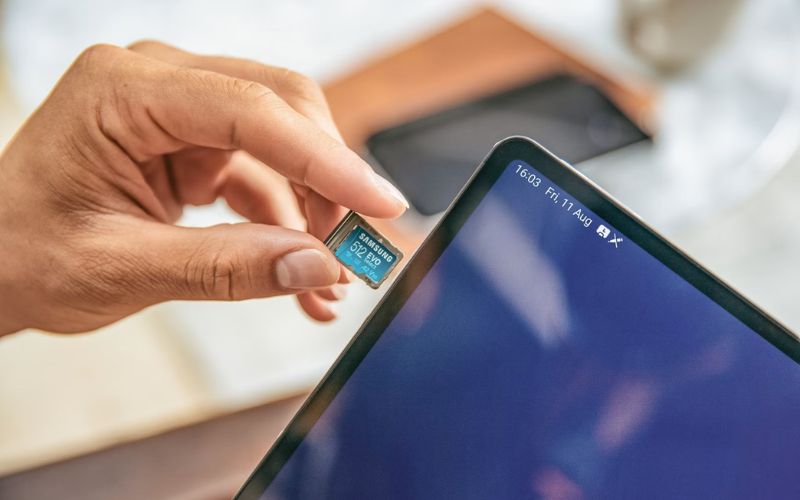
Both options connect your iPad to mobile data, but they work differently.
| Feature | Physical SIM | eSIM |
| Installation | Insert a SIM card | Activate digitally |
| Activation | Physical card required | QR code or carrier app |
| Switching carriers | Replace SIM card | Download a new profile |
| Travel | Buy local SIMs | Add plans without changing hardware |
| Device compatibility | Supported by many older models | Supported on newer Cellular models |
| Convenience | Familiar setup | No physical card to manage |
A physical iPad SIM card remains a great choice if you frequently buy local SIMs or use older devices.
6. How to Set Up Mobile Data on Your iPad
Once you’ve confirmed your iPad supports cellular service, setup is straightforward.
Step 1: Confirm your iPad is Cellular
Verify that your device is a Wi-Fi + Cellular model before purchasing a data plan.
Step 2: Choose a carrier
Select a carrier that offers data plans compatible with your iPad and your coverage area.
Step 3: Insert a SIM or activate an eSIM
Insert your physical iPad SIM card into the SIM tray. Or follow your carrier’s instructions to activate an eSIM.
Step 4: Finish activation
Depending on the carrier, activation may happen:
- Online
- Through a mobile app
- With customer support
Step 5: Test your connection
Turn off Wi-Fi temporarily. If your iPad still connects to the internet, your cellular service is working correctly.
>>> Read more: Free Government iPhone And Tablet: An Easy & Updated Guide
7. Looking for Mobile Service for Your iPad?
Once you confirm that your iPad supports cellular connectivity, the next step is finding a plan that matches your data needs and coverage area. Before signing up, check whether the provider supports your exact iPad model, SIM type, and tablet service.
If monthly connectivity costs are difficult to manage, the Lifeline program may also be worth considering.
Lifeline is a government assistance program that helps eligible households lower the cost of qualifying phone service or internet service. Qualification is generally based on income or participation in an approved assistance program.
The benefit is offered through participating Eligible Telecommunications Carriers, or ETCs. These providers apply Lifeline support to eligible service plans and may separately offer compatible devices through their own promotions.
Cintex Wireless is a participating ETC known for its straightforward online enrollment process. Applicants can either bring a compatible device or select an available smartphone.
Depending on the chosen option, the service package may include a physical SIM or eSIM together with a Lifeline-supported talk, text, and data plan.
Cintex Wireless is merging with AirTalk Wireless, an ETC with more than two decades of industry experience. The transition is designed to give customers access to more available device choices and a unified platform for enrollment, account management, activation, and support.
The application process generally includes as follows:
- Enter your ZIP code to confirm service availability and view the options offered in your area.
- Choose your preferred available device options and service plan.
- Complete the online application with your information, then upload supporting documents if requested.
- Wait for approval and activate your service by following the instructions provided for your SIM or eSIM.
Keep in mind that not every Lifeline wireless plan or SIM will work with an iPad. Confirm tablet compatibility and available data-plan options with the provider before applying.
DISCLAIMER: The government does not cover device costs, only basic service through Lifeline. Any free or discounted devices, upgrades, or top-ups are limited-time Cintex Wireless and AirTalk Wireless offers and may vary by state, eligibility, and availability. Terms and conditions apply.
8. FAQs
Can a Wi-Fi iPad use a SIM card?
No. Wi-Fi-only iPads don’t include the cellular hardware needed to use an iPad SIM card, so inserting a SIM isn’t possible.
Can I use an iPhone SIM card in my iPad?
Possibly, but a physical iPhone SIM will not automatically work simply because it fits the iPad’s tray. The iPad must support a physical SIM, and your carrier must allow the SIM and phone plan to be used for tablet data.
Can I use an eSIM instead of a physical SIM?
Yes, if your iPad model supports eSIM. Activation is completed digitally through your carrier, making it easy to add or change mobile plans without inserting a physical SIM card.
Conclusion
An iPad SIM card can be useful when Wi-Fi is not always available, but the right setup depends on your exact model and how you plan to use mobile data. Some iPads support a physical SIM, others rely on eSIM, and Wi-Fi-only models cannot connect directly to a carrier network.
Before choosing a plan, confirm that your iPad is a Wi-Fi + Cellular model and that the available SIM or eSIM is compatible with it. Taking that extra step can help you avoid activation issues and make sure the service works where you need it most.