A missing physical SIM does not always prevent an iPhone from reaching the Home Screen. With a reliable internet connection, many models can contact Apple’s servers and finish the basic setup over Wi-Fi.
How to activate iPhone without SIM card depends on the model, lock status, software, and whether the device has been linked to another Apple Account. The methods below focus on legitimate setup options rather than unreliable activation workarounds.
1. Is It Possible to Activate iPhone without SIM Card?
Many iPhones can complete the initial setup without a physical SIM by connecting to Wi-Fi and contacting Apple’s activation servers.
Once activated, the phone can use Wi-Fi features such as apps, iCloud, FaceTime, and web browsing. However, calls, SMS, and mobile data still require an active SIM or eSIM plan.
Some older iPhones or devices running older software may still request a SIM during activation. A carrier-locked iPhone may also reject a SIM or eSIM from another carrier, but the carrier lock does not always prevent basic Wi-Fi setup.
2. Things to Do Before You Try to Activate Your iPhone
A few checks can save time and help you identify whether the missing SIM is actually causing the problem.
Connect to stable Wi-Fi
Activation requires an internet connection because the iPhone must communicate with Apple’s activation servers.
You should use a private, reliable network rather than public Wi-Fi that asks you to sign in through a browser.
Charge the iPhone
Keep the battery comfortably charged or leave the phone connected to power. Setup may include a software update, data transfer, backup restoration, or eSIM download.
Know if the iPhone is new, used, or carrier-locked
A carrier lock can limit which SIM or eSIM may be used. You can later check this under Settings > General > About > Carrier Lock. An unlocked device typically shows “No SIM Restrictions“.

Check whether the iPhone supports eSIM or physical SIM
Some newer iPhones can activate cellular service via eSIM, eliminating the need for a physical SIM card.
Apple supports eSIM on iPhone XS, iPhone XS Max, iPhone XR, and later compatible models, although carrier and regional availability still differ.
However, some U.S. iPhone models beginning with the iPhone 14 line do not include a physical SIM tray. On those devices, the cellular setup must use eSIM.
Have your Apple ID ready
Prepare the email address or phone number and the password associated with your Apple Account. You may need them to restore an iCloud backup, access Apple services, or clear Activation Lock.
Check Activation Lock
This is crucial if you are using a second-hand iPhone. If the iPhone is still tied to the previous owner’s Apple Account, adding a SIM will not unlock it.
Thus, ask the former owner to remove the device from their account. Do not pay for unofficial tools claiming to bypass Activation Lock, as they may be fraudulent, temporary, or unsafe.
>>>Read more: Can You Use An iPhone Without A SIM Card? Things That Still Work
3. How to Activate iPhone without SIM Card?
The best method depends on the iPhone model and the message shown during setup.
Use WiFi During Setup
Turn on the iPhone, choose your language and region, then connect to a stable Wi-Fi network.
Next, continue through the setup screens and select Set Up Later in Settings when the cellular service option appears.
If setup finishes successfully, you can use the iPhone over Wi-Fi and add a SIM or eSIM later.
Use a Computer to Complete Activation
How to activate iPhone without SIM card? You can connect the iPhone to a Mac or Windows computer with internet access.
Open Finder, Apple Devices, or iTunes, select the phone, and follow the onscreen setup instructions.
This option can help when the iPhone cannot complete activation over Wi-Fi alone.
Use a Compatible Temporary SIM If the iPhone Specifically Requires One
Some older iPhones may display a message requiring a SIM before activation can continue. In that case, insert a valid SIM that the device accepts, complete the activation process, and then remove the card if you plan to use the iPhone only over Wi-Fi.
If the screen says the SIM is unsupported, incompatible, or invalid, contact the carrier. A temporary SIM will not remove a carrier lock or bypass Activation Lock.
Activate with eSIM
You do not need an eSIM plan merely to use an activated iPhone over Wi-Fi. However, if you want calls, SMS, and mobile data without a physical SIM card, you can set up cellular service using eSIM on a supported model.
During setup, follow the Set Up Cellular prompts. If the iPhone is already set up, go to Settings > Cellular > Set Up Cellular or Add eSIM. Depending on your carrier, you may be able to transfer a plan from another phone, scan a QR code, use carrier activation, or enter the eSIM details manually.
>>>Read more: How To Check If eSIM Is Activated In iPhone? 2 Simple Methods
4. Cannot Activate iPhone? Easy Troubleshooting Tips
Now you know how to activate iPhone without SIM card.
However, an activation error does not automatically mean the iPhone needs a SIM. Work through these checks before trying a different card.
- Restart the iPhone: Turn the device off and back on. A restart can clear a temporary setup or network error.
- Change the Wi-Fi Connection: Get closer to the router or connect to another reliable network. Avoid hotel, airport, or café Wi-Fi that requires a browser login, as the Setup Assistant may not complete the sign-in correctly.
- Check Apple’s System Status: Apple’s activation service may occasionally be unavailable. Look for iOS Device Activation on the System Status pag. Apple recommends trying again later when the service indicator is not green.
- Wait and Retry: Messages indicating that the activation server is unavailable or unreachable may reflect a temporary server or connection issue. Wait a few minutes before repeating the setup.
- Update the Computer: When using a computer, install the latest available macOS version, Apple Devices app, or iTunes update. Also try another cable or USB port if the iPhone disconnects during activation.
- Check the Carrier Lock: A message about an unsupported SIM often appears when the inserted card is from a different network than the one that locked the iPhone. Only the carrier can officially unlock the device; Apple cannot remove a carrier lock.
- Confirm the Previous Owner Removed Activation Lock: If the screen requests another person’s Apple Account password, the device remains protected by Activation Lock. The previous owner must remove it from their account, or the current owner must provide Apple with valid proof of purchase.
- Use Recovery Mode Only When Needed: Apple recommends recovery mode when an error says the activation information is invalid or could not be obtained from the device. Restoring the iPhone erases its contents, so use this option after simpler checks have failed.
5. What to Do If You’re Still Stuck on Activation?
A damaged SIM tray or card reader can make activation difficult, and repairing the hardware may cost more than expected.
In that situation, switching to an eSIM-compatible iPhone may be a more practical option.
Because eSIM is built into the phone, it does not depend on a physical SIM tray or reader. This can help avoid common problems caused by a bent tray, damaged contacts, or a SIM card that is no longer detected.
For households with limited income, Lifeline may be worth considering.
This is a government assistance program that provides a monthly discount on the cost of wireless service to eligible applicants.
Eligibility is based on household income or participation in qualifying programs such as SNAP, SSI, or Medicaid, etc.
Especially, Lifeline benefits are offered through approved Eligible Telecommunications Carriers (ETCs)
ETCs such as Cintex Wireless may offer monthly talk, text, and data, along with an eSIM-compatible phone, through their own promotions.
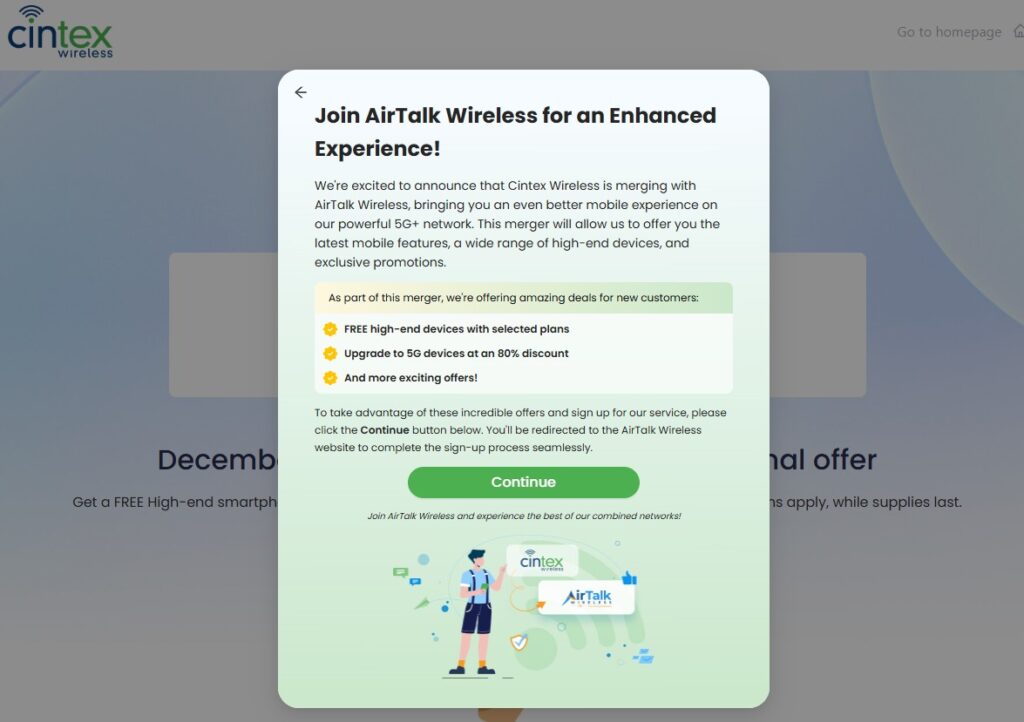
Currently, Cintex Wireless is merging with AirTalk Wireless, so new applicants may complete the enrollment process through AirTalk and have access to a broader device choice with a more streamlined application system.
Depending on the state, eligibility, and available inventory, possible iPhone options may include:
Note: Eligibility varies by state and program. Offers depend on availability and qualifications. Cintex and AirTalk Wireless operate under the federal Lifeline Program as Eligible Telecommunications Carriers (ETCs). Service is non-transferable and limited to one service per household.
Conclusion
Ultimately, how to activate iPhone without SIM card depends on the device model and the message shown during setup. In most cases, you can complete basic activation over Wi-Fi or with a computer, then use the iPhone for apps, iCloud, FaceTime, and web browsing.
For calls, texts, and mobile data, you will still need an active SIM or eSIM plan. If activation fails, check the internet connection, Apple’s activation status, carrier lock, and Activation Lock before trying more advanced troubleshooting.