
A Samsung SIM card carries the account information your Galaxy phone needs to connect with a mobile network. Without the right card or eSIM profile, the device may still use WiFi, but regular calls, texts, and cellular data will not work.
The correct setup depends on the Samsung model, its regional version, and the wireless provider. Some older Galaxy phones use micro-SIM cards; most recent models use nano-SIM cards; and selected devices support eSIM. This guide covers how each option works, how to check compatibility, and what to do from installation to activation.
1. What is a Samsung SIM Card & How Does It Work?
A Samsung SIM card contains subscriber information that helps connect your phone to a mobile account, allowing the device to make calls, send messages, and use cellular data.
It also helps the wireless network identify and authenticate your mobile subscription. Your phone number and service plan are primarily managed through the provider’s network.
A physical SIM is inserted into the phone’s SIM tray, while an eSIM is built into the device and activated digitally.
Both perform the same basic job, but eSIM removes the need to handle or replace a plastic card.
Moreover, some Samsung models also support Dual SIM, enabling two numbers or plans to remain available on one phone. However, how the two lines operate during calls depends on the model, carrier, and Dual SIM configuration.
2. Which Types of SIM Card Does Samsung Phone Use?
Samsung phones have used several SIM formats over the years. The right one is determined by the exact model rather than the Galaxy brand alone.
| SIM Type | Format | Common Samsung Examples |
| Micro SIM | Removable physical card | Older Galaxy S, Note, and early A-series models |
| Nano SIM | Smaller removable card | Most recent Galaxy S, Z, A, and XCover models |
| eSIM | Built-in digital SIM | Selected newer Galaxy S, Z Fold, Z Flip, and A models |
Micro SIM
Micro-SIM cards are primarily found in older Samsung phones released before nano-SIM became the standard.
They are still usable when the device and provider support them, but replacement cards may be less common in stores.
Nano SIM
Nano-SIM is the usual physical format for modern Samsung devices. The card fits into a small tray located on the top, bottom, or side of the phone.
Some trays accept one nano-SIM, while others hold two.
A hybrid tray may require you to choose between a second SIM and a microSD card, so check the tray design before purchasing additional storage or another line.
eSIM
An eSIM is built into the phone and activated digitally, so there is no card to insert.
The mobile plan is usually added through Settings > Connections > SIM manager.
Selected newer Galaxy S, Galaxy Z Fold, Galaxy Z Flip, and Galaxy A models support eSIM. However, availability still depends on the phone variant, country, and wireless provider.

3. How to Check Your Samsung SIM Type and Compatibility
Checking compatibility before buying a SIM can prevent activation delays and unnecessary return requests.
Check Your Samsung Model Name
Open Settings > About phone and note both the model name and model number. The model number is more useful because it identifies the regional or carrier-specific version.
Two phones with the same marketing name may have different SIM trays, network bands, or eSIM support.
Check the SIM Tray Size
Power off the phone and inspect the tray. You may be able to identify whether it uses a micro-SIM or nano-SIM by comparing the slot with the card size shown in the phone’s manual.
Look closely for a second SIM position or a shared microSD slot. Some Samsung phones use a hybrid tray that accepts either a second SIM or a microSD card.
Do not force a card into a tray that does not fit it. For the most reliable answer, check the user manual or Samsung specifications for the exact model number.
Check Settings
Another method to check the Samsung SIM card is to navigate to: Settings > Connections > SIM manager.
This page shows the physical SIMs and eSIM profiles recognized by the phone. It may also let you rename lines, turn them on or off, and select a preferred SIM for calls, messages, or mobile data.
Confirm Whether Your Phone Supports eSIM
Open Settings > Connections > SIM manager and look for “Add eSIM.” Its presence generally indicates that the phone’s current software and regional configuration support adding a digital plan.
However, you should still check the exact model number against Samsung’s specifications and confirm that the wireless provider supports eSIM activation on that version. Device, regional, software, and provider support are separate requirements.
Confirm the Phone Is Unlocked If Changing Carriers
A carrier-locked Samsung phone may reject a card from another network. Therefore, you need to contact the original provider or review the device’s purchase records before switching services.
Unlocking rules vary, but the account and device generally need to meet the original provider’s requirements.
Check Carrier Compatibility Before Buying a SIM
Find the phone’s IMEI under Settings > About phone or by dialing *#06#. Enter that number into the provider’s compatibility checker before ordering a SIM.
Just note that a phone can accept the correct card size and still lack the required network bands, voice features, or provider certification.
Imported Samsung models deserve extra attention because regional versions are not always fully compatible with U.S. networks.
4. How to Insert or Remove a SIM Card on Samsung?
Physical Samsung SIM card installation takes only a few minutes, but the exact process depends on the model. Most current Galaxy phones use an ejectable tray, while some older devices place the SIM slot under a removable back cover or battery.
- Power off the phone: This reduces the risk of a connection error when replacing the SIM.
- Find the SIM slot or tray: On most recent models, the tray is located along the top, bottom, or side edge of the device. On certain older phones, you may need to remove the back cover and battery to reach the SIM slot.
- Use the SIM ejector tool: If the phone has a tray, insert the tool straight into the tray hole and apply gentle pressure.
- Place the card in the tray or slot: Match the angled corner of the SIM with the outline and follow the orientation shown for your model.
- Check that it sits flat: A raised or loose card may shift when the tray is inserted.
- Return the tray gently: Keep it level and do not force it into the phone.
- Power the device back on: Wait for the network name or signal bars to appear.
5. How to Activate a Samsung SIM Card?
Once the physical SIM is inserted, turn the phone on and wait a few moments for it to recognize the card and connect to the network.
Some SIM cards and existing accounts connect automatically, while a new service plan may require activation through the provider’s website, app, store, or customer support.
You may be asked to enter the SIM number, the phone’s IMEI, account information, or the activation code included with the SIM kit. If you are transferring an existing number, keep the old service active until the provider confirms that the transfer is complete. Calls and messages may be temporarily interrupted during the process.
>>> Read more: How To Activate eSIM On iOS And Android? 2026 Tutorial
6. Where to Get a Samsung SIM Card?
A Samsung-branded SIM is not usually required. You need a card or eSIM from a wireless provider that supports your Galaxy model and offers coverage in your area.
Carrier Stores
A carrier store can provide a physical SIM and help activate it during the same visit.
This option is useful when you need assistance with device compatibility, number transfer, account setup, or a damaged card.
Note that the card itself may be inexpensive, but activation fees, taxes, and the first month of the plan can raise the amount due.
Big Retail Stores
Large retailers often carry prepaid SIM kits near the mobile phones or electronics section. They can be convenient when you need a card immediately and already know that the device is compatible.
However, don’t forget to read the package carefully before opening it.
Some kits include only the SIM, while others require a separate plan purchase or online activation.
Wireless Providers’ Websites
Before ordering online, confirm that your Samsung phone supports the required SIM type and is unlocked. Older devices or models with limited network compatibility may be harder to activate.
For eligible low-income households, Lifeline, a government assitance program, can help reduce the cost of phone service or internet service.
To receive the support, qualification is generally based on income or participation in an approved assistance program, and only one benefit is allowed per household.
Especially, Lifeline partners with approved providers such as Cintex Wireless, where applicants may find discounted service, a SIM card, or a promotional phone, depending on location, eligibility, and stock.
Available benefits may include talk, text, monthly data, international calling, and no long-term contract.
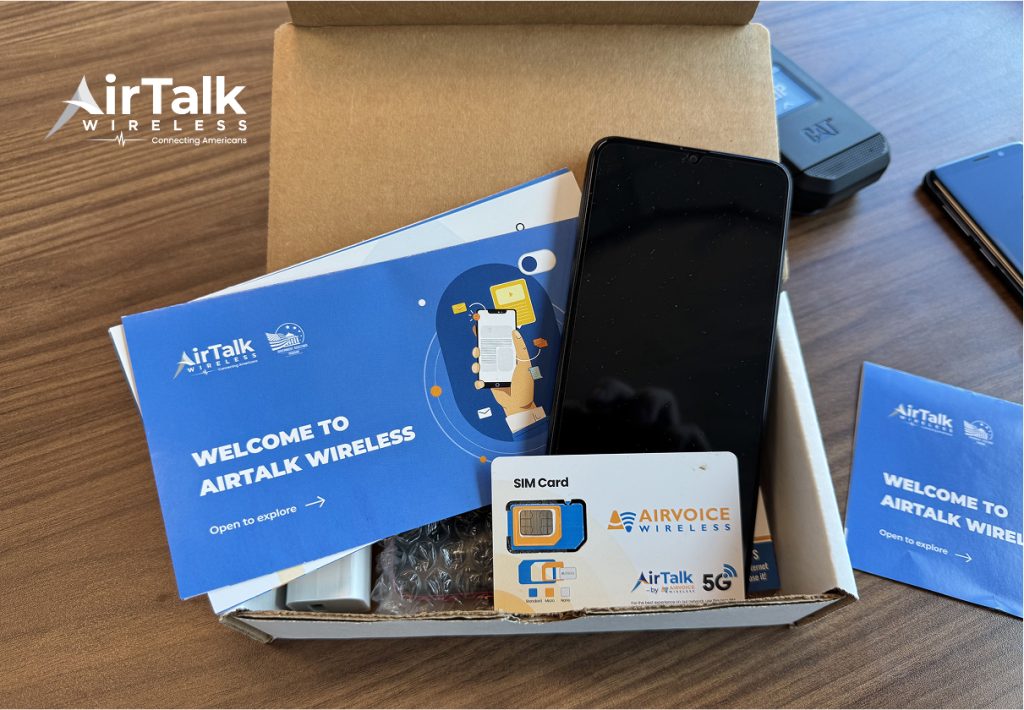
However, it is better to check the current offer and confirm that any Samsung phone supports the SIM format and network you plan to use.
Note: Cintex Wireless is merging with AirTalk Wireless. Thus, applications will be transitioned to airtalkwireless.com for a more seamless experience.
IMPORTANT: The government does not subsidize devices. Lifeline programs cover basic service costs only. Free or discounted devices, upgrade plans, or top-ups are exclusive benefits provided by Cintex and AirTalk Wireless as part of the promotional offers. Terms and conditions apply. Limited-time promotion—offers vary by state, stock availability, and eligibility.
Conclusion
The right Samsung SIM card depends on the phone’s model, tray design, lock status, and network support. Older devices may need a micro-SIM, while most current Galaxy phones use a nano-SIM or eSIM.
Check those details before buying, insert the card carefully, and follow the provider’s activation steps. A few minutes of preparation can spare you from ending up with the wrong SIM or a plan that the phone cannot use.