How to reset SIM card usually means refreshing the connection between your phone, SIM, and carrier rather than resetting the card itself. If your phone suddenly shows No SIM, loses signal, or cannot use mobile data, a few simple checks may be enough to restore service.
Start with the basic troubleshooting below before changing network settings or replacing the SIM.
1. Can You Actually Reset a SIM Card?
No. A physical SIM card doesn’t have a reset button or factory reset option.
When people search how to reset SIM card, they usually mean one of several things: getting the phone to recognize the SIM again, refreshing cellular settings, or reconnecting the line to the carrier’s network.
That distinction matters because different problems require different fixes. If your phone recognizes the SIM but mobile service is not working, resetting mobile network settings may help.
If the phone displays No SIM or Invalid SIM, however, you should also check the physical SIM, activation status, and carrier settings.
A damaged SIM or a permanently disconnected line generally cannot be restored simply by resetting the phone.
2. Steps Before Assuming the SIM Is Faulty
Before trying how to reset SIM card, rule out simpler causes first. Many SIM-related problems come from a temporary network issue or the phone failing to read the card correctly.
Restart your phone
A simple restart reloads your phone’s network services and reconnects to your carrier. This is often enough to clear temporary glitches.
Turn Airplane Mode on and off
If the SIM is detected but service has disappeared, turn Airplane Mode on for a few seconds and then turn it off. This forces the phone to reconnect to the mobile network without changing saved settings.
Remove and reinsert the SIM card
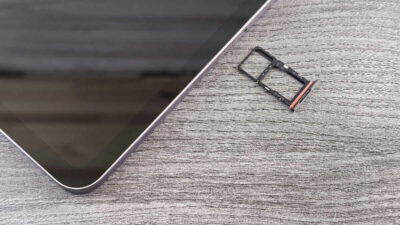
If you use a physical SIM, carefully remove it and place it back into the correct position in the tray. Make sure the tray closes properly and is not loose.
Check for physical damage or dirt
Another useful step when researching how to reset SIM card is inspecting the SIM’s metal contacts. If they appear dirty, gently wipe them with a clean, soft, dry cloth. Do not scratch the contacts or use liquids.
Confirm your carrier service is active
A working SIM still cannot connect if the associated line has been suspended, canceled, or not fully activated. Check your carrier account or contact the carrier if you are unsure.
These checks help separate a SIM problem from a network configuration problem. If the card is recognized but cellular service still does not work, then resetting network settings becomes more useful.
>>> Read more: Why Does My SIM Card Keep Failing? Easy Troubleshooting Tips
3. Reset Your SIM-Related Network Settings on Android
If you’re looking for how to reset SIM card on android, the closest option is resetting the phone’s mobile network settings. The exact menu varies by brand.
On many Android phones:
- Open Settings
- Find System or General Management
- Tap Reset or Reset Options
- Choose Reset Mobile Network Settings
- Confirm the reset and check whether service returns
Current Pixel and Samsung phones may separate mobile-network resets from Wi-Fi and Bluetooth resets. This means resetting cellular settings does not always remove saved Wi-Fi networks or Bluetooth connections.
The reset does not erase your photos or apps. It simply returns the selected network settings to their defaults.
4. Refresh SIM Connectivity on an iPhone
If you’re searching how to reset SIM card on iPhone, start by checking whether the iPhone recognizes the SIM at all.
- Open Settings > Cellular and confirm your mobile line is enabled.
- Go to Settings > General > About and install a Carrier Settings Update if one appears.
- Remove the SIM if you use a physical SIM after the phone restarts.
- If the SIM is recognized but cellular service still does not work, go to Settings > General > Transfer or Reset iPhone > Reset > Reset Network Settings.
Reset Network Settings removes saved Wi-Fi networks, cellular settings, and some VPN or APN configurations, but it does not erase your photos, apps, or other personal content.
If the iPhone continues to show No SIM or Invalid SIM, contact your carrier or test another compatible SIM if possible.

5. What Changes After Resetting Network or SIM Settings?
When learning how to reset SIM card, remember that resetting network settings changes your phone’s configuration, not the SIM itself.
Depending on the phone and reset option, this may:
- Restore mobile network settings to default
- Remove some saved Wi-Fi or network configurations
- Require the phone to reconnect to the carrier
- Leave your photos, apps, messages, and physical SIM unchanged
On newer Android phones, mobile network settings may be reset separately from Wi-Fi and Bluetooth.
A full factory reset is different. If you use an eSIM, some phones may give you the option to erase it during a factory reset. For troubleshooting, do not delete an eSIM unless your carrier instructs you to.
6. How to Make Your SIM Card Work Again When Resetting Fails
How to make your SIM card work again? If the problem remains after basic troubleshooting and a network reset, the issue may be with the SIM, phone, or carrier account.
Try these next steps:
- Ask your carrier to verify that the line is active and properly provisioned.
- Check whether the phone is unlocked and compatible with the network.
- Test another compatible SIM if available.
- Replace a damaged or unreadable physical SIM.
- Contact the carrier for help with an eSIM instead of deleting it yourself.
At this point, repeating network resets is unlikely to help. Carrier verification or a replacement SIM is usually the more useful next step.
>>> Read more: How to See What Is Stored on SIM Card: Complete Ways to Find Your Data
7. Still Need a Working SIM? More Affordable Options
If you’ve tried every step in how to reset SIM card but your phone still can’t connect to the network, the SIM itself may no longer be working properly. In some cases, replacing the SIM is the simplest solution.
If you’re already planning to replace your SIM, it’s also worth taking a moment to review your current wireless service. Rather than simply ordering another SIM from the same carrier, you may find a plan that better fits your budget while getting your phone back online.
For eligible households, the federal Lifeline program, which is a government assistance program, helps reduce the cost of monthly wireless service through participating eligible telecommunications carriers (ETCs).
Eligibility is generally based on household income or participation in a qualifying assistance program, and you can quickly check whether you qualify before deciding to switch.
If you qualify and decide to change service, you can apply to Cintex Wireless, an ETC known for its simple application process, which has now merged into AirTalk Wireless.
The carrier offers several flexible ways to stay connected based on your device and preferences. Depending on eligibility and availability, you may be able to:
- Keep your current compatible phone through the Bring Your Own Device (BYOD) program and use it to enjoy the service benefit.
- Receive an eligible smartphone with qualifying service, depending on availability.
Once your enrollment is approved, you’ll receive instructions to activate your service and start using your phone with your new SIM or eSIM.
And if you’re switching anyway, exploring a Lifeline-supported plan could also help lower your monthly wireless costs while keeping you connected.
IMPORTANT: The government does not subsidize devices. Lifeline programs cover basic service costs only. Free or discounted devices, upgrade plans, or top-ups are exclusive benefits provided by Cintex and AirTalk Wireless as part of the promotional offers. Terms and conditions apply. Limited-time promotion—offers vary by state, stock availability, and eligibility.
8. FAQs
Can resetting network settings fix SIM problems?
Yes. Resetting network settings often fixes temporary connection issues caused by incorrect network configurations. However, it won’t repair a physically damaged or deactivated SIM card.
Will resetting my phone erase my SIM card?
A network-settings reset will not erase a physical SIM. A full factory reset is different and may offer an option to remove an eSIM.
Do I need a new SIM card if resetting doesn’t work?
Not necessarily. Contact your carrier first to check the line and SIM. If the card is damaged or cannot be detected in a compatible phone, replacement may be necessary.
Can a deactivated SIM card be reactivated?
Sometimes. Your carrier may be able to reactivate the line, but a permanently canceled or expired SIM may need to be replaced.
Conclusion
Most SIM problems are really connection problems between the phone, SIM, and carrier. Understanding how to reset SIM card helps you know whether to restart the connection, reset network settings, or ask the carrier for help.
Starting with the simplest fixes also prevents unnecessary resets or SIM replacements. The key is finding which part of the connection has failed before deciding what needs to be changed.