You finally get a new Android phone, press the power button, and start the setup process, only to realize you don’t have a SIM card yet. Maybe it’s still in the mail, you’re waiting to transfer your number, or you’re planning to use an eSIM later.
If you’re searching for how to activate Android phone without SIM card, this guide explains exactly what you need, how to complete the setup, and what to expect once your phone is ready to use.
1. Can You Activate an Android Phone Without a SIM Card?
Yes, many Android phones let you complete the initial device setup without inserting a physical SIM card. However, the option depends on the phone model, carrier software, and region.
It is important to separate phone setup from mobile service activation. Setting up the phone prepares Android, connects it to Wi-Fi, and lets you configure apps and accounts. Activating a physical SIM or eSIM later enables calls, texts, and mobile data through a carrier.
You may want to complete the setup without a SIM because:
- You ordered a replacement phone, and your SIM card hasn’t arrived yet.
- You’re waiting for your carrier to transfer your phone number.
- You’re planning to activate an eSIM after setup.
- You plan to rely solely on a Wi-Fi connection.
In these situations, learning how to activate Android phone without SIM card may let you start using the device instead of waiting for carrier activation. If the phone does not provide a Skip or Set Up Later option, check the manufacturer’s or carrier’s setup requirements.
2. What You’ll Need Before You Start
Although how to activate Android phone without SIM card is fairly straightforward, having a few things ready will make the process much smoother.
A stable Wi-Fi connection
Without a SIM card, Wi-Fi becomes your phone’s only way to connect to the internet during setup.
You’ll need it to:
- Verify the device
- Sign in to Google
- Download updates
- Restore backups
- Install apps
A fast, reliable connection also helps avoid setup interruptions.
Your Google Account
If you’re learning how to activate Android phone without SIM card, signing in with your Google Account lets you:
- Restore contacts
- Recover backed-up photos
- Sync Gmail
- Access Google Play
- Download your previous apps automatically
A Google Account is not always required to complete basic device setup. If the phone provides a Skip option, you can add the account later. However, you will need to sign in before using Google Play, restoring a Google backup, or syncing Google services.
Enough battery power
The setup itself doesn’t use much power, but installing updates or restoring data can take some time. Ideally, start with:
At least 50% battery, or
Keep the phone connected to its charger throughout setup.
When learning how to activate Android phone without SIM card, keep your battery charged to avoid interruptions during setup.
The latest software, if available
During or after setup, Android may check for software updates. Although installing every update is not always required before reaching the home screen, it is generally a good idea to install current security and system updates when you have a stable Wi-Fi connection and enough battery power.
Newer software may include:
- Security patches
- Bug fixes
- Better Wi-Fi stability
- Improved SIM or eSIM compatibility
Updates vary in size, so keep the phone connected to a charger if a larger download or installation begins.
>>> Read more: eSIM Network Not Available? Find the Real Cause Fast (2026)
Google account verification details (if the phone was reset)
If you’re setting up a protected phone that was factory reset, Android may ask you to verify ownership using a Google Account that was previously added and synced to the device. This security feature is commonly called Factory Reset Protection, or FRP.
You may need:
- A previously synced Google Account email
- The correct password
- A Wi-Fi connection for verification
Without the correct account information, the phone may remain locked regardless of whether a SIM card is installed.
3. Complete the Setup Without a SIM
The exact screens may vary slightly between Samsung, Google Pixel, Motorola, Xiaomi, OnePlus, and other Android manufacturers, but the overall process is very similar.
Step 1: Power on the phone
Press and keep holding the Power button until the Android logo is displayed.
Choose your preferred:
- Language
- Region
- Then tap Start or Get Started.
Step 2: Connect to Wi-Fi
If you’re following how to activate Android phone without SIM card, connect to a stable Wi-Fi network so Android can:
- Verify the device when required
- Sign in to Google
- Check for updates
- Access Google services
- Restore cloud backups
Some new phones may let you continue setup without an internet connection. However, Wi-Fi may be required if the phone needs Google Account or ownership verification.
Step 3: Sign in with your Google Account
Next, sign in using your Google Account if you want to restore data or use Google services.
This allows Android to:
- Restore app backups
- Sync contacts
- Recover calendar events
- Restore settings from your previous phone
If a Skip option appears, you may be able to add the account later. This option may not be available when Factory Reset Protection requires account verification.
Step 4: Skip the SIM setup if the option appears
Some Android phones will display a screen asking you to:
- Insert a SIM card
- Transfer a mobile plan
- Activate an eSIM
If you’re completing how to activate android phone without sim card, look for options such as:
- Skip
- Set Up Later
- Not Now
The wording varies by manufacturer. If no skip option appears, the device or carrier software may require a SIM or carrier activation before setup can continue.
Step 5: Finish the remaining setup screens
Continue through the remaining setup options. Depending on your device, you’ll be asked whether to:
- Create a screen lock
- Enable fingerprint or face unlock
- Choose privacy settings
- Enable Google Assistant
- Restore data from another device
Step 6: Check that the phone reaches the home screen
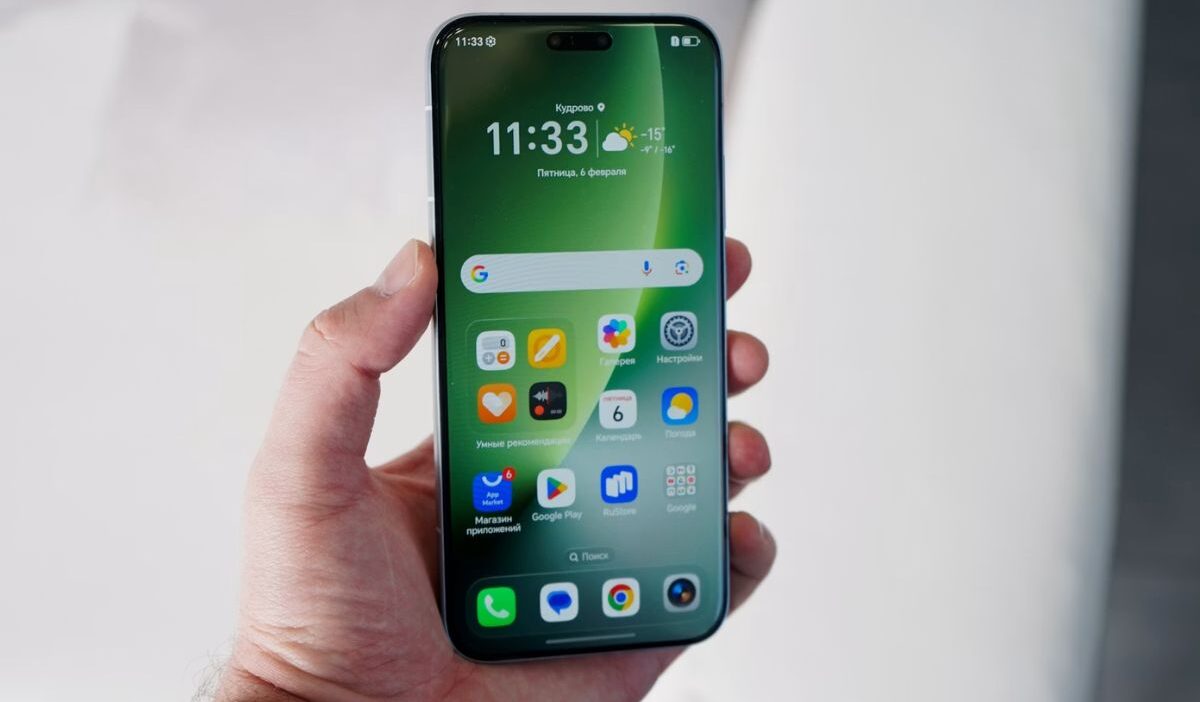
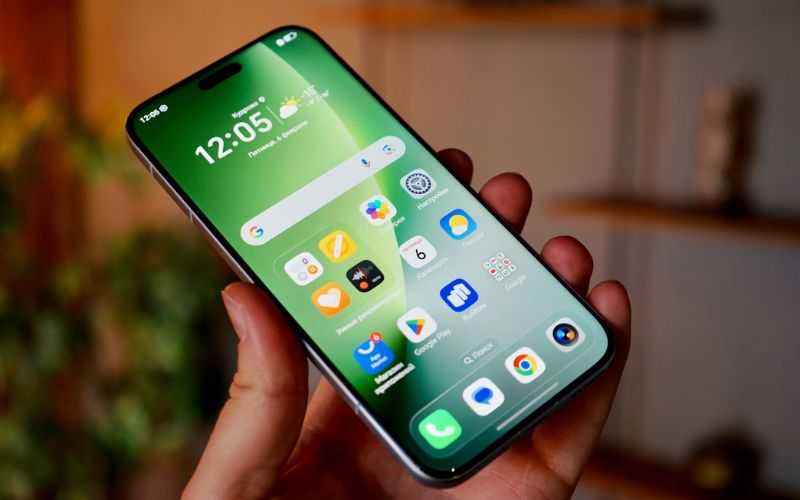
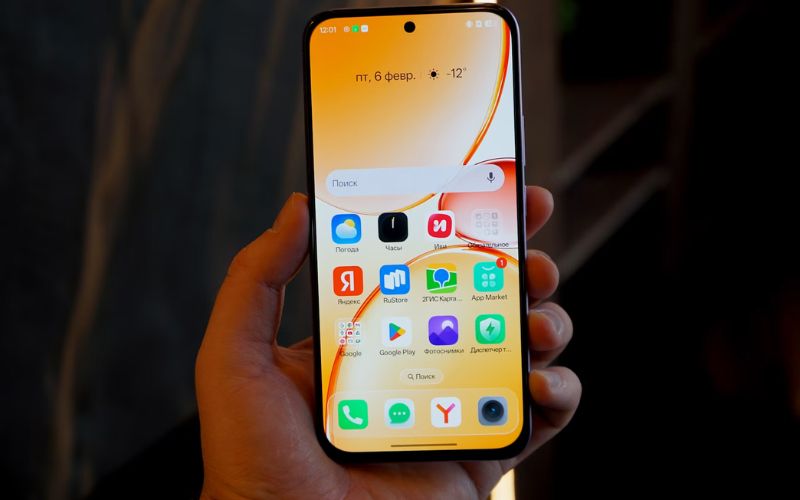
Once you’ve completed the steps to set up your Android phone without a SIM card, you’ll reach the home screen, where you can:
- Connect to Wi-Fi
- Browse the web
- Download apps
- Watch YouTube
- Send emails
- Use Google Maps on Wi-Fi
- Access cloud storage
- Sign into messaging apps that support Wi-Fi
At this point, you’ve successfully completed how to activate Android phone without SIM card. When you’re ready, you can insert a physical SIM or activate an eSIM later without repeating the entire setup process.
4. What You Can and Can’t Do Without a SIM
After completing how to activate android phone without sim card, your phone may look fully set up, but it won’t have all the same capabilities as a device connected to a mobile network. Here’s a quick comparison.
| You Can Do | You Can’t Do (Without a SIM or eSIM) |
| Connect to Wi-Fi | Make standard calls through a mobile carrier |
| Sign in to your Google Account | Send or receive SMS text messages |
| Download apps from Google Play | Use mobile data away from Wi-Fi |
| Browse the web on Wi-Fi | Receive carrier-based verification texts |
| Stream videos over Wi-Fi | Use cellular voice service |
| Send emails | Access features that require an active mobile line |
| Use internet-based messaging and calling apps after completing their required account verification | Complete carrier activation that requires an active SIM or eSIM |
This flexibility is one reason people often complete how to activate android phone without sim card before deciding which carrier or mobile plan they want to use.
>>> Read more: Free Government Phone eSIM: How to Activate Instantly and Use Today!
5. Finished Setting Up Your Phone? Your Mobile Plan Matters Next
Completing how to activate Android phone without SIM card gets the device working on Wi-Fi, but you will still need a mobile plan for calls, texts, and data when Wi-Fi is unavailable.
If monthly service costs are a concern, you may want to check whether your household qualifies for Lifeline. This government assistance program offers a monthly discount on phone service or internet service.
Qualification is generally based on household income or participation in programs such as SNAP, Medicaid, SSI, or certain Veterans benefits.
The benefit is applied through an approved Eligible Telecommunications Carrier rather than issued directly to the customer.
This means you need to choose an ETC that serves your area, review its available plans, and submit your application through that provider.
Cintex Wireless is one participating carrier that offers an online application process and support for setting up eligible wireless service.
Depending on the phone and available service options, customers may be able to activate a physical SIM or use another compatible connection method after approval.
Cintex Wireless is merging with AirTalk Wireless, bringing its customers into a broader service platform with additional support resources and a wider selection of available plan and device options.
The process generally follows:
- Visit the carrier website and enter your ZIP code to confirm service availability
- From the lít, choose the plan and device option that suits your needs.
- Provide basic information and upload proof documentation ì requrested
- Submit and wait for the result. Once approved, your device will be shipped to your address
Note: Eligibility varies by state and program. Offers depend on availability and qualifications. Cintex Wireless and AirTalk Wireless operate under the federal Lifeline Program as an Eligible Telecommunications Carrier (ETC). Service is non-transferable and limited to one service per household.
6. FAQs
Can I use Wi-Fi without inserting a SIM card?
Yes. A SIM card is not required to connect to Wi-Fi. As long as your Android phone has completed the setup process, you can browse the internet, stream videos, download apps, and use most online services over a wireless network.
Can I download apps before activating a SIM?
Absolutely. Once you’ve signed in with your Google Account and connected to Wi-Fi, you can access the Google Play Store just as you would on a phone with an active SIM. App downloads, updates, and purchases all work normally over Wi-Fi.
Can I activate an eSIM later after setting up the phone?
Yes. Most unlocked Android phones let you activate an eSIM after the initial setup is complete. Simply open your phone’s Settings, navigate to the SIM or Network section, and follow your carrier’s instructions to scan a QR code or download your eSIM profile.
Conclusion
Learning how to activate Android phone without SIM card is easier than many people expect.
For most Android devices, a SIM card isn’t required to complete the initial setup, connect to Wi-Fi, sign in with your Google Account, or begin using everyday apps.