Physical SIM network not available is a frustrating error because your phone may recognize the SIM card but still refuse to connect to your carrier. You may see the carrier name briefly, lose signal without warning, or find that calls, texts, and mobile data all remain unavailable.
Although replacing the SIM may seem like the quickest solution, the real cause could be incomplete activation, poor coverage, incorrect network settings, device incompatibility, or a carrier account problem.
Use the checks below to identify where the connection is failing before spending time or money on a replacement that may not fix it.
1. Identify Where the Connection Fails
If you’re seeing physical SIM network not available, start by narrowing down where the connection breaks before trying random fixes.
Check 1: Does the phone recognize the SIM?
Open your phone’s SIM settings. Common paths include:
- Settings > Network & Internet > SIMs
- Settings > Connections > SIM Manager
- Settings > About Phone > SIM Status
The exact path varies by Android brand and version.
If Android displays SIM information, the phone recognizes at least some information from the card. The physical SIM network not available issue is then more likely to occur when the device tries to register with the carrier.
However, this does not completely rule out an inactive SIM, poor contact, tray damage, or an intermittent SIM reader.
Check 2: Does your carrier name appear?
Look for your carrier’s name in the status bar or SIM settings. If it appears but you still have no service, the phone may recognize the carrier information stored on the SIM without successfully registering on the live network.
Test calls, SMS, and mobile data before assuming that the line is connected.
Check 3: Do signal bars appear briefly before disappearing?
If the signal bars appear and disappear, the phone may be detecting a weak or temporary network signal but failing to maintain a connection.
Possible causes include poor coverage, a carrier outage, incomplete activation, device incompatibility, an account issue, a loose SIM, or a phone hardware problem. The signal behavior alone cannot confirm which one is responsible.
Check 4: Can the SIM work in another phone?
Insert the SIM into another compatible, unlocked phone. If it connects normally, your original phone is likely causing the physical SIM network not available issue.
Check 5: Does another SIM work in this phone?
Now try the opposite test. Insert a different, working SIM into your phone. If the second SIM also fails, the issue is probably your phone.
If the second SIM works normally, your original SIM or carrier account needs further investigation.
2. Common Reasons the Network Isn’t Available
Once you’ve identified where the problem starts, these are the most common reasons for a physical SIM network not available error.
Carrier or account problems
- The line hasn’t been activated.
- The account is suspended.
- There’s a temporary carrier outage.
- Your number transfer is still processing.
- The SIM or line has not been correctly provisioned.
Phone settings or software problems
- Airplane Mode is enabled.
- Automatic network selection is not working correctly.
- An incorrect network mode was selected manually.
- Android or Google Play system software needs an update.
- A recent software update introduced a temporary connection issue.
A physical SIM network not available or tray problems
- The SIM is scratched or damaged.
- Dust prevents proper contact.
- The SIM isn’t seated correctly.
- The SIM tray or internal reader is worn.
Compatibility or region problems
- The phone is locked to another carrier.
- The device does not support the carrier’s required network technology.
- The carrier cannot activate the phone’s IMEI.
- You’re outside your carrier’s coverage area.
- Roaming isn’t enabled when required.
>>> Read more: eSIM vs Physical SIM: The Comparison Guide 2026
3. Fix the Problem Step by Step
If you’re troubleshooting physical SIM network not available, start with the simplest solutions first.
Toggle Airplane Mode
Turn Airplane Mode on for about 30 seconds, then turn it off to force a new network search.
Restart the Phone
Restarting refreshes Android’s radio services and often clears temporary registration problems.
Remove and Reinsert the SIM
When dealing with a physical SIM network not available problem, start by turning off the phone and checking the SIM for dirt, damage, or poor placement.
Check Mobile Network Mode
Go to your phone’s Mobile networks or SIM settings and use the recommended automatic network mode when available.
For example, a Samsung phone may show:
5G/LTE/3G/2G (Auto Connect)
Avoid forcing the phone to use only 5G or only LTE unless your carrier recommends it. Automatic mode lets the phone connect through another supported network type when the preferred one is unavailable.
Select the Network Manually
Open Network operators in your mobile-network settings. The exact path varies by device.
Turn automatic selection off temporarily, wait for the available networks to appear, and select your own carrier. If registration fails, turn Select automatically back on and contact the carrier.
Reset Mobile Network Settings
Use the option specifically labeled Reset mobile network settings when available.
Common paths include:
- Google Pixel: Settings > System > Reset options > Reset mobile network settings
- Samsung Galaxy: Settings > General management > Reset > Reset mobile network settings
This does not remove your personal files or physical SIM. Depending on the phone, Wi-Fi and Bluetooth may have separate reset options. Review the warning shown on your screen before confirming.
Check System or Carrier App Updates
Check for available Android, security, and Google Play system updates. The menu name varies by device but is usually under System or Software update.
Update the carrier app only if your provider uses it for activation or account management. If the connection still fails, ask the carrier to confirm:
- Your SIM and line are active
- Your account is in good standing
- The SIM is correctly provisioned
- Your number transfer is complete
- Your phone is unlocked and compatible
- The IMEI is allowed on the network
- There is no outage in your area
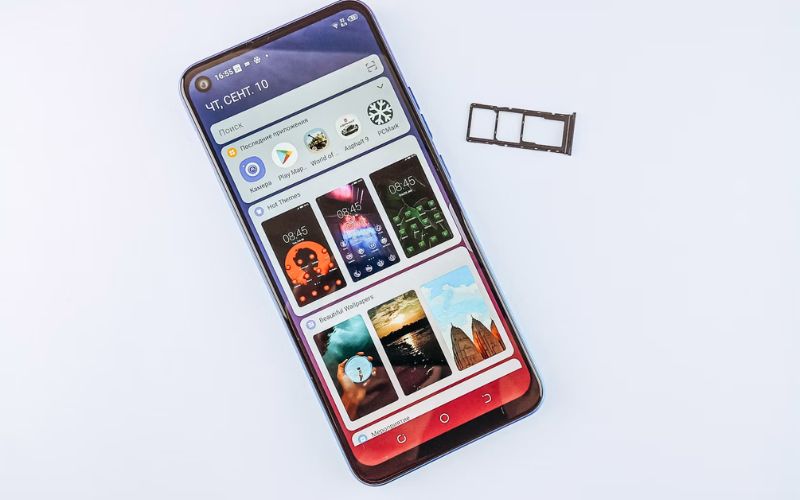
4. Physical SIM vs. eSIM Network Problems
If you’re troubleshooting a physical SIM network not available issue, the steps differ slightly from those used for an eSIM, even though both connect to a carrier network.
| Physical SIM | eSIM |
| Can become loose, dirty, or damaged | Has no removable card or exposed contacts |
| May fail because of poor tray contact or a damaged reader | Problems commonly involve activation, provisioning, or the downloaded profile |
| Can be tested in another compatible, unlocked phone | May support direct transfer between compatible devices and carriers |
| Can be replaced with another physical card | May be transferred, downloaded again, or reissued by the carrier |
Regardless of which type you use, carrier activation, device compatibility, account status, and network coverage remain essential for a successful connection.
>>> Read more: eSIM to Physical SIM: How to Switch Without Losing Your Number
5. If the Network Still Isn’t Available, It May Be Time to Look Beyond the SIM
If the physical SIM network not available error continues after the SIM and phone pass basic checks, the issue may involve your carrier account, coverage, or line activation. In that case, exploring another service option may be worth considering.
Lifeline is the government assistance program that helps eligible households reduce the cost of phone service or internet service through approved Eligible Telecommunications Carriers (ETCs).
Eligibility is based on household income or participation in other qualifying programs like SSI, SNAP, etc.
Only one benefit per household, and it is non-transferable.
As mentioned above, the benefit is provided through the ETC, and Cintex Wireless is one of those ETCs that is known for its quick and easy application process.
The carrier is merging with AirTalk Wireless. During this transition, eligible applicants can access many more device options and a streamlined application.
Applying generally involves four steps:
- Visit the carrier website and enter your ZIP code to confirm service availability.
- Choose an available device and plan based on your location, eligibility, and current inventory.
- Enter your basic information and upload proof of eligibility if requested.
- Submit the application and wait for the eligibility and approval result.
DISCLAIMER: The government does not cover device costs, only basic service through Lifeline. Any free or discounted devices, upgrades, or top-ups are limited-time Cintex Wireless and AirTalk Wireless offers and may vary by state, eligibility, and availability. Terms and conditions apply.
6. FAQs
Why does my phone detect the SIM but still show no network?
This usually means the phone can communicate with the SIM but can’t complete network registration. Common causes include carrier issues, inactive service, poor coverage, or incorrect network settings.
Can a damaged SIM still show a carrier name?
Yes. A partially damaged SIM may still provide enough information for the phone to identify the carrier but fail to maintain a stable network connection.
Will replacing the SIM card restore network service?
Only if the SIM is actually defective. If the issue is caused by your carrier, phone settings, account status, or network coverage, replacing the SIM alone won’t solve the problem.
Conclusion
A physical SIM network not available error doesn’t always point to a faulty SIM card. More often, it means the phone recognizes the SIM but can’t complete the final connection to your carrier’s network.
The most effective approach is to troubleshoot systematically. Check whether the SIM is detected, test it in another phone, verify your carrier account, and work through the network settings before requesting a replacement.